Search the Community
Showing results for tags 'edge browser extension'.
Found 1 result
-
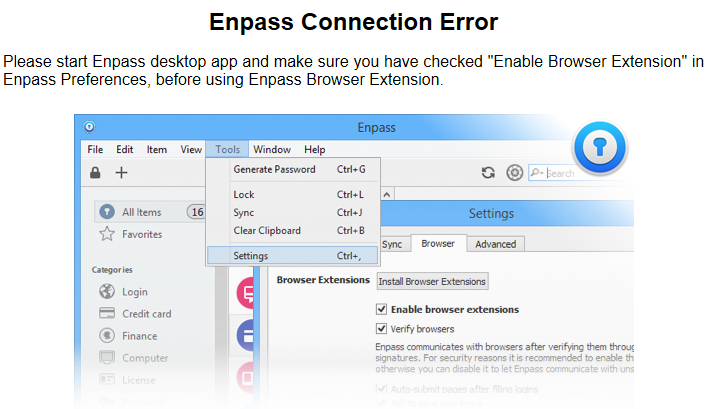
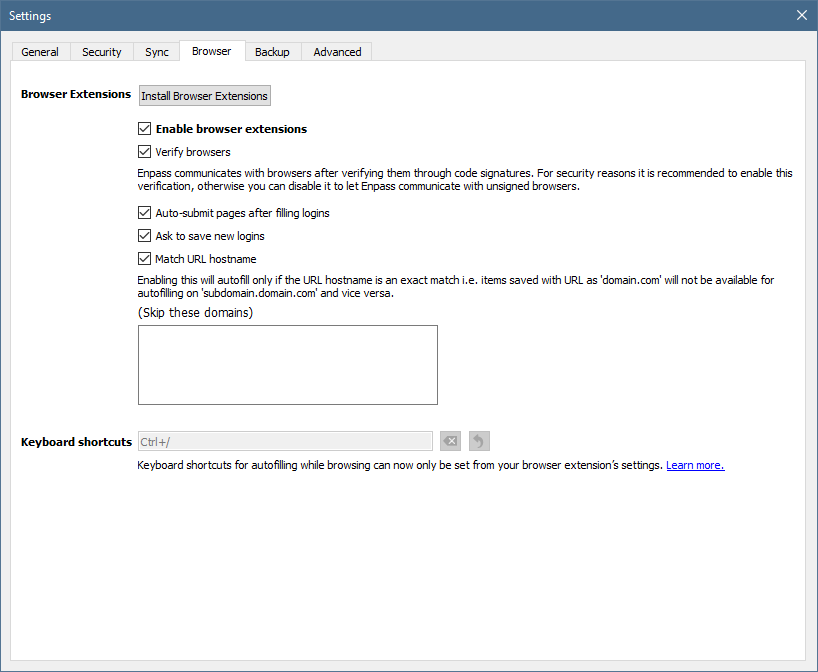
 I installed the new Enpass browser extension for Microsoft Edge. I also installed the latest Enpass 32-bit desktop app and selected "Enable browser extensions" in settings. Unfortunately, I continue to get the Enpass Connection Error (see screenshots). I see this issue was addressed in earlier posts for Chrome and Firefox. Hopefully we can now resolve it for Edge. Windows 10 Pro: 1709 16299.19 (FCU) Microsoft Edge: 41.16299.15.0 Enpass desktop app: 5.6.0 Enpass extension: 5.5.1 Troubleshooting Steps Taken: Uninstall/reinstall Enpass browser extension for Microsoft Edge Close/reopen Microsoft Edge browser and Enpass desktop app Uncheck/recheck "Enable browser extensions"