Leaderboard
-
rednewsch
Members1Points16Posts -
BrigoNortensson
Members1Points11Posts -
Bob___
Members1Points16Posts -
Groby
Members1Points8Posts


Popular Content
Showing content with the highest reputation on 06/02/20 in all areas
-
Hey @Bob___ Thanks for writing back. We appreciate your suggestion. Please note that we already have a feature request for the same, which is aligned for implementation. Thanks for the co-operation.1 point
-
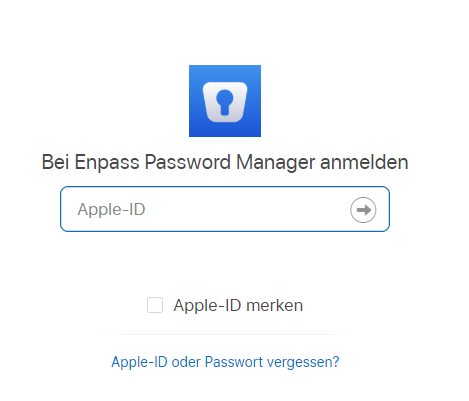
Hello, ok, so here's how my sign-on screen to iCloud looks like: THere is a check box "Apple ID merken", which means "keep Apple ID", or "memorize Apple ID". I have never checked this box because I was waiting to see something like "keep me logged in" and the semantics of "keep Apple ID" is not the same as "keep me logged in". This was misleading me. So this time I have checked this box. Let's see what happens. From the descriptions so far I was waiting to see the "keep me signed in" check box after Enpass signs in to iCloud and not before. Sorry if this was the problem. Thanks for pointing this out so clearly.
 1 point
 -
I have solved my problem, after about a day's worth of troubleshooting. Enpass 6.x does not handle spaces correctly in the webdav url. Spaces in a url should be encoded as %20, and that's what I tried. It would always fail to sync. If I put them into a path that had no space, I could get it to sync to any arbitrary folder, so it wasn't a problem with arbitrary paths. When I however use an actual space character in the url (instead of url encoding) suddenly it started working. I will now begin the process of upgrading to 6.x on all my devices (5.x was getting rather painful at this point, since there haven't been browser plugins in a long time). Mostly I was forced to figure it out, since iOS decided to upgrade my phone without my permission.1 point
-
Hello Garima, Thank you for your answer. I would be very pleased if your team could take this into account for the next Enpass update to better integrate the Windows Hello function into Enpass. But please also remember that you don't have to click on the Windows Hello smiley to use Windows hello Kind regards Bob1 point
-
1 point