Leaderboard


Popular Content
Showing content with the highest reputation on 12/08/17 in Posts
-
1 pointCreated an account just to ask for this, but can we get a lock for specific logins? For example, could we have custom login that has it's own second password/pin required to view or fill, even if the vault is unlocked. Ideally you could set this on a per item basis, so I have one for my bank, and another for something else etc. Perhaps just have it configured as a custom field?1 point
-
Not everyone is ignorant about the different versions - it's definitely confusing but mostly frustrating. Some of us use multiple browsers for whatever reason, in my case it's due to work and needing to test in different environments. It's great that there's finally Edge support, however, in order to use Enpass with both Edge and Firefox we have to have two separate versions installed. Without voicing our discontent for this the developers may not prioritise the feature appropriately.1 point
-
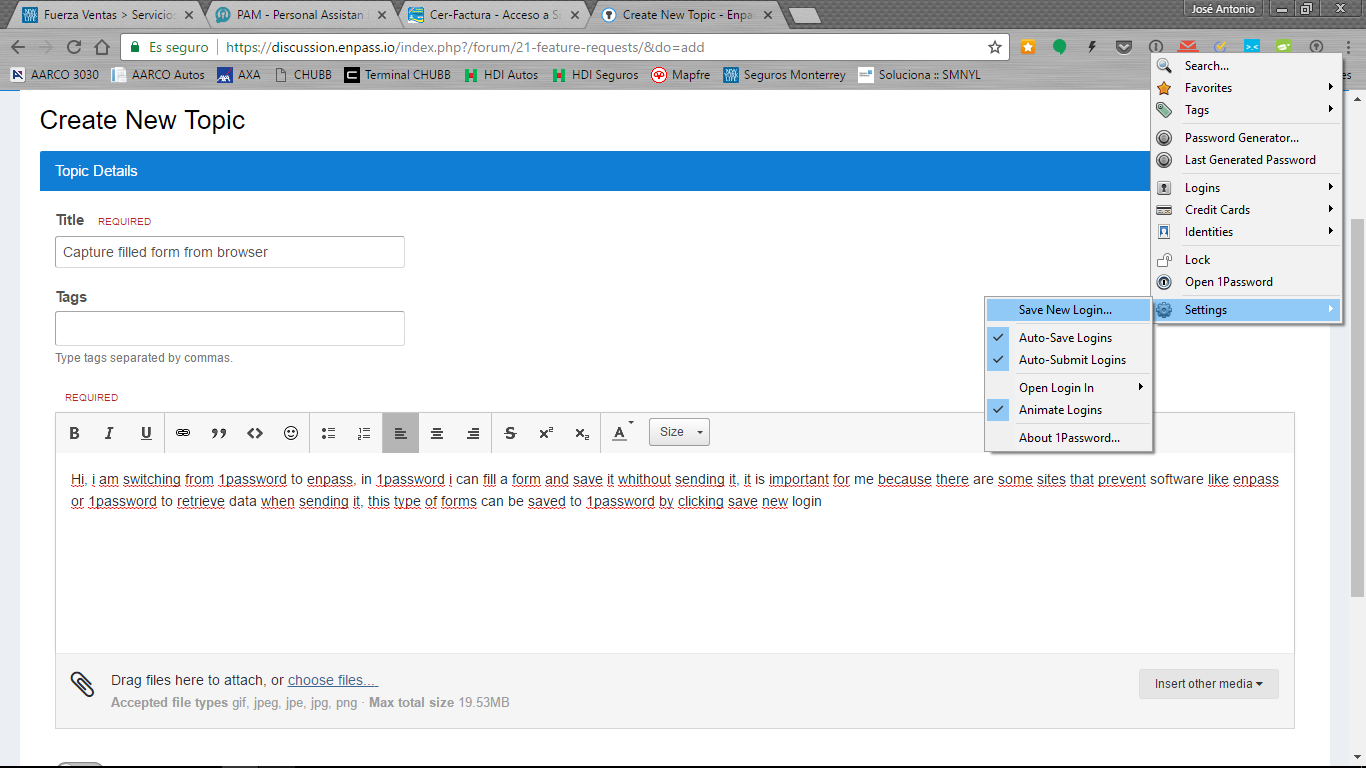
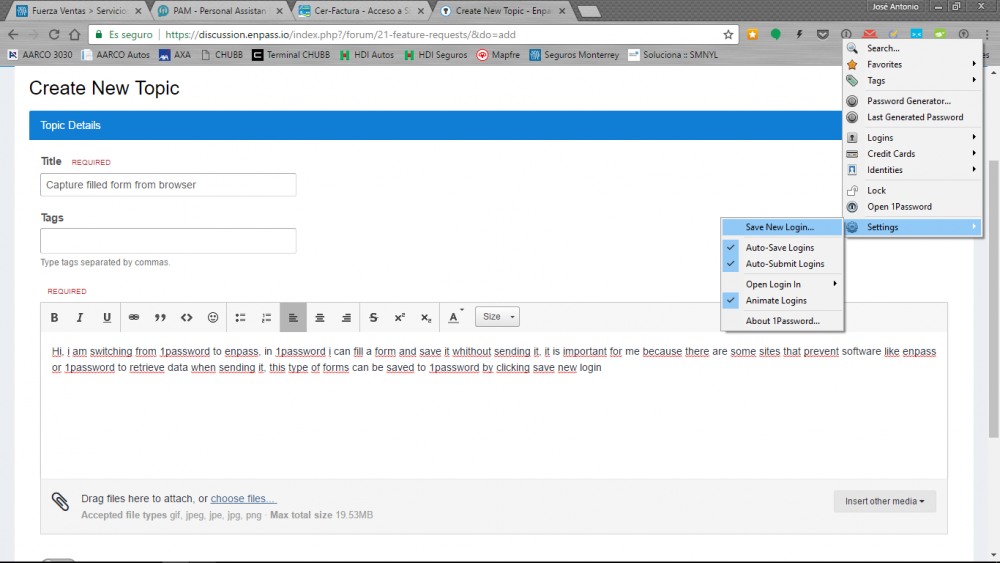
1 pointHi, i am switching from 1password to enpass, in 1password i can fill a form and save it whithout sending it, it is important for me because there are some sites that prevent software like enpass or 1password to retrieve data when sending it, this type of forms can be saved to 1password by clicking save new login button and it works perfect but it cannot be done in enpass, can you consider this feature?
 1 point