100 Watt Walrus
Members
-
Joined
-
Last visited
Everything posted by 100 Watt Walrus
-
-
-
USABILITY REQUEST: If Enpass for Mac isn't going to be revamped to look and behave like a native Mac app (which I'm guessing at this point it won't since any questions or suggestions in that vein get skipped over when developers reply), please at least make the app easier to use. Example: On a proper Mac app (like Enpass 5), the Preferences open in their own window and are quickly navigable by tabs at the top of that window. In Enpass 6, it's a three-click process just to get from one Settings panel to another. If the UI is going to remain like this, please at least make it possible to use browser-like key commands to navigate: CMD+[ for going back, and arrow keys to navigate to the settings panel you want (Vaults, General, Security, etc.). I can live with the Android/Windows-hybrid UI (despite finding it user-unfriendly) if navigating it can be made easier.
-
Usability issue: Menu Bar mini-window should remember where you left off if you've only been gone for <60 seconds. USE CASE: Copy-pasting account information from Enpass mini-window into a website on a browser that doesn't have an Enpass extension (or in my case, a browser where there current build doesn't work — i.e., Safari). STEPS TO RECREATE: 1) Visit site, pull up login form 2) Open Enpass mini-window 3) Search for the account you want and click the (i) to get to the account details 4) Click the COPY icon for the username or email 5) Paste that into the appropriate field on the website 6) Open the Enpass mini-window to now copy the password... RESULT: When opening the mini-window again, just seconds later, it has reverted to the default search UI. I'm forced to start all over again and repeats steps 3 through 5 in order to copy-paste the password for the account that I was just looking at 5 seconds earlier. DESIRED BEHAVIOR: Enpass mini-window should remember where you were for, say, 60 seconds, so you don't have to repeat multiple steps in order to copy both a username and password from that window. This makes for an incredibly frustrating user experience once it's happened a couple times.
-
-
-
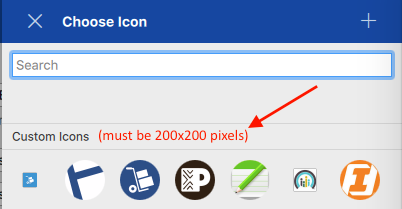
I was just coming back to this thread to say something about this myself. I mentioned this problem in the Beta 1 thread. After significant trial and error back then (resulting in many failed "custom icons" that Enpass doesn't allow the user to remove), I finally discovered that the image you use for a custom icon has to be exactly 200x200. This is really bad UX. At the very least, this limitation needs to be made clear to the user, for example: (note the first two icons are my failed attempts at getting the third icon, and now it's impossible to get rid of them) I'd be happy with this simple solution. But really, there's no reason this problem can't be fixed. I don't think there's any reason Enpass couldn't correctly downscale or upscale any square image. And I don't think it would be too difficult to scale a tall rectangular image to be 200px wide and crop out the top and bottom, or scale a wide rectangular image to 200px tall and crop out the sides. Since this is a new feature, and since we're still in beta, hopefully this issue on "on the board" for improvement before a production version is released. Also need to fix the problem of not being able to delete custom icons — there should be a right-click > Delete to get it done. (Here's another weird little detail: I dug up where these icons are stored on my computer in the hopes of deleting the useless ones, and while I found them, they disappear when Enpass is closed, then reappear when the app is launched again! Not only that, but if you delete an icon, it reappears when the app is next launched! I'm guessing this has to do with the data being backed up elsewhere, but damn if I can find it.
-
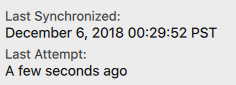
Oooohhhh. OK. In that case, I'd suggest using different language. The word "attempt" in Last Attempt very much implies failure if Last Synchronized doesn't have the same time stamp. So if Last Attempt doesn't exist specifically to let the user know if syncing isn't working, then how does the user know if syncing has failed? I'd strongly suggest leaving out Last Attempt and instead use Last Synchronized to show when Enpass last compared the local vault against the cloud vault (and made changes if they were found), e.g.: Last Synchronization: 2018-12-05 20:05 — all up to date! vs Last Synchronization: 2018-12-05 20:05 — sync failed (along with a "try again" button and a link to trouble-shooting options) Or something like that.
-
Thanks for the clarification, but having a banner logo shrunk down to the point of being illegibly small, and sticking on a gray background is just as bad, if not worse. Firstly, if these banners are shrunk to the point of being illegible, what good are they? A pixely too-big favicon is at least still recognizable as a logo. Secondly, as noted previously, sometimes this Clearbit Logo API is just pulling in utterly random images, apparently of random skyscrapers or something. Look at the Amazon and Target in the image I posted upthread to show the problems. The whole point of being able to fetch those icons is that they're icons, not web page banners. Honestly, you'd be better off writing a script that does a Google Image Search for the URL plus the word "logo," then picks the first square image in the search result. Actual favicons may not be the way to go, but the solution you have now is no solution. Thanks! Never knew about that. Thanks. Happy to help. I tried a dozen password managers before settling on Enpass, which was the clear winner for me, so I'm incentivized to help make 6 the best it can be. Cheers!
-
-
Similar experience on Mac, as described in my mega-bug-list in the Mac beta 250 thread:
-
Looks like syncing hasn't been fixed. I'm back to this all the time now... ...at least on Google Drive. Haven't tried others yet. In previous build, sometimes this would fix itself if you quit and relaunched Enpass. But not anymore. Syncing is failing 100% of the time and the only solution is to disconnect the account and reconnect. Then a day or two later do it again.
-
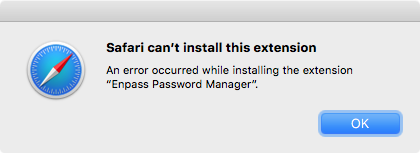
Deep breath, everybody — here comes a major data dump... NEW ISSUES IN BUILD 250 - Settings > Browsers > [Install Extensions] now links to the Enpass 5 extensions, not the Enpass 6 extensions, so if you follow that path to install extensions, none of them will work - Extensions installed from Enpass Beta Downloads don't always work correctly: Safari: Extension cannot be installed, as noted above in my post from 2081-12-03 15:21 Chrome: Every time try to use the extension after having launched a fresh Chrome session, I'm asked to authenticate (6 digit number thingy) Firefox: Seems to be OK, but I rarely use Firefox, so I'm just testing for testing's sake - Full-window version of Enpass does not remember window size from previous session Launch Enpass main window Make the window nearly full-screen Quit Enpass Re-launch Enpass (note that it launches the full-screen version at the size you previously selected) Close main window Open Menu Bar Enpass, and select Open Enpass from the hamburger menu RESULT: Enpass opens a much smaller main window, in the upper right corner of the screen ALSO, from launch to launch, main window doesn't remember its position on screen Park your Dock on the right edge of the screen instead of the bottom Launch main window Hold down OPT while clicking the green "full screen" button in the red-yellow-green buttons across the top of the window (this make the window take up the whole screen, except for the Menu Bar and Dock) Quit Enpass Relaunch Enpass RESULT: Window is the correct size but it's moved to the right by 30-40px, so it's centered on the screen, which means it's partially underneath the right-edge-anchored Dock (This did not happen in build 220.) - In Menu Bar UI, mousing over sidebar icons (Home, Favorites, etc.) does not show what they do. Only clicking on them displays the description pop-over... ...and once you do click on them, that description does not go away until you physically click elsewhere — even after closing/reopening the Menu Bar UI Also, as with the UI in general, these description pop-overs do not look or behave like they do in any other Mac application Note: Just confirmed this was also a problem in build 220, but I only noticed it today - Enpass bombs whenever I click Password Generator after trying to turn on the options for both including numbers and making the password pronounceable I'm not sure how reproducible this is because I'm no longer able to click Password Generator at all without the app bombing, but here's what happened: In full-window Enpass, click Password Generator Turn on switches for all the elements except "pronounceable" (including the option for requiring numbers) Now turn on "pronounceable" RESULT: Enpass bombs Relaunch and unlock full-window Enpass Click Password Generator (or CMD+G or Tools > Generate Password) RESULT: Enpass bombs Steps 5-7 now repeat — impossible to use Password Generator - As mentioned upthread (2018-11-28), the previous beta's icon for All Vaults is much better than the new one Old icon: Several dots of different colors (multiple vault icons miniaturized) inside a circle, fencing them together. It clearly says, "here are all your vaults together." New icon: A multi-colored circle that isn't clearly representative of anything. It looks like a knock-off of the Picasa logo. - As mentioned upthread (2018-11-28), most of the Favicons used for item icons have changed from actual favicons to what looks like the banner logos of the sites, and in some cases, utterly random images This may be a problem with the way the new build handles favicons, full stop. But whatever the case, the new build does not display the correct favicons at least 95% of the time as near as I can tell. See image attached to that earlier comment. ISSUES PREVIOUSLY REPORTED THAT HAVE NOT BEEN FIXED IN BUILD 250 - After opening the Menu Bar UI, the only way to close it is to click somewhere else on the screen or use the ESC key Standard UX for Menu Bar items is that you should be able to close them via clicking the Menu Bar icon again - CMD+E from the Menu Bar mini-window no longer launches main-window Enpass You now have to click the "hamburger" menu in the lower left corner of the dropdown There is now no way to open the full Enpass window with a keyboard shortcut - The universal keyboard shortcut for the mini-window is not adequately customizable The user should be able to chose the entire key combination, like every app that allow the creation of custom universal keyboard shortcuts. Plus, CMD+OPT+[key] is a very common combination within other apps, so it's very likely that forcing Enpass users to use CMD+OPT+[key] will cause a conflict in other apps. Example: In Photoshop (at least in an older version I have), CMD+OPT+E is used to merge layers, so I can't use the intuitive CMD+OPT+E (for Enpass) as my shortcut. - The universal keyboard shortcut opens the mini-window in the center of the screen It should open anchored to the Menu Bar icon, just like it does when you click the Menu Bar icon - When in the main window, if you CMD+H to hide, it closes the window instead of just hiding it This means you have to go back to the Menu Bar, open the mini-window, re-select the Menu button, and choose Open Enpass again to get back to the main window. I'm glad CMD+W was fixed, but CMD+W and CMD+H are not meant to do the same thing. - In the sidebar, if you hide Categories or Tags, when you reveal them again, the item counts are missing - It's possible to create your own Categories, but it's a HUGE hassle to use them because templates aren't universal Every time you create your own category, it's impossible to then create any items within because there are no templates for the category. Templates should be universal — or at least you should be able to start with the universal list of templates and rule OUT templates that don't belong in your new category. Plus, having to duplicate templates for a new category just creates clutter. - User-created templates should be at the TOP of the template list, not the bottom One creates custom templates with the intention of using them frequently — they should be easy to find Or at the very least, they should be in alphabetical order with the rest of the templates - When creating a new item from your own custom template, the Add Title field should be blank, not already filled in with the name you gave the template I've created my own template called "(basic)" that I use for everything, but whenever I create a new item with that template, the Add Title field isn't blank. Instead it says "(basic)" and I have to click in that field and replace that text (FYI, Anshu kumar said on 2018-10-11 that this would be fixed in the next build) - Duplicate Item needs to be part of the contextual menu when you right-click on an item in the Items pane I know this can be found in the three-dots menu of the Item Details panel, but that's not as intuitive as right-clicking on the item you want to copy - Tag fields still do not recognize and offer to auto-fill existing tags The upshot here is that users have to perfectly memorize every tag they've ever created: If you've previously created a tag called "Shopping," then you're adding tags to an item and you type in just "Sho" Enpass should know and start to auto-fill "Shopping" If this doesn't happen, users are likely to end up with multiple tags for the same thing: Shop and Shopping, Bills and Billing, Med and Medical, etc. - It's impossible to scroll the sidebar when in Edit Item mode When in the Edit Item screen, everything else is grayed out and cannot be scrolled This means if you need to see all your tags in the sidebar so you can type in the right ones for your new item, you have to remember to scroll down the sidebar before you start creating or editing an Item This goes hand-in-hand with the Tag fields not offering auto-fill, because if you can't scroll the sidebar to see the names of all your tag, and there's no auto-fill for this field, you have to have every one of your tags perfectly memorized in order to add them to any new Item - In Edit Mode, when scrolling through an Item that has a lot of data (i.e., there's a lot to scroll through), scrolling doesn't work properly unless you click and drag the scroll bar When two-finger scrolling on a trackpad, the panel "bounces" back to the top as your scroll. (See this screen recording — in the first half, I'm trying to two-finger scroll down (and failing), then I click and drag the scroll bar to actually get to the bottom, then I try to two-finger scroll back up (and fail that too). - When adding tags to an Item, hitting [Tab] creates a new Tag field (so you can add additional tags), but does not select that new field If you hit [Enter] between tags, a new tag field is created and selected, so you can just type your new tag But if you hit [Tab] between tags, a new field is created but not selected, so you then have to physically click that new field to type your next tag - "Add to Vault" in the right-click menu and Item menu should be available even when in All Vaults It's not that intuitive to have to remember to go to the individual vault where that items lives in order to take this action (although I do understand the logic and that this may not be an easy thing to change) - In Password Audit, sometimes when you click on one Item, then click on another, you end up with both selected, then a third and a forth, as if you'd been SHIFT+clicking instead of just clicking Password Audit > Identical Select any Item in the Items column Click that item's show password button Now click on any other Item in the Items column RESULT: The original item and the new item are now both selected Now click additional items RESULT: Every item you click remains selected — it's impossible to click any one item to see its details - In the Vault Settings > Change Password field, it's not possible to move the cursor at all, either by clicking or by the arrow keys If you make a mistake in the password you're changing, the only way you can edit is by backspacing. FEATURE REQUESTS (some of which have been requested before) - Ability to choose your own Default template I have my own template I use for everything, the upshot of which is that it's impossible for me to use the Autosave feature in Enpass Assistant because it cannot use my template. So I'm stuck manually creating new entries for every site and service. - In addition to being able to make your own default template, the app needs the ability to delete templates There are dozens of templates I will literally never use. They get in the way of quickly accessing my custom templates - When the browser extension offers to save login information on a new site, which template is used by default should be up to the user Enpass Assistant offering to save new logins is useless if the automatically-created item is in the wrong template QUESTIONS - I thought this build was supposed to include the ability to choose the location in your cloud service where Enpass would store its walletx — but that does not appear to be the case. How do I do this? - And where is the backup stored by default? Vault Settings shows "Last Synchronized 4 minutes ago" but Google Drive > Enpass > sync_default.walletx is 4 months old. Another vault syncing to a different Google Drive account doesn't have an Enpass folder at all. - How does one restore from a cloud backup? AND OF COURSE... - The UI needs to be more Mac-like and more user-friendly, for example... Broadly, the design of the app is too much like mobile for a desktop UI. Example: navigating the settings is a hassle. There's too much nesting of sub-sections. If the settings opened in their own window (like Enpass 5), they could be much more quickly navigated. Also, there are parts of the UI from which its impossible to reach the settings directly. For example, if you're in the Add Item sidebar, CMD+[comma] does not bring up the settings. Having the "edit" icon (pencil) in the middle of the header is counter-intuitive. It should be on the "card" along with "favorite" and "more." Editing any given Item should take place in the same part of the screen as viewing the item. Having a separate Edit UI roll out from the right is problematic because it becomes impossible to interact at all with the rest of the app. (As mentioned above, while editing it's impossible to scroll the sidebar to see your tags) In the sidebar, if you mouseover the Categories header, you get a "..." that brings up an "Edit Categories," but if you mouseover the Tags header, you get a "+" that brings up an "Add tag" overlay. Instead Settings > Customize should include a Tags area where you can add, edit, hide, and delete tags — and the sidebar's Tags header should behave the same way as the Categories header. UI consistency.
-
-
Yeah, this was a bit of a botched roll-out. Things don't always go smoothly with betas (the price you pay for helping test software), but this one has been rough. At some point they have to test the process of upgrading from the current public version, to be sure it goes smoothly for people who are not part of the beta. This appears to be that test. (Having said that, Enpass 5 is actually prompting users of the production version to upgrade to this beta — which is definitely not ready for those users! I hope the Enpass team is ready for an influx of upset support tickets — I feel bad for you guys!)
-
Another issue with importing my previous Enpass 6 data: Most of the Favicons used for item icons have changed from actual favicons to what looks like the banner logos of the sites, and in some cases, utterly random images. This may be a problem with the way the new build handles favicons, full stop. But whatever the case, the new build does not display the correct favicons at least 95% of the time as near as I can tell. See attached image.
vsrealfavicons.thumb.jpg.79df2588e8e3ecb8729bb606e9efcb06.jpg)
-
FYI, the previous beta's icon for All Vaults is much better than the new one: Old icon: Several dots of different colors (multiple vault icons miniaturized) inside a circle, fencing them together. It clearly says, "here are all your vaults together." New icon: A multi-colored circle that isn't clearly representative of anything. It looks like a knock-off of the Picasa logo.
-
Please follow these steps: Open Enpass and take the backup of Enpass data save it manually on the device. Go to Enpass settings --> Advanced --> Apply function Erase Everything. NOTE: Before re-installing the app make sure you already have the backup of Enpass data. Now open Enpass and restore your backup files. Hope this helps! Well, that got my vaults back, but created additional problems of its own: 1) At the end of the process, I was prompted to install browser extensions — and it took me to a page of Enpass 5 extensions. 2) Restoring the data didn't restore the connection to my cloud accounts for syncing. When I went to Settings > Vaults > Primary and clicked [Set Up Sync], the process ended with the browser launching the previous beta — 6.0.0 (220) — not the current beta, which is still displaying a spinning gif showing it's "thinking." Do I need to manually uninstall the previous build before this one will work with cloud services?
-
-
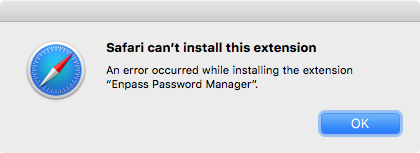
I was having this problem, and in the process of coming to post about it, I saw the previous beta thread had been closed — which was the only way I learned there was a new build of the beta. After installing the new build, it's working for me... ...in Chrome anyway. Can't even install the new extension in Safari. Posted about it in the thread for this new beta build: https://discussion.enpass.io/index.php?/topic/4866-latest-enpass-6-beta-for-mac-is-now-available/
-
-
-
New bug: In the Vault Settings > Change Password field, it's not possible to move the cursor at all, either by clicking or by the arrow keys. If you make a mistake in the password you're changing, the only way you can edit is by backspacing.
-
Ah ha! I feel a little stupid for not having realized being in All Vaults might be the problem! Thanks!
-
New bug: Sometimes it's not possible to scroll within the Edit UI. For example, when I bring up a new Default template, I can't get to anything below the Tags field, unless I make the window bigger. No scrolling, no scrollbars. Quitting and relaunching Enpass fixes the problem. But it's happened at least 3 times in the last week. Haven't been able to discern how this problem comes about, but will provide steps to recreate if I can figure them out. Running El Capitan (10.11.6) on MacBook Pro Late 2009.

vsrealfavicons.jpg.ed13050da59a4c00e27c9944e0f1aa95.jpg)