Search the Community
Showing results for tags 'addon'.
Found 3 results
-
Hello, Win10 Pro Enpass Desktop 5.5.6 Firefox 59.0.1 I have installed Enpass 5.5.6 through the windows store. Downloaded and installed the EnpassNMHost.exe. The Browserextension is activated in Enpass Desktop, but I get an Enpass Connection Error: "Enpass extension is not able to connect with the Enpass app. " when calling the Broserextension. The Browserextension in Edge and Chorme is working. The Winuser is a Standarduser, no Admin-account. Any Ideas? Thanks Roman
-
Hi Support, With the most recent firefox 57 release. Enpass Add-on has been disabled by Firefox due to being legacy and unsupported. Please update the firefox add-on to support the latest firefox 57. Many thanks
-
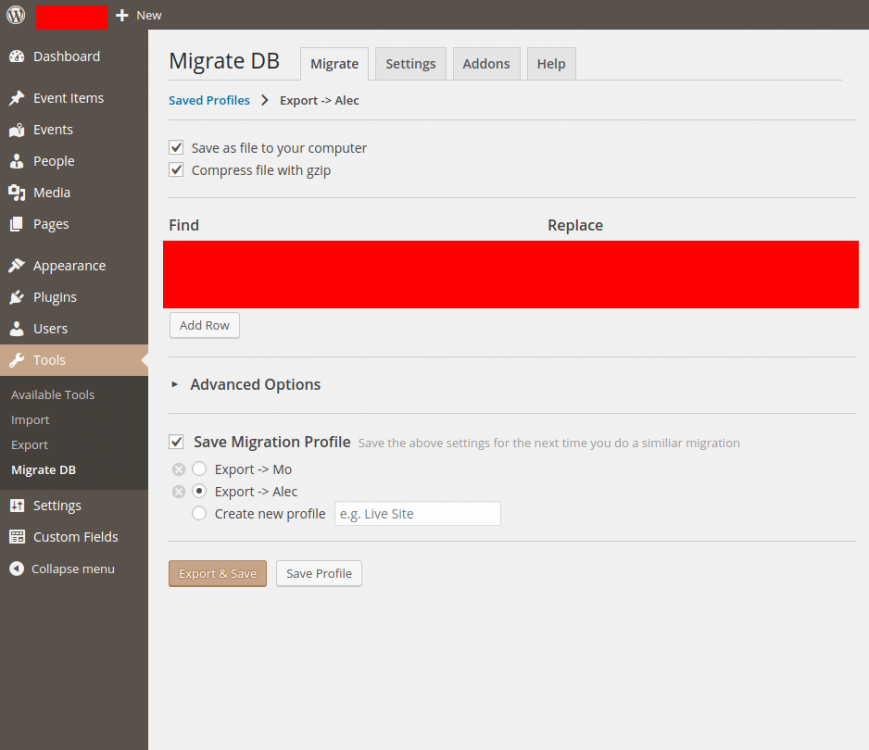
 To reproduce this bug: 1. Install Google Chrome + the Enpass Password Manage extension 2. Access a Wordpress admin dashboard with an admin account 3. Install the WP Migrate DB Wordpress plugin 4. Go to Tools -> Migrate DB 5. Fill out the form and select 'Save Migration Profile' 6. Type a profile name and click 'Save profile' 7. Go back to Tools -> Migrate DB 8. Select your saved migration profile, you should see something similar to this: 9. Click 'Export & Save' What should happen: The form is submitted as-is What happens: Somehow the Enpass Password Manager Chrome plugin clicks on the 'Create new profile' radio button before the browser submits the form.