Search the Community
Showing results for tags 'db'.
Found 3 results
-
 Recently something came across my mind. Enpass user manual says that all my data is encrypted using my master password then how come when I switch on biometrics I can open enpass with my fingerprint only?
 -
Hello Everyone I'm trying to import from my KeePass Database, but no matter which format I choose (*.csv, *.xml, *.html) and which encoding I use (UTF-8, ANSI) and which Enpass Version I use (Current release on Windows Store which I tried first or 32-Bit Beta Version which I tried after that) it always keeps saying "nothing to import". The Manual of Version 6.2 says it should be possible: https://www.enpass.io/docs/manual-desktop/import_keepass.html Can you guys help me? Kind regards Nick
-
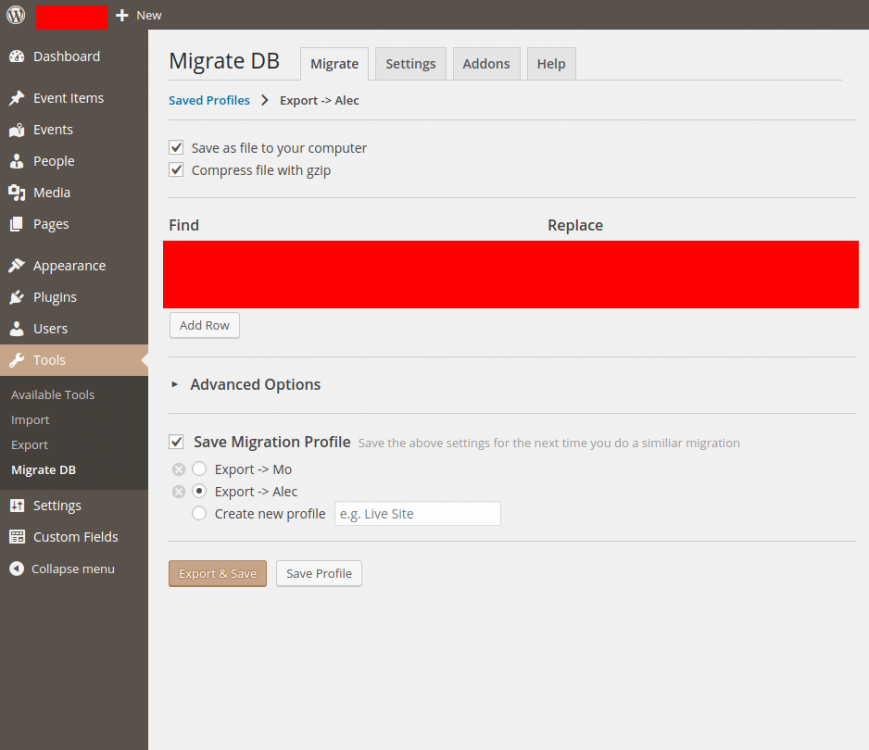
 To reproduce this bug: 1. Install Google Chrome + the Enpass Password Manage extension 2. Access a Wordpress admin dashboard with an admin account 3. Install the WP Migrate DB Wordpress plugin 4. Go to Tools -> Migrate DB 5. Fill out the form and select 'Save Migration Profile' 6. Type a profile name and click 'Save profile' 7. Go back to Tools -> Migrate DB 8. Select your saved migration profile, you should see something similar to this: 9. Click 'Export & Save' What should happen: The form is submitted as-is What happens: Somehow the Enpass Password Manager Chrome plugin clicks on the 'Create new profile' radio button before the browser submits the form.