btr
Members
-
Joined
-
Last visited
Everything posted by btr
-
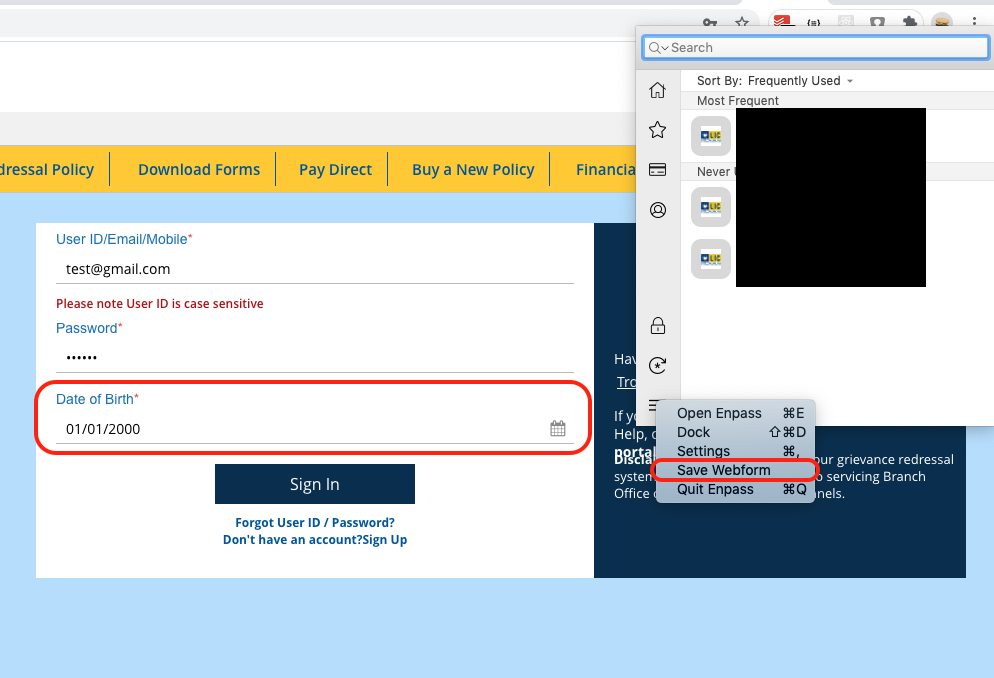
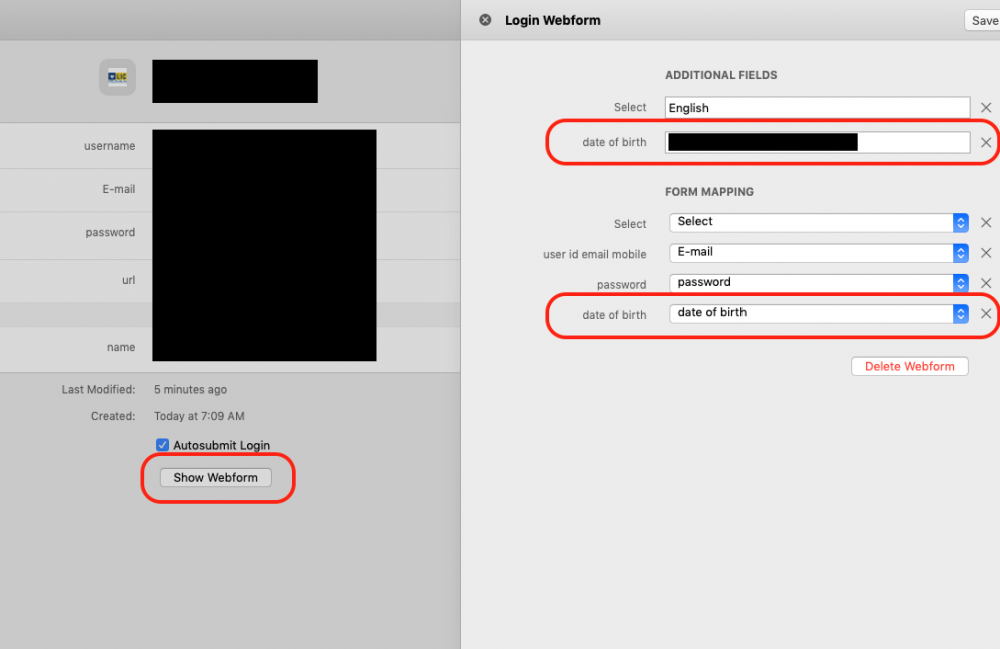
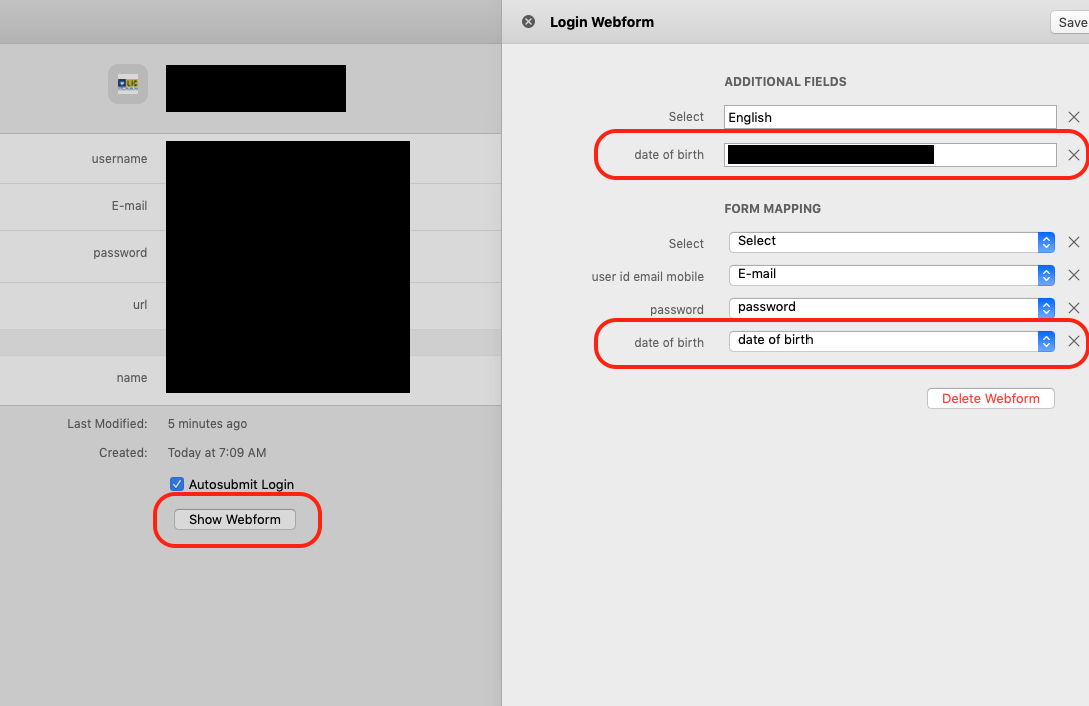
This was so hard to figure out for me - hopefully the screenshots help you understand it. They should really make some videos to explain the features. Ok, so first thing to understand - you CAN'T create a MANUAL mapping of form element/id to extra fields directly (from the main app). To create - 1. You need to initiate it by going to the webpage with form, filling in the values and then opening the Enpass assistant (popup). (Like image 1) 2. Now click on the dropdown in assistant and it'll show a extra menu item - "Save webform". That'll capture the mapping and field value. If you want to verify the value or change it later on, 3. Go to the full app and find that login item. Here, you'll see a extra "Show webform" button (Like image 2). Click that to see extra fields. 4. Here, you'll see all the extra field values first and then a mapping below that. You can change the value here. Image 1 - (Capture webform) Image 2 - (View/edit webform values) Hope it helps.