Panka
Members
-
Joined
-
Last visited
-
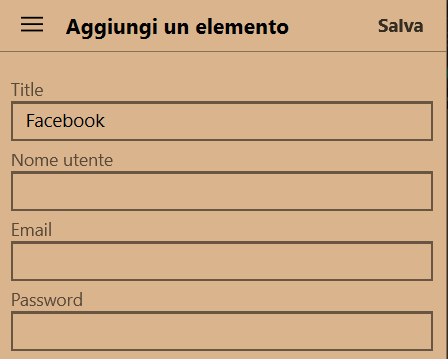
Hi, I'm using Enpass on Windows 10, version 2004 - build 19041.804, Firefox 86.0 (64 bit), Chrome 88.0.4324.182. I tried a few websites. It's happening on all of them, the extension doesn't capture email and password. The last one was on Facebook, either on login and on a new account creation.
-
In the meantime, I tried enpass on android with some apps logins, like Messenger, and it seems to work. The issue on pc browsers still happens.
-
Hi, I'm evaluating Enpass by giving a try to the free version, but I'm facing some issues. I installed the windows app, Firefox extension and Android app. -On windows: when I login to a website the extension proposes to save a new item in the vault, but email and password fields are empty. I tried with a well known website like Facebook jsut to be sure, but the same issue happens on other sites. -On android: I turned on accessibility option and used chrome, but the app doesn't ask me to save the new login. Am I doing something wrong? Are these features that I can't use with the free version? Thanks in advance.