tonyliangli
Members
-
Joined
-
Last visited
-
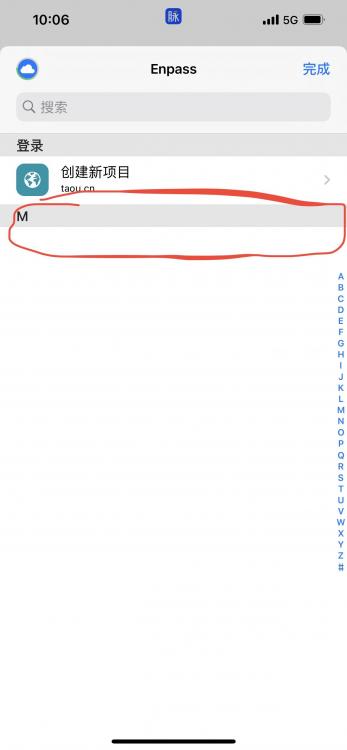
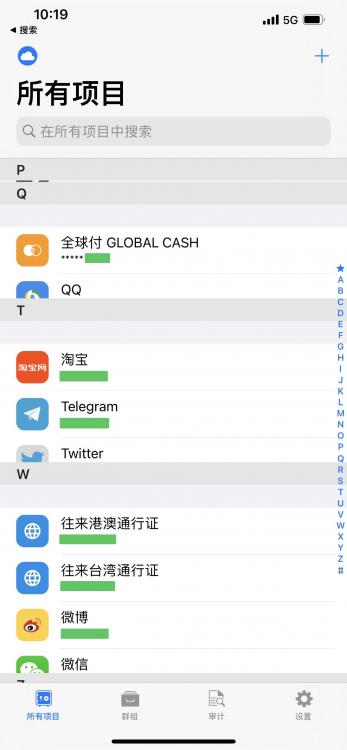
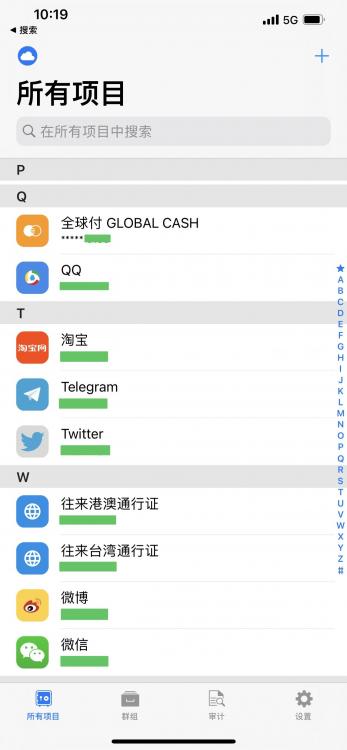
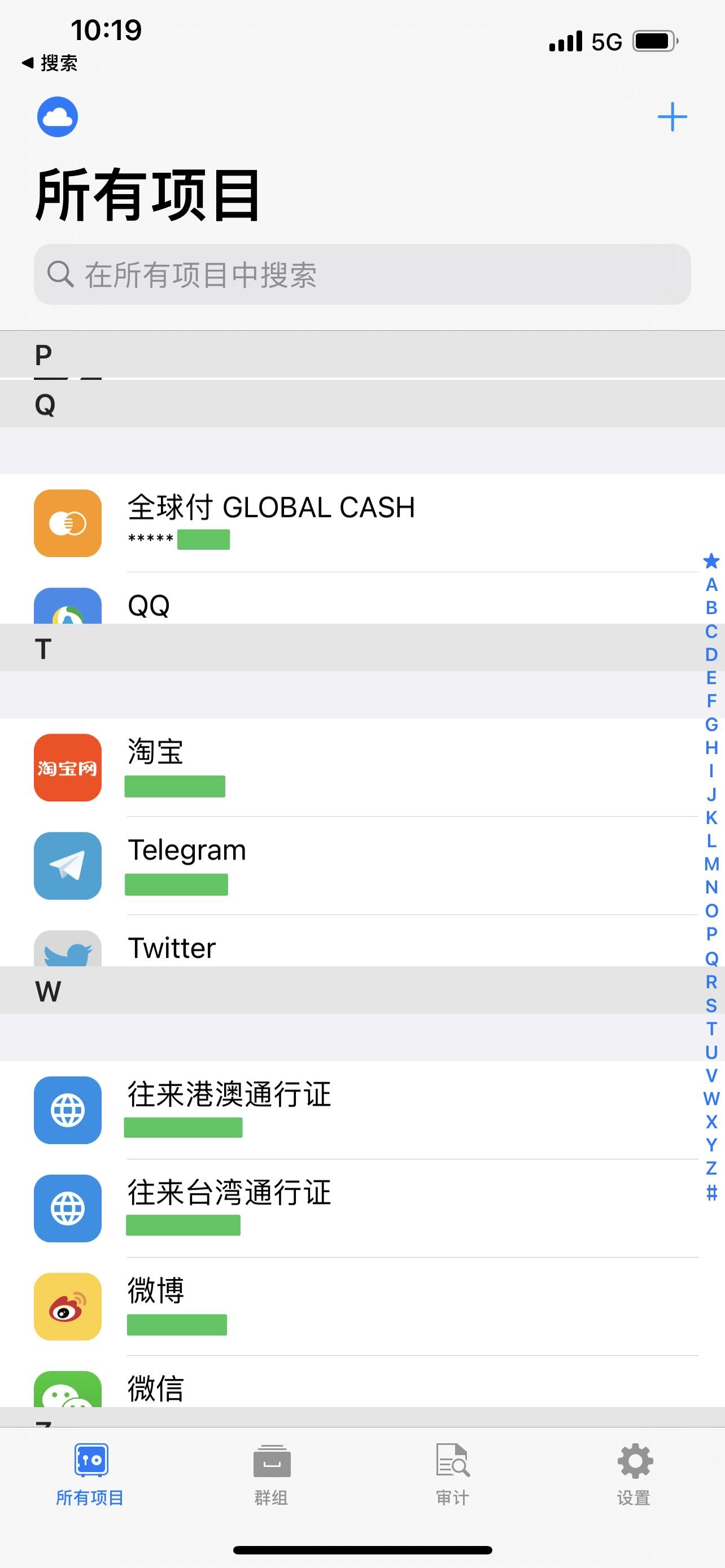
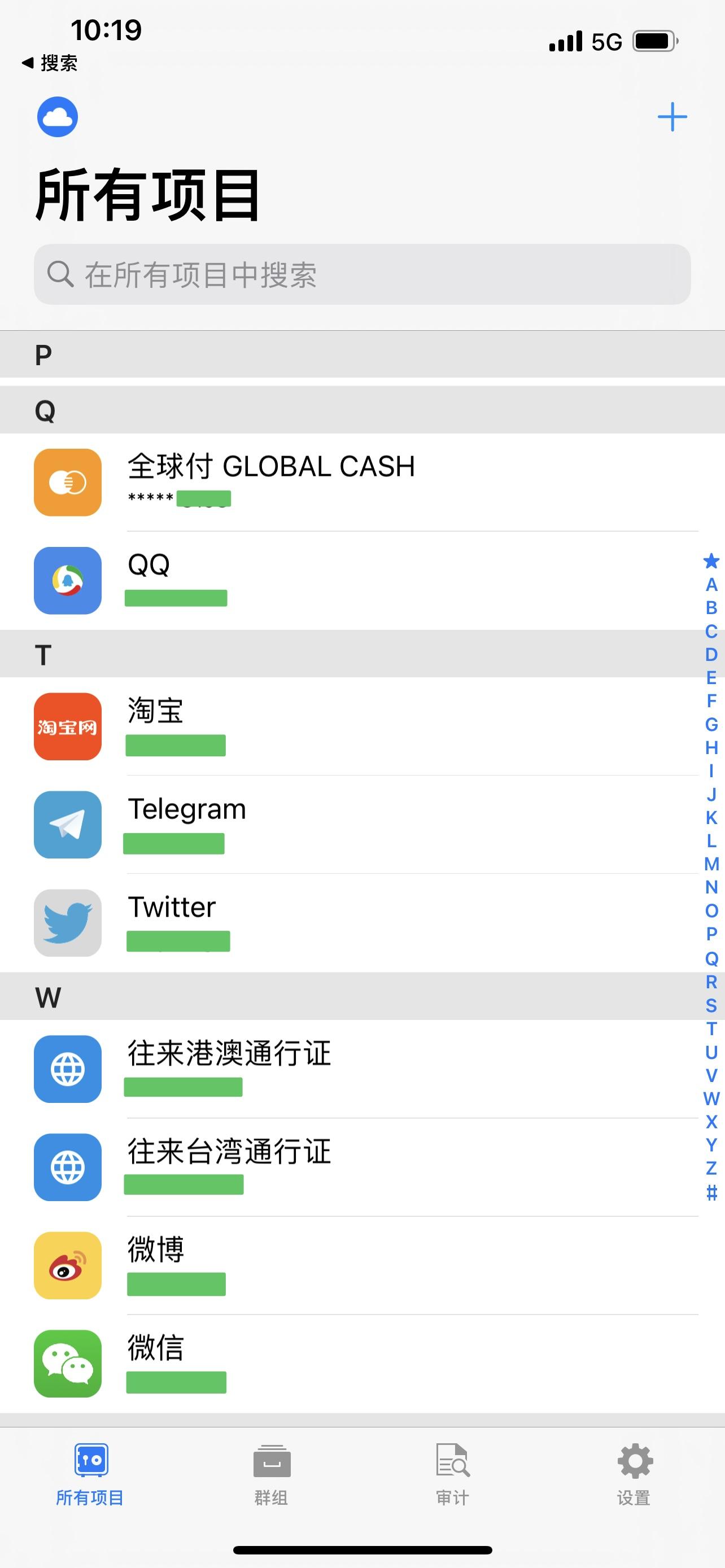
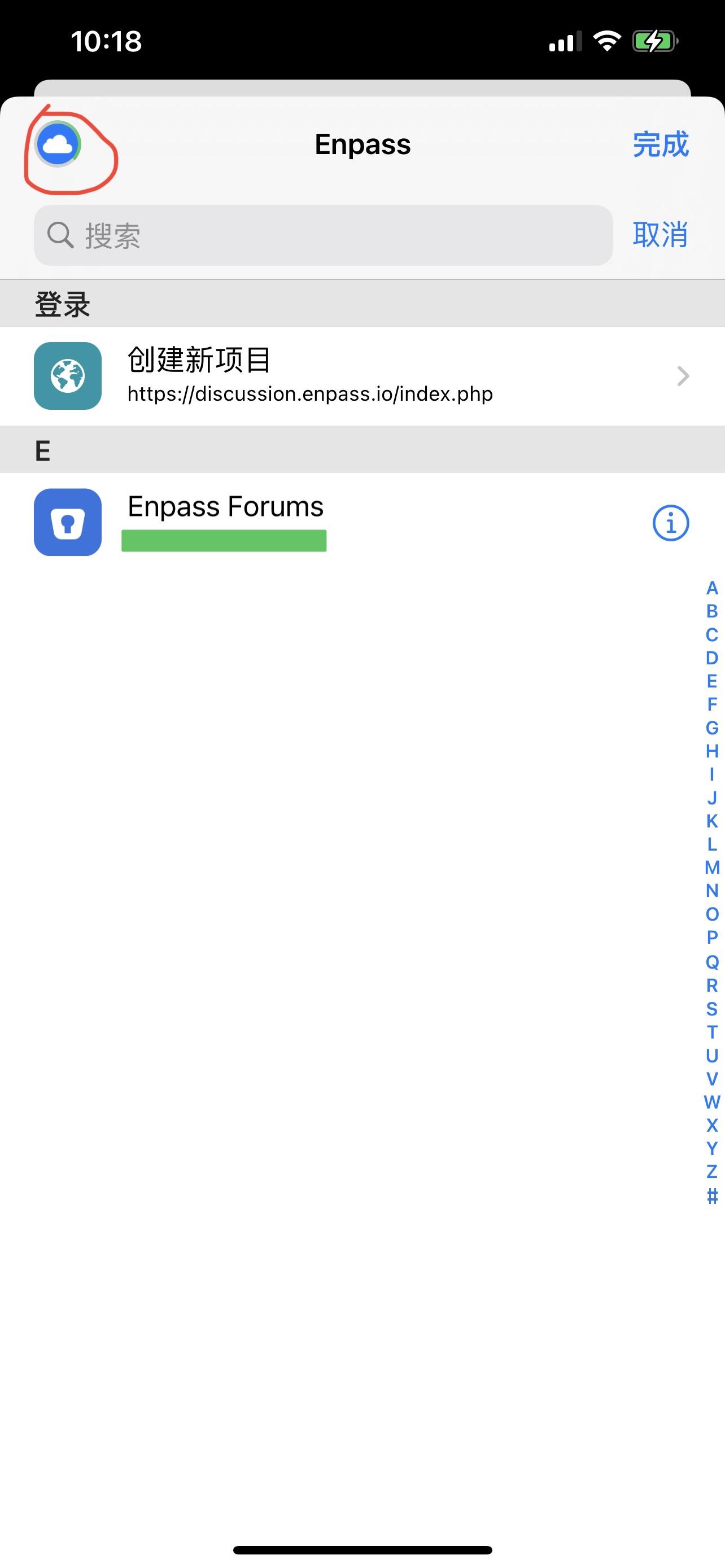
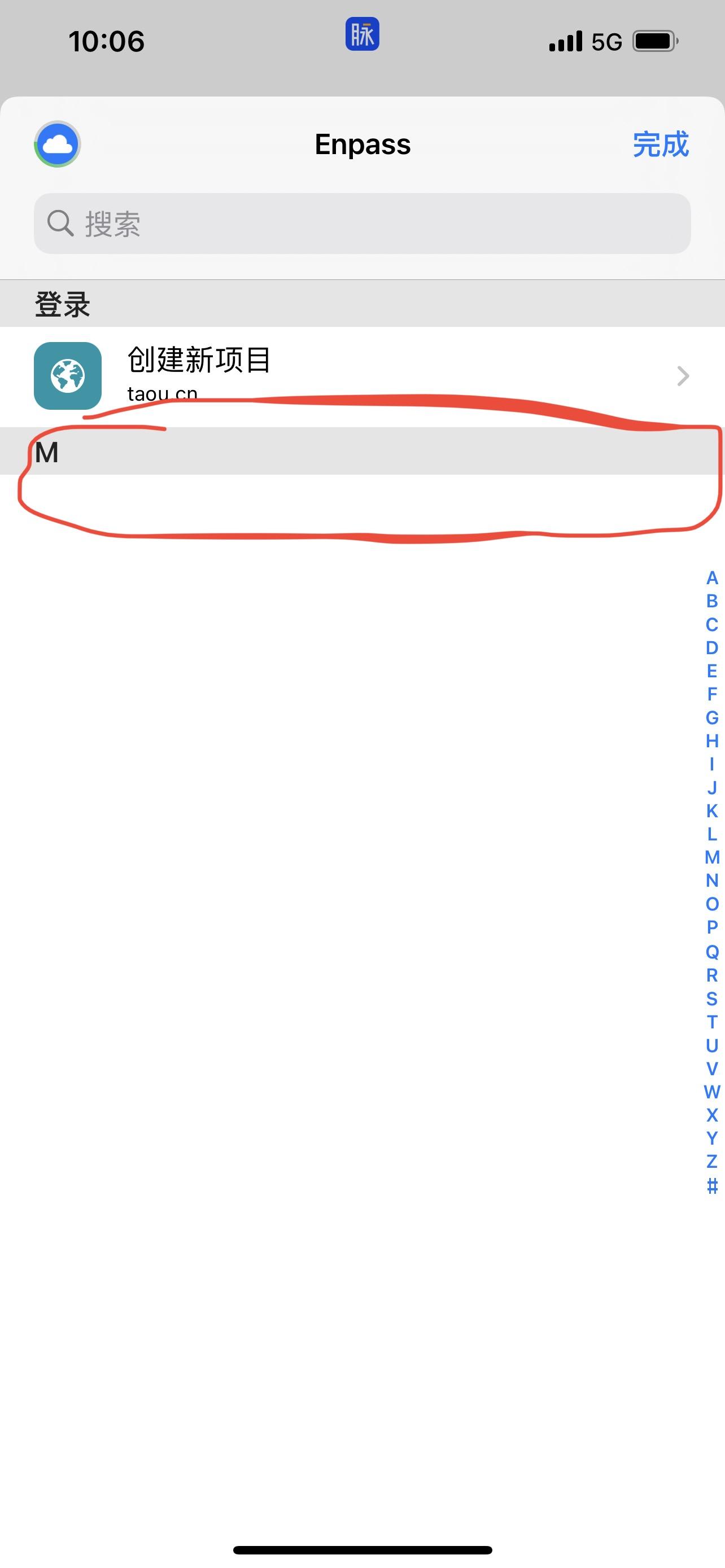
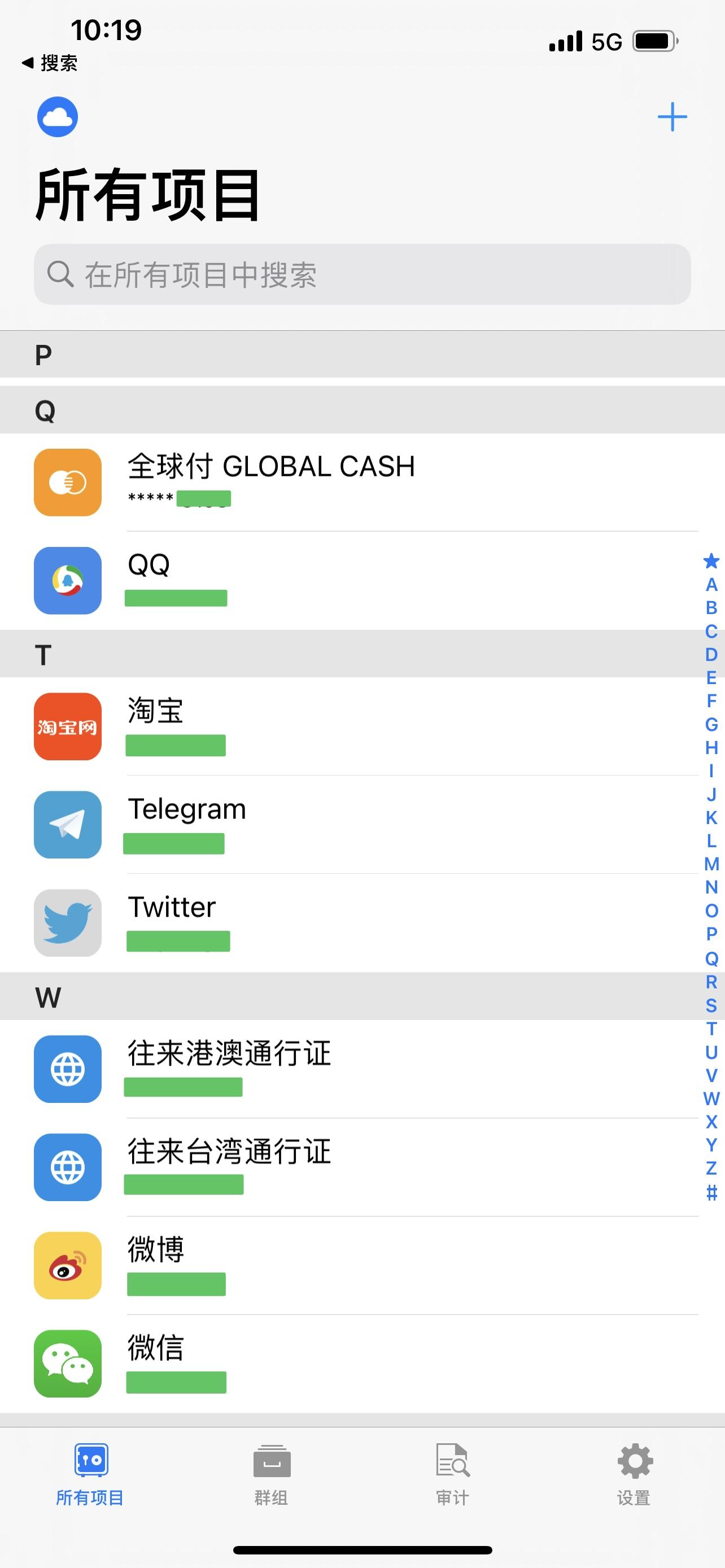
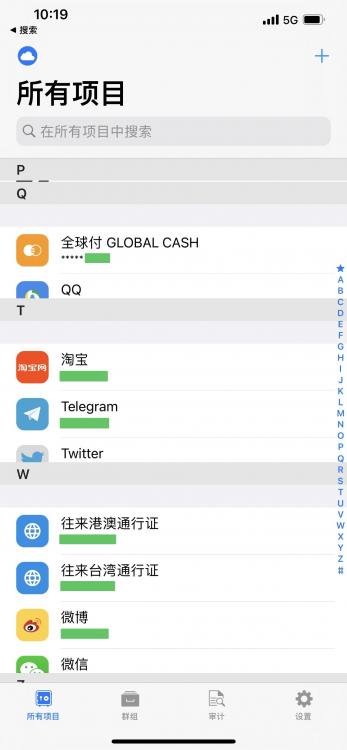
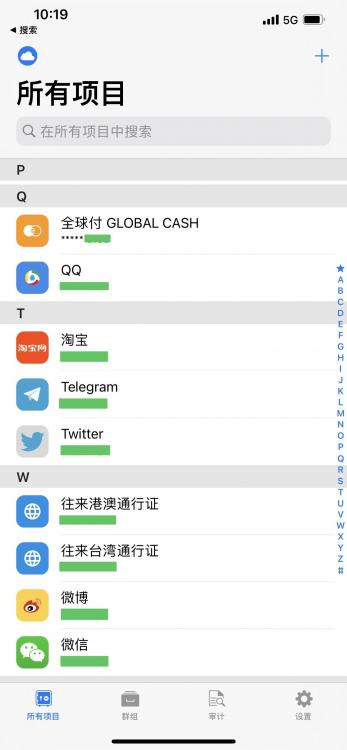
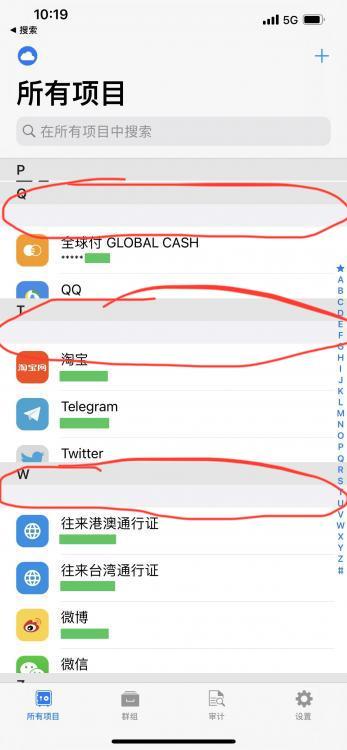
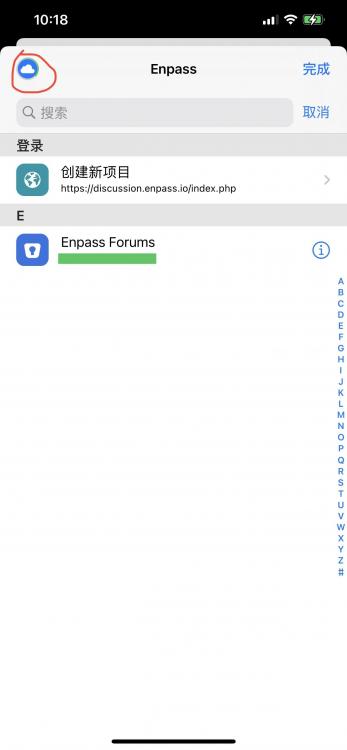
Hi, Thanks for fixing the blank items bug in the password filling page. The new item (edited item) offset bug seems not fixed yet. This is how you reproduce the bug: 1. Scroll your list to the middle (anywhere but the top) 2. Add a new item whose first alphabet is not shown in your current view. 3. As shown below, there will be an offset between the grouped alphabet bar and the items. You have to scroll up and down to fix it. And another bug is the in the password fill page, the syncing icon on the top left corner keeps spinning. I’m not sure if it’s designed that way. I can’t determine whether the sync process is completed. Thanks for making such a great app.
-
Some items became blank in the autofill page in the latest iOS beta 6.7.0 (555), mostly app autofill pages (not web pages). The blank item can still be selected and autofilled. Everything’s fine for the App Store version. Probably due to the new syncing function in autofill. And there’s another bug. Please see the two images. When I add or edit an item that needs to be scrolled to appear. Then item list is broken (misaligned). You need to scroll up and down to fix this. This happens on version 6.7.0 (555).