

Skip to content
View in the app

A better way to browse. Learn more.

Enpass Discussion Forum

A full-screen app on your home screen with push notifications, badges and more.

To install this app on iOS and iPadOS
  1. Tap the Share icon in Safari
  2. Scroll the menu and tap Add to Home Screen.
  3. Tap Add in the top-right corner.
To install this app on Android
  1. Tap the 3-dot menu (⋮) in the top-right corner of the browser.
  2. Tap Add to Home screen or Install app.
  3. Confirm by tapping Install.

passi

Members
  • Joined

  • Last visited

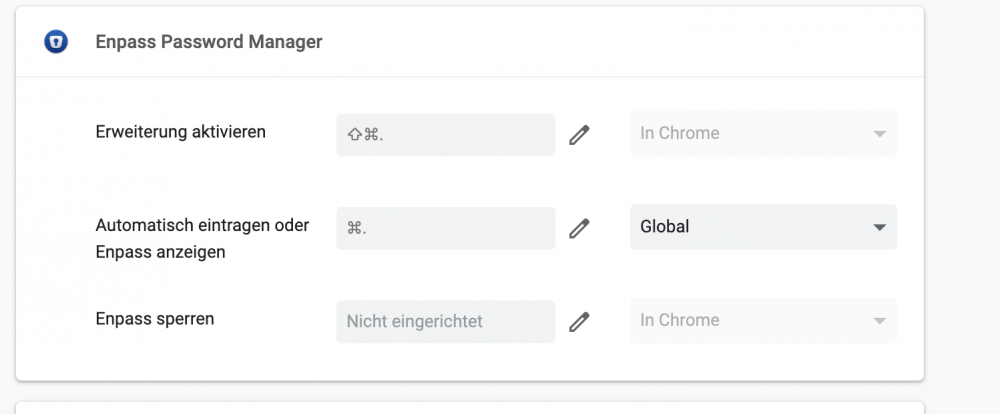
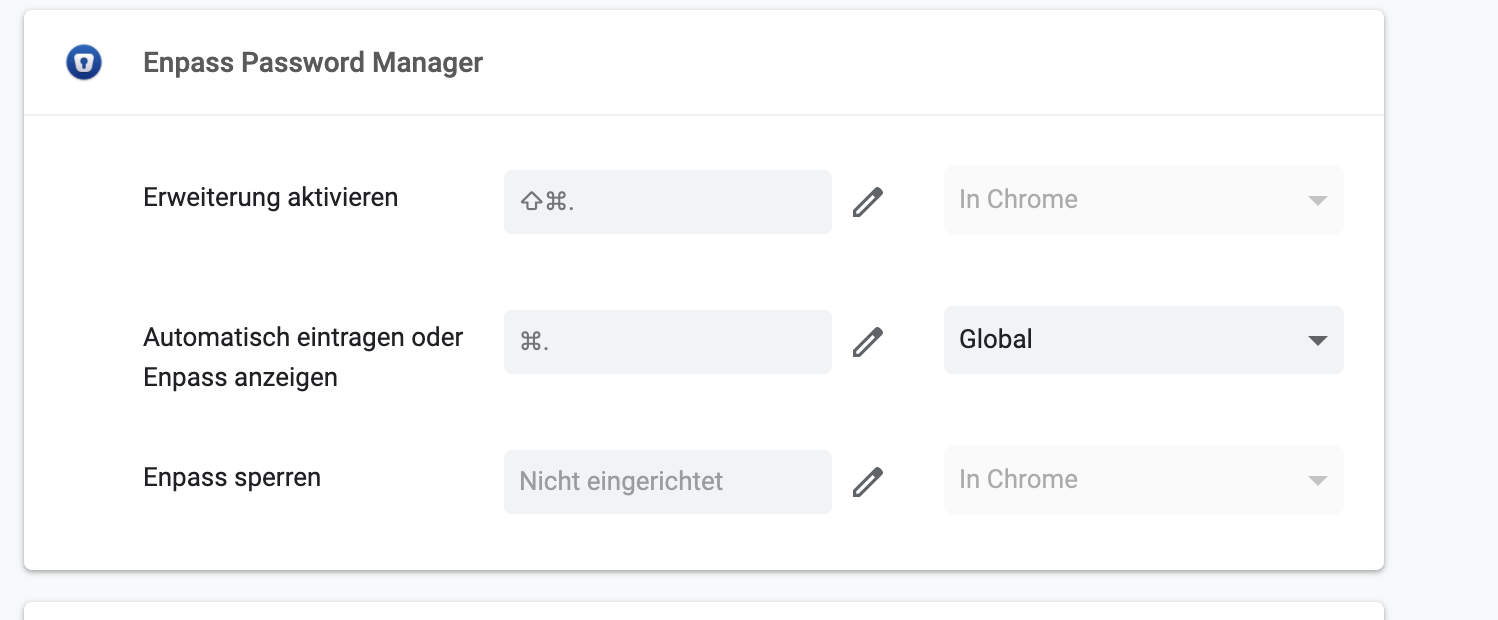
  1. I also do not like that I cannot choose CMD+# (german version of CMD+/). I use now BetterTouchTool (https://folivora.ai/, payed app) to restore the old behavior. I configure a trigger in BTT to map CMD+# to CMD+. . But it is really sad, I have to do so. Besides, I found another related issue. If I choose in Chrome type "Global" for the shortcut, this then breaks the behavior in other browsers. If I trigger the shortcut in Chrome the native Enpass popup shows accounts for the current website. This is expected. But if I trigger the shortcut in Safari or Firefox the native Enpass popup shows all accounts, not only the ones relevant for the actual site. This is not expected, or very confusing. However, if I set the option in Chrome from Global back to Chrome, then this issue is not present.
Account

Navigation

Search

Search

Configure browser push notifications

Chrome (Android)
  1. Tap the lock icon next to the address bar.
  2. Tap Permissions → Notifications.
  3. Adjust your preference.
Chrome (Desktop)
  1. Click the padlock icon in the address bar.
  2. Select Site settings.
  3. Find Notifications and adjust your preference.