

Skip to content
View in the app

A better way to browse. Learn more.

Enpass Discussion Forum

A full-screen app on your home screen with push notifications, badges and more.

To install this app on iOS and iPadOS
  1. Tap the Share icon in Safari
  2. Scroll the menu and tap Add to Home Screen.
  3. Tap Add in the top-right corner.
To install this app on Android
  1. Tap the 3-dot menu (โ‹ฎ) in the top-right corner of the browser.
  2. Tap Add to Home screen or Install app.
  3. Confirm by tapping Install.

Pelle

Members
  • Joined

  • Last visited

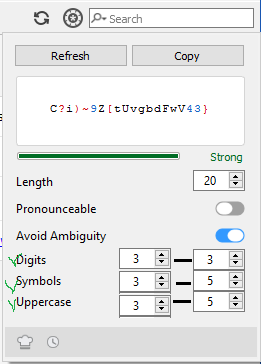
  1. 1. Put check boxes in front of digits, symbols and uppercase to quickly enable/disable. 2. Make the categories into ranges to allow for more varied password generation. Not sure how much entropy this would actually add, perhaps it is a perception issue that static numbers for the different categories is bad. 3. Perhaps under options have the possibility to edit which special characters should be valid for use (with a reset to default button). For 1 and 2 see my excellent paint skills here, the green scribbles are supposed to be checkboxes :-)

Account

Navigation

Search

Search

Configure browser push notifications

Chrome (Android)
  1. Tap the lock icon next to the address bar.
  2. Tap Permissions โ†’ Notifications.
  3. Adjust your preference.
Chrome (Desktop)
  1. Click the padlock icon in the address bar.
  2. Select Site settings.
  3. Find Notifications and adjust your preference.