Yurez
Members
-
Joined
-
Last visited
Everything posted by Yurez
-
That was it! It works now Thanks a lot! Somehow forgot to update the desktop app, too.
-
That was it! It works now Thanks a lot! Somehow forgot to update the desktop app, too.
-
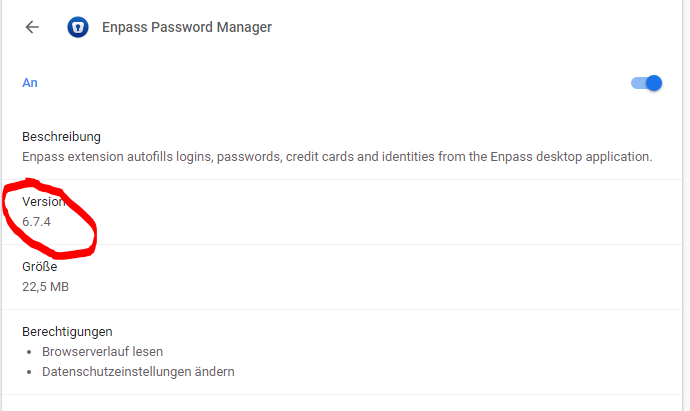
I am on this version, too. Are lifetime deal users somehow not getting these new features?
-
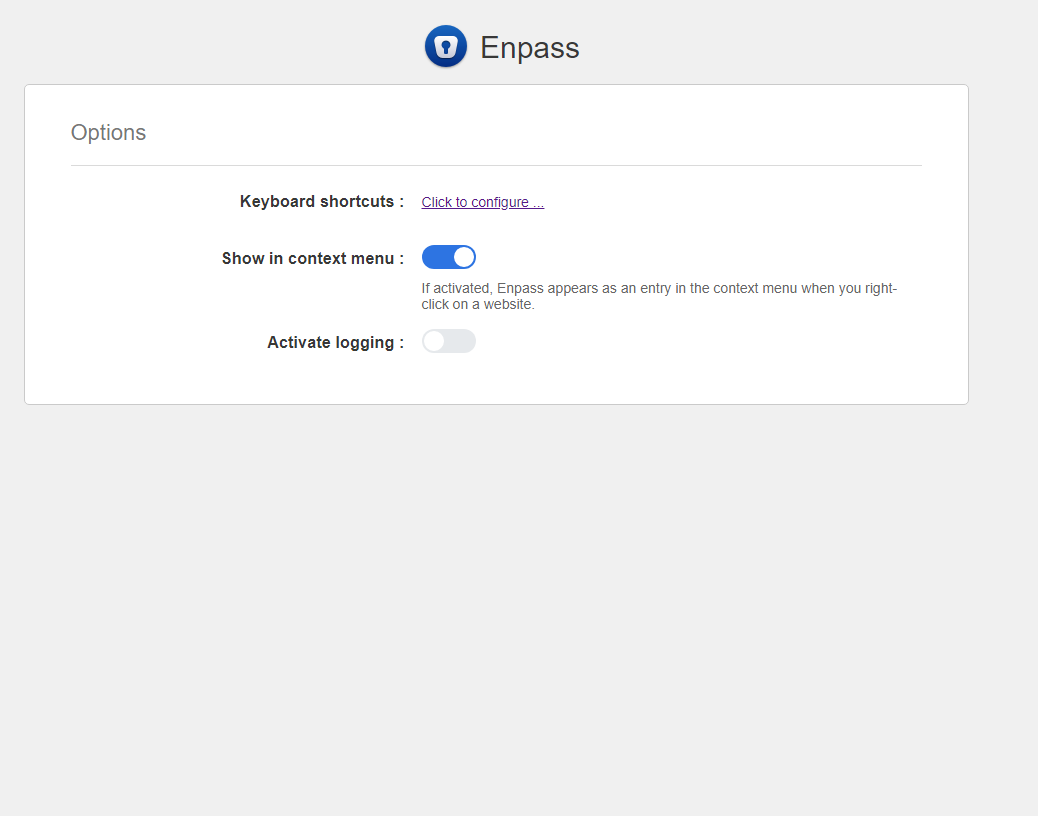
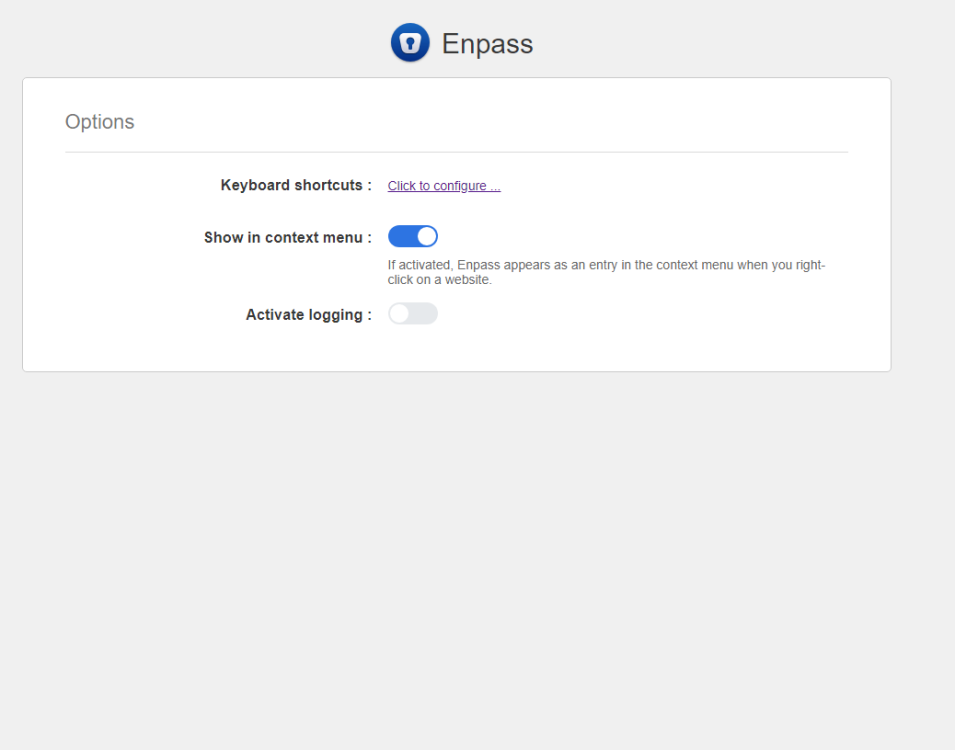
Thanks for your reply, but I don't seem to have this option? I only seem to have the first two options you have:
-
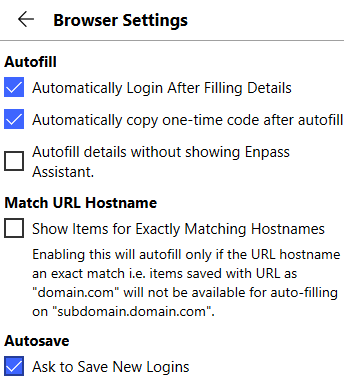
The Autofill popup menu as described in ( https://www.enpass.io/docs/manual-desktop/browser_ext_using.html#using-autofill-popup-menu ) is not showing on any websites when I click in the username/password fields. I run Windows 10 and have the Chrome Extension installed. These are my Browser settings for Enpass (see screenshot). Any ideas why this might not be working? I also tried with Edge Browser Extension, but the autofill popup still wouldn't show.