wixway
Members
-
Joined
-
Last visited
Everything posted by wixway
-
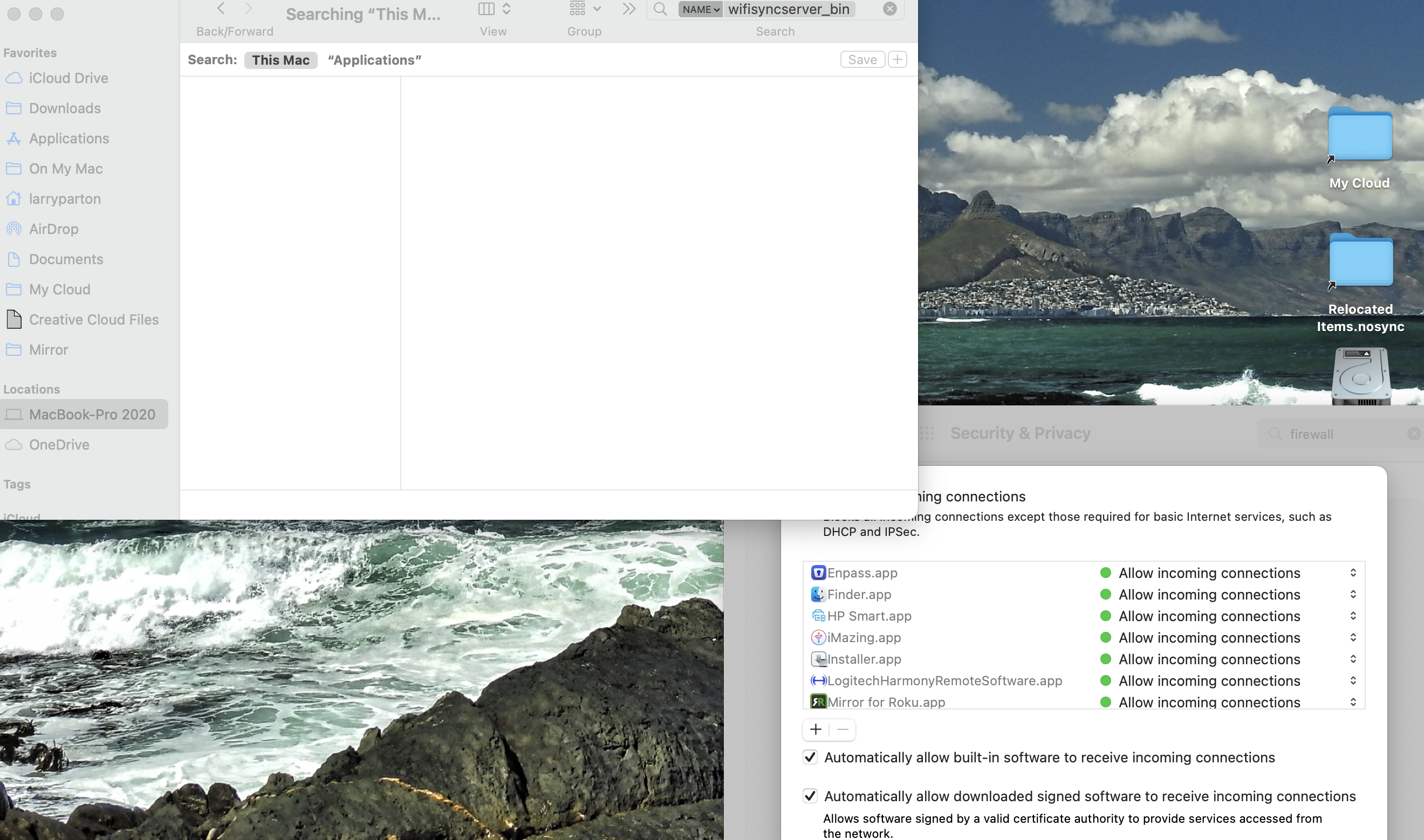
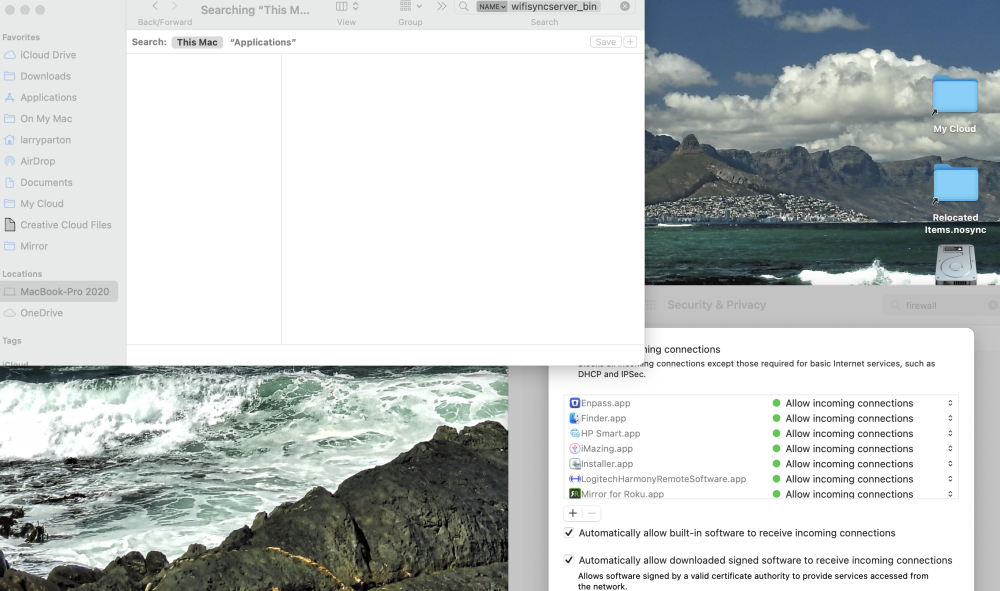
1. Firewall is "On." "Block all incoming connections" NOT checked. 2. As I said in my initial post: "...have given Enpass app permission to connect to network but am unable to find the wifisyncserver_bin file anywhere on my computer to also permit it to connect to the network." Consequently, the wifisyncserver_bin file has not been granted permission because I cannot find the file on the MacBook Pro and I have not been able to find it on the internet to download. 3. See # 2. 4. My hunch is that the absence of the file wifisyncserver_bin is the problem, but I won't know until I have been able to add it to the permission list.
-
1. OS version 6.7.4; iOS version 6.7.1 2. Both devices are connected to the same network. 3. With the QR code (and also with manual) the app does not find the "server." 4. Dropbox, iCloud, Google Drive.
-
Have owned Enpass for three weeks and have been trying for three weeks to sync the vault from my MacBook Pro to my iPhone - without success. Have tried all methods - three different cloud accounts and wifi syncing. Would prefer wifi syncing and have given Enpass app permission to connect to network but am unable to find the wifisyncserver_bin file anywhere on my computer to also permit it to connect to the network. Really like the app on the laptop, but very frustrated that I can't sync it with Enpass on the iPhone. The manual and troubleshooting guides are of no help.