Julian_
Members
-
Joined
-
Last visited
-
Hi @Manish Chokwal, thank you for the hint, my enpass desktop app was way too old. I thought it would update automatically but I had to trigger the update manually. Now it works, thank you!
-
Hi @Manish Chokwal, thank you for your answer. I uninstalled the extention and installed it again via your website but it didn't work. I debugged the extention a bit and it seems the value 'inline_supported' which gets loaded from a storage is always 'false'. So how can I turn on the inline support in Firefox? It must be some kind of global setting. Thanks!
-
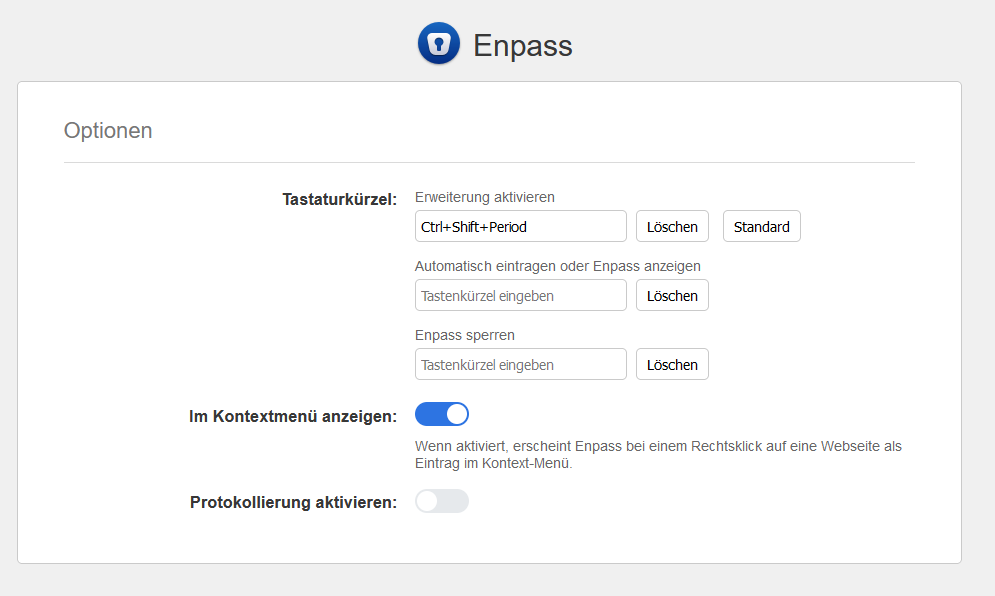
Hi all, the inline autofill feature never worked in my firefox. The normal popup of the extention works. I have the FF version 98.0.2 and I just downloaded the latest browser extention but it does not appear in the input/password fields. On my second laptop it works flawlessly. When I tried to compare the settings, I noticed that the autofill settings are missing. Do you have any suggestions for me? Thanks!