

Skip to content
View in the app

A better way to browse. Learn more.

Enpass Discussion Forum

A full-screen app on your home screen with push notifications, badges and more.

To install this app on iOS and iPadOS
  1. Tap the Share icon in Safari
  2. Scroll the menu and tap Add to Home Screen.
  3. Tap Add in the top-right corner.
To install this app on Android
  1. Tap the 3-dot menu (⋮) in the top-right corner of the browser.
  2. Tap Add to Home screen or Install app.
  3. Confirm by tapping Install.

Technova

Members
  • Joined

  • Last visited

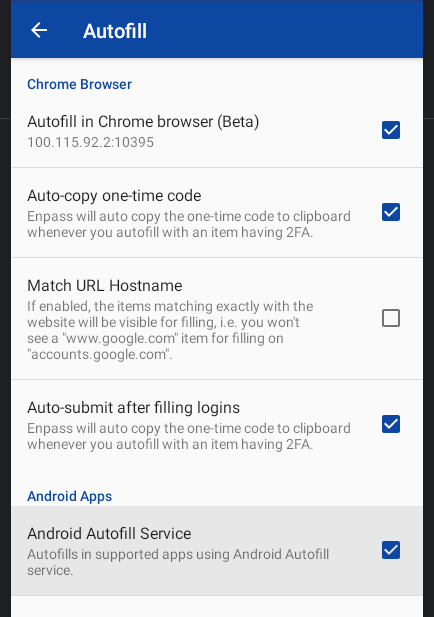
  1. Stumbled on this post a few times while trying to figure this out. I'm using a Lenovo Duet 5 Chromebook and I cannot find a setting to enable autofill in the settings. I cannot find any kind of draw over settings either... So ... For anyone that also hits the same issue as me this can now be resolved through a setting within the Enpass Android App. Go to Settings > Autofill Check the box for "Autofill in Chrome browser (Beta)" Seems kinda obvious I guess but I had thought it would be more difficult and spent more time than anyone should searching around for a way to make it work. (and there is of course the 'Android Autofill service' which you'll probably want to tick at the same time too....) I hope this saves someone some time...

Account

Navigation

Search

Search

Configure browser push notifications

Chrome (Android)
  1. Tap the lock icon next to the address bar.
  2. Tap Permissions → Notifications.
  3. Adjust your preference.
Chrome (Desktop)
  1. Click the padlock icon in the address bar.
  2. Select Site settings.
  3. Find Notifications and adjust your preference.
