


maomaohao520
Members
-
Joined
-
Last visited
-
@Gulshan DograNo, I had not enabled dock mode before. After I enabled this dock mode following your instruction, the Enpass Assistant popover does not disappear any more, and it works very well. This dock mode is not needed to enable in environments such as Windows and some normal Linux desktops, so I didn't notice this option, sorry for wasting your time. Thanks! I really appreciate your help.
-
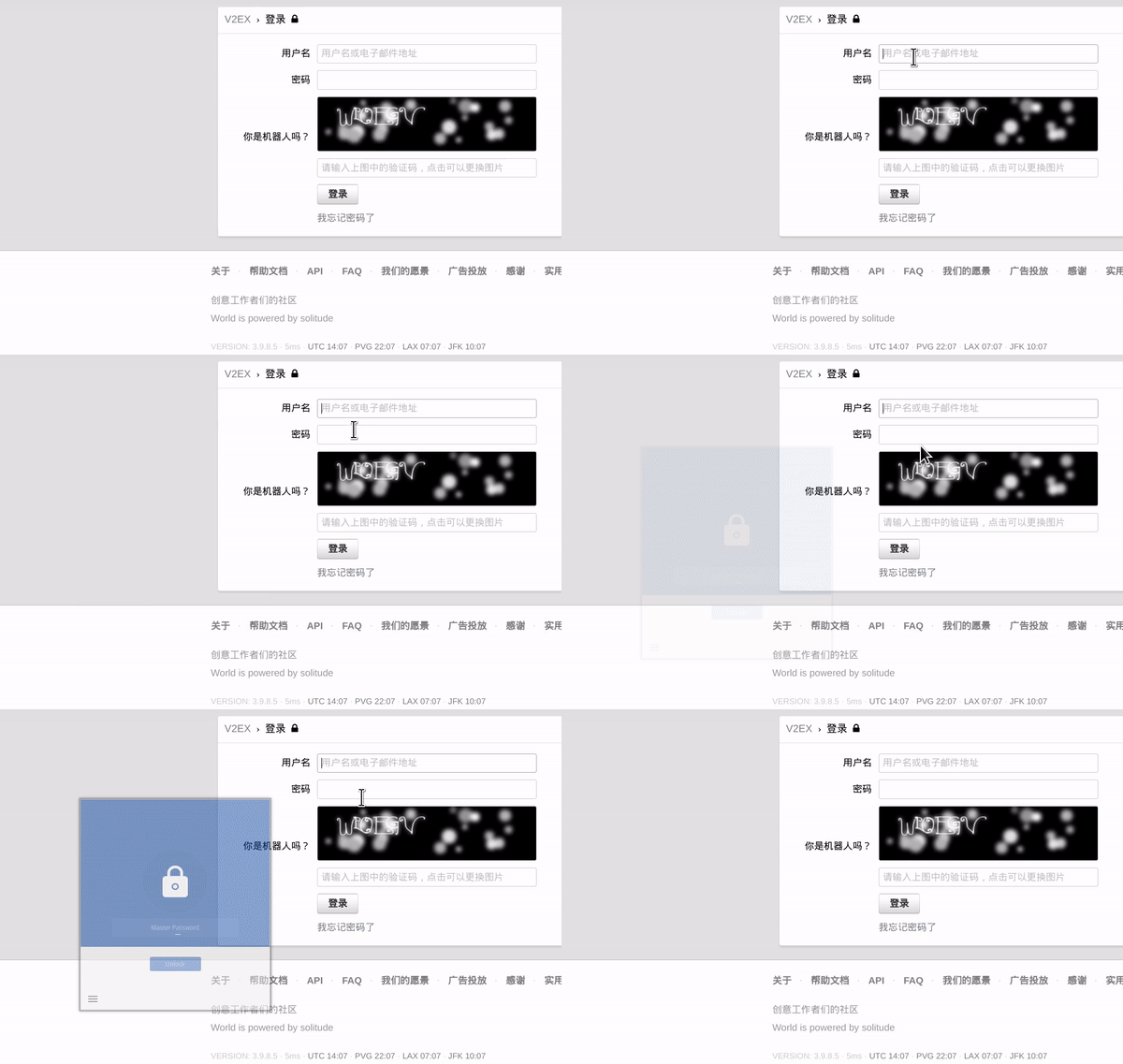
@Gulshan Dogra Thanks for your replying. I recorded a gif to represent my issue, hope it would help. My Enpass version is 6.8.1
-
My system info: ☁ ~ screenfetch -` .o+` james@arch `ooo/ OS: Arch Linux `+oooo: Kernel: x86_64 Linux 5.18.16-arch1-1 `+oooooo: Uptime: 1h 3m -+oooooo+: Packages: 737 `/:-:++oooo+: Shell: zsh 5.9 `/++++/+++++++: Resolution: 5760x2160 `/++++++++++++++: WM: dwm `/+++ooooooooooooo/` GTK Theme: Adwaita [GTK3] ./ooosssso++osssssso+` Disk: 107G / 272G (42%) .oossssso-````/ossssss+` CPU: AMD Ryzen 7 4800H with Radeon Graphics @ 16x 2.9GHz -osssssso. :ssssssso. GPU: NVIDIA GeForce GTX 1650 Ti :osssssss/ osssso+++. RAM: 3687MiB / 15414MiB /ossssssss/ +ssssooo/- `/ossssso+/:- -:/+osssso+- `+sso+:-` `.-/+oso: `++:. `-/+/ .` `/ I think this issue mostly related to dwm windows manager I'm using. Could you guys help me with this please, tks very much.
