tdl III
Members
-
Joined
-
Last visited
-
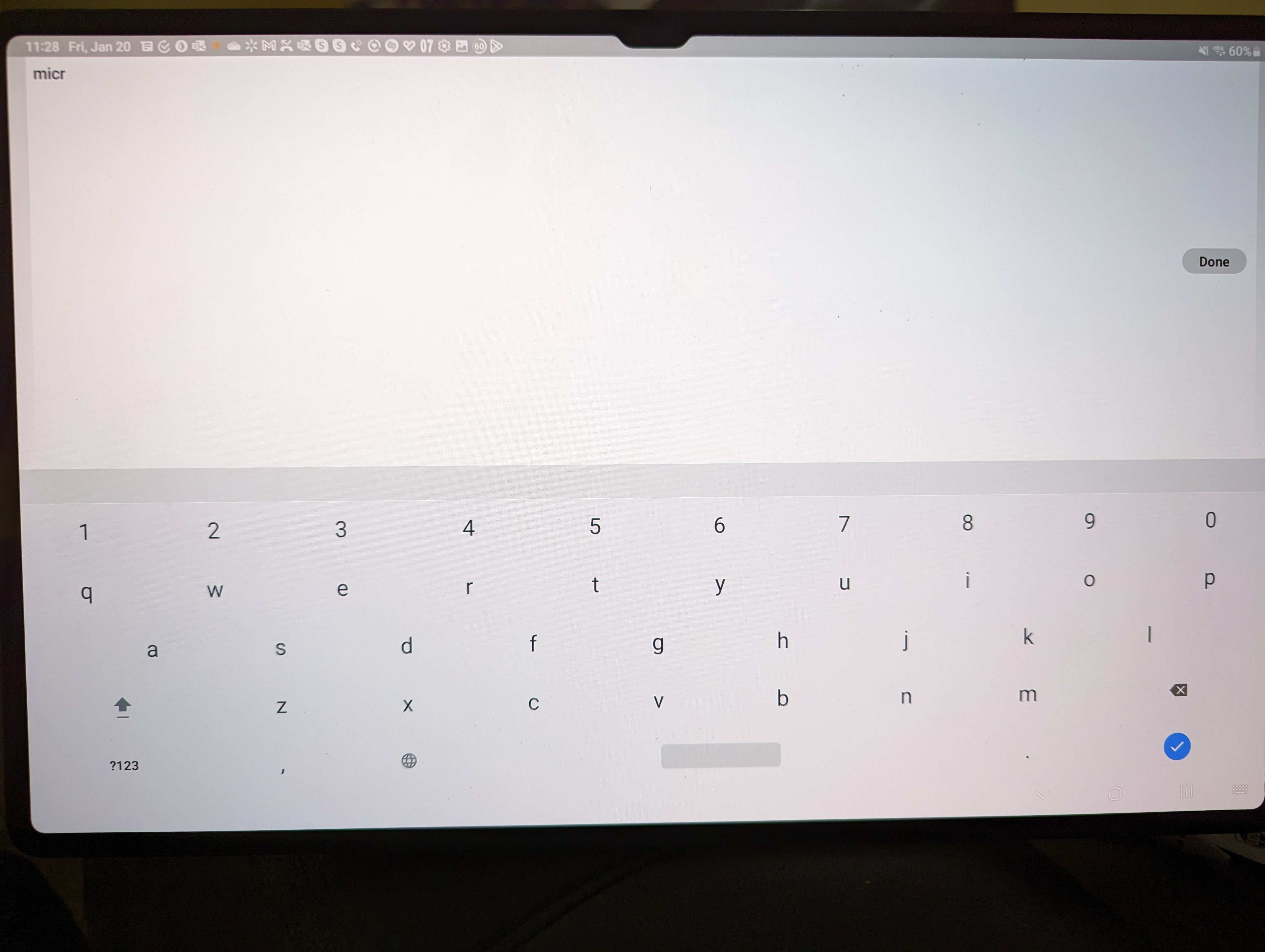
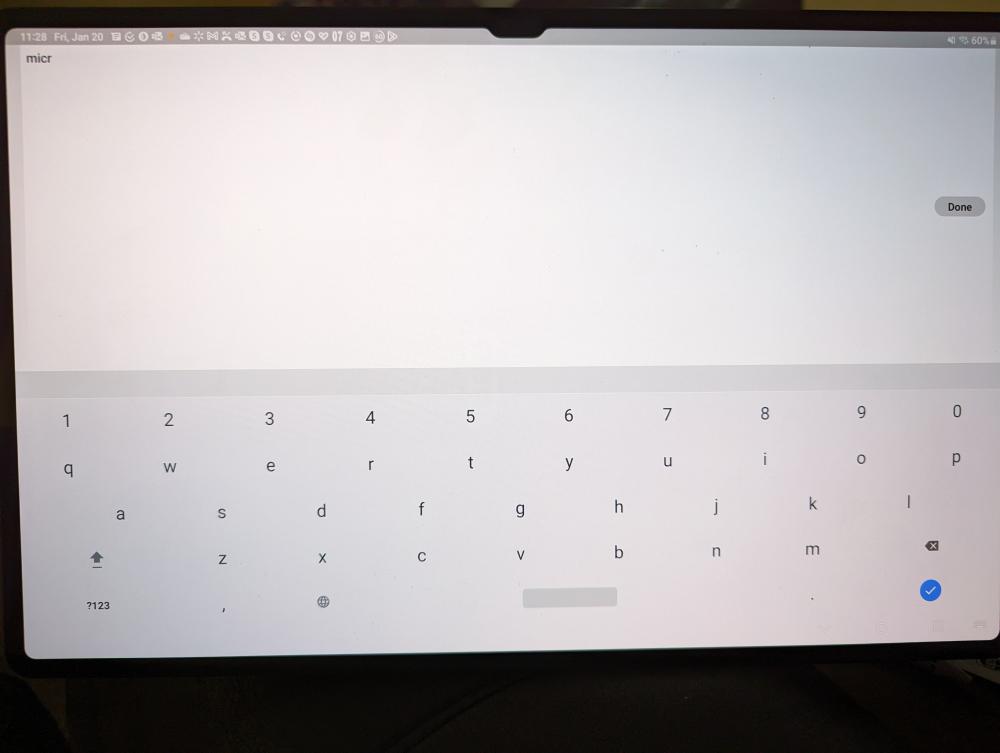
When using the keyboard in landscape mode, typing in items to search for in the vault, you can't see the results because the screen is in full screen mode. In portrait mode it works correctly. See image below. Enpass version is 6.8.5.758 and tablet is running One UI 5.0, Android Version 13.
-
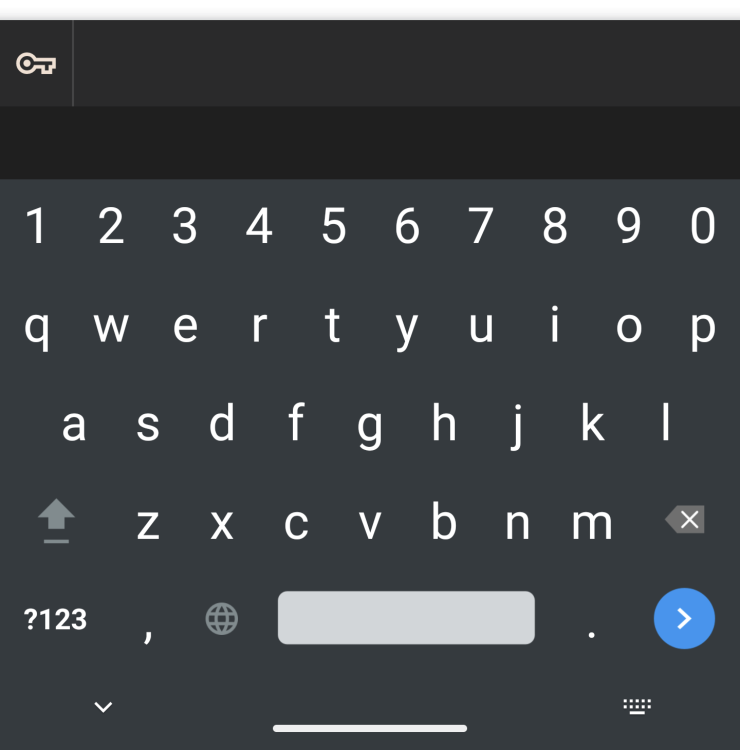
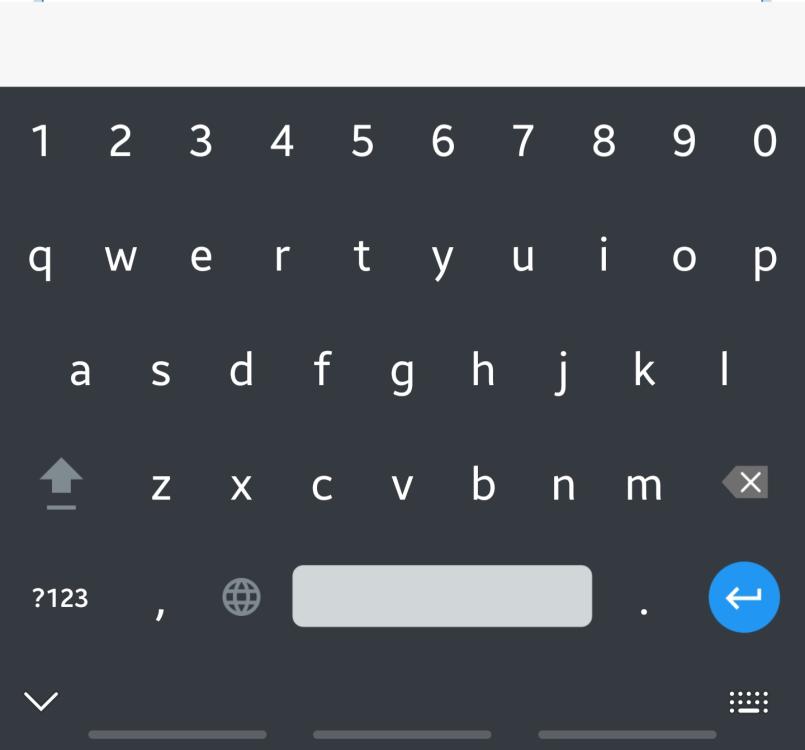
This might be an Androud 13 problem. I have a galaxy note 20 that I've loaded the latest Android build on from Samsung and that keyboard does the same thing as the pixel that also runs Android 13. Screenshot is attached though note I'm running enpass 6.7.1.572 on this device. Before upgrading Android, the keyboard worked fine.
-
@Manish Chokwal For myself, it wasn't an update I did. It was a fresh install since I was setting up a new device. That is the version though.
-
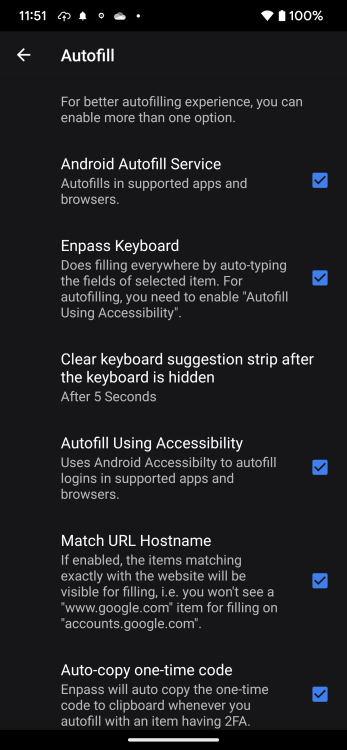
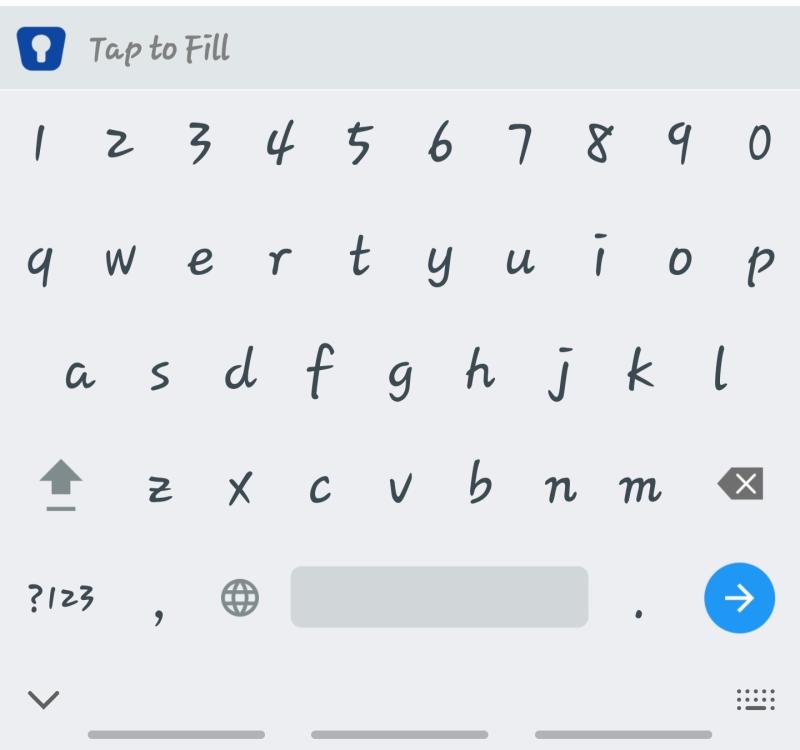
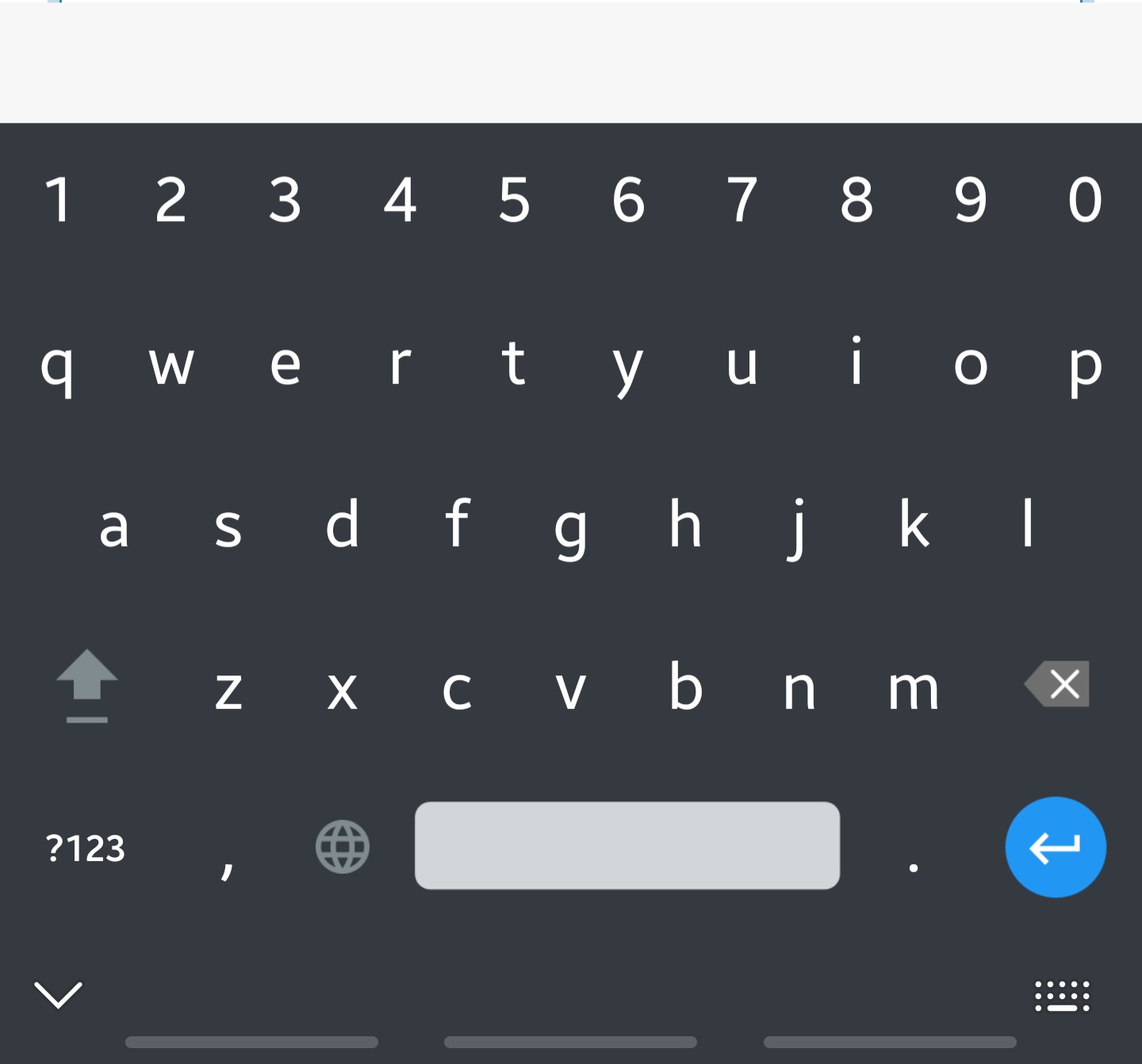
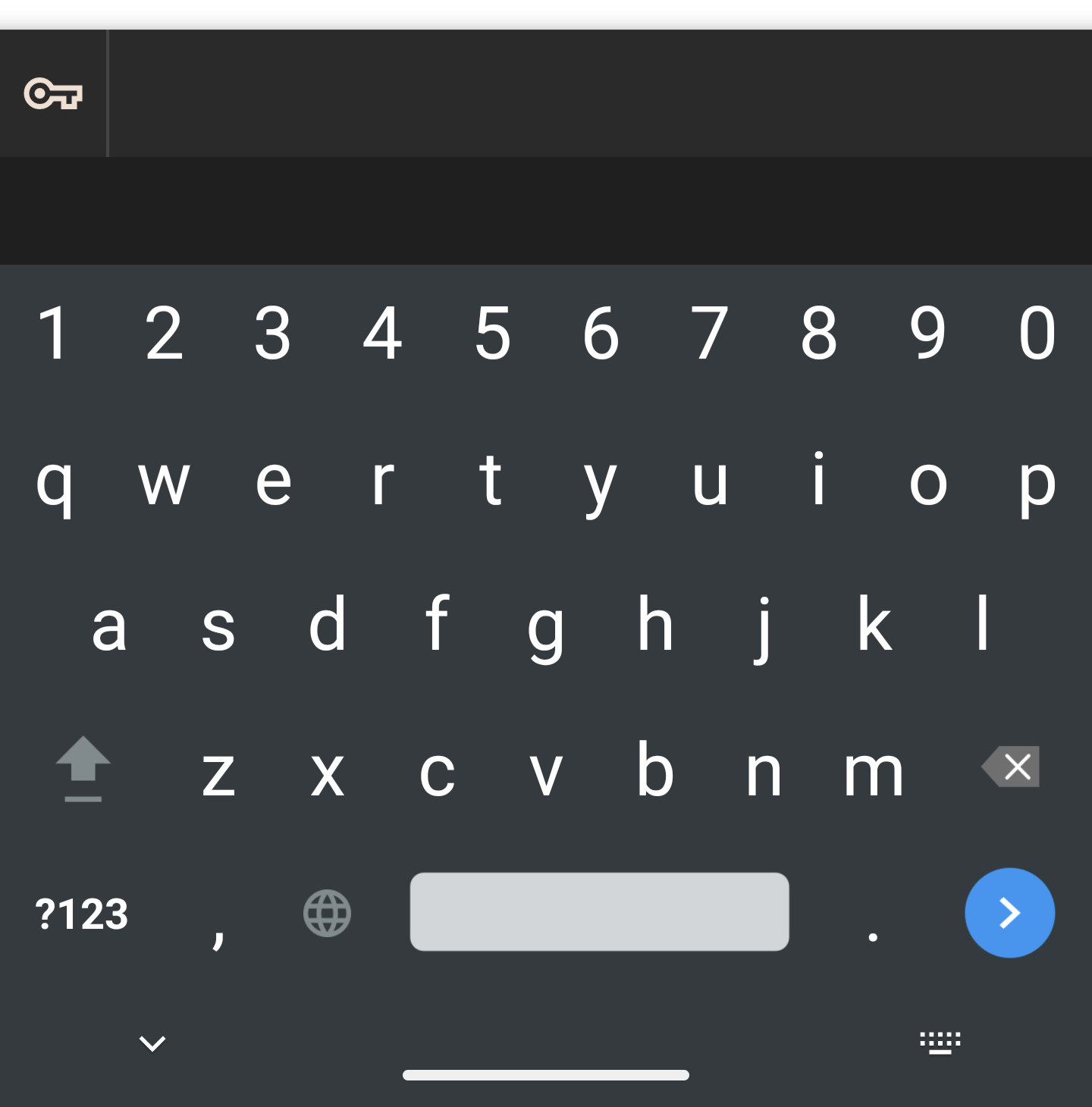
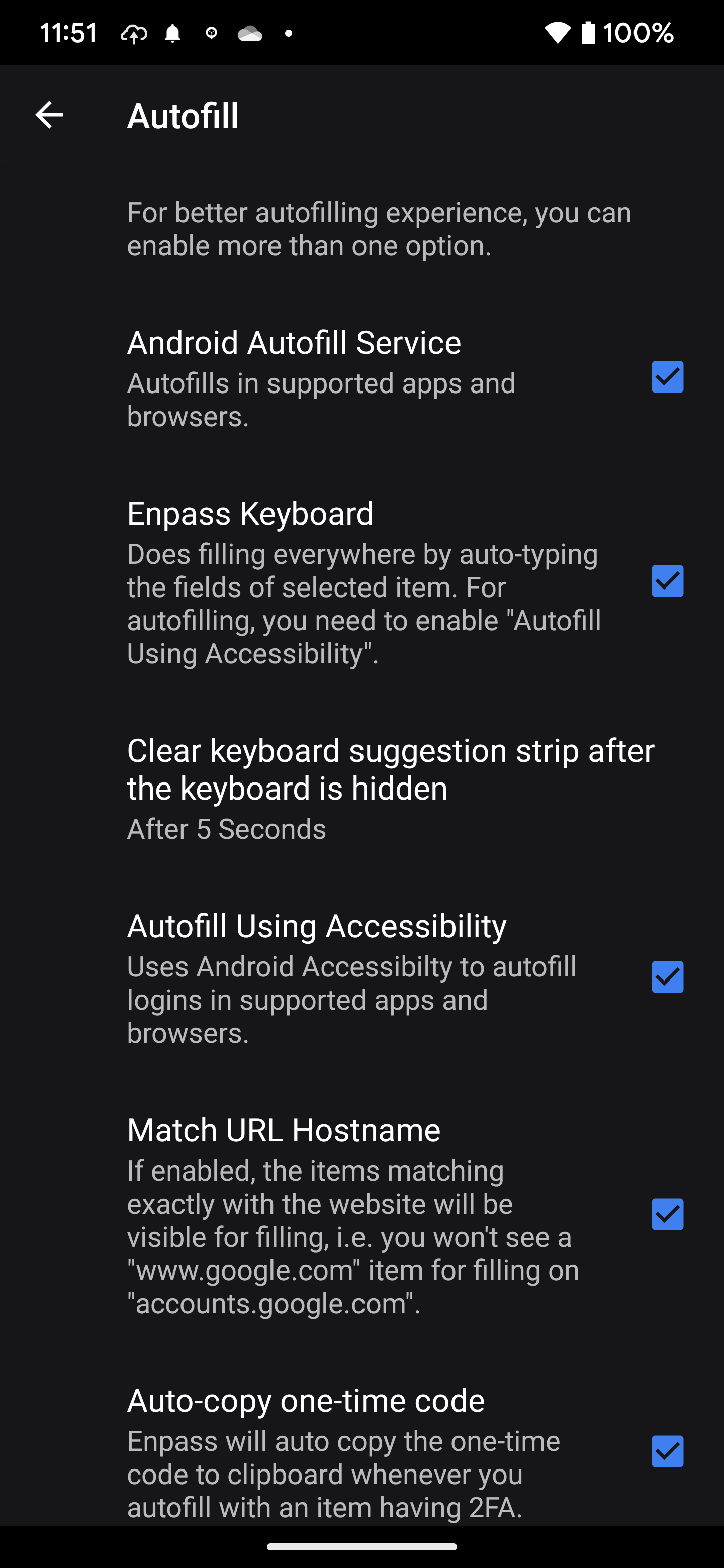
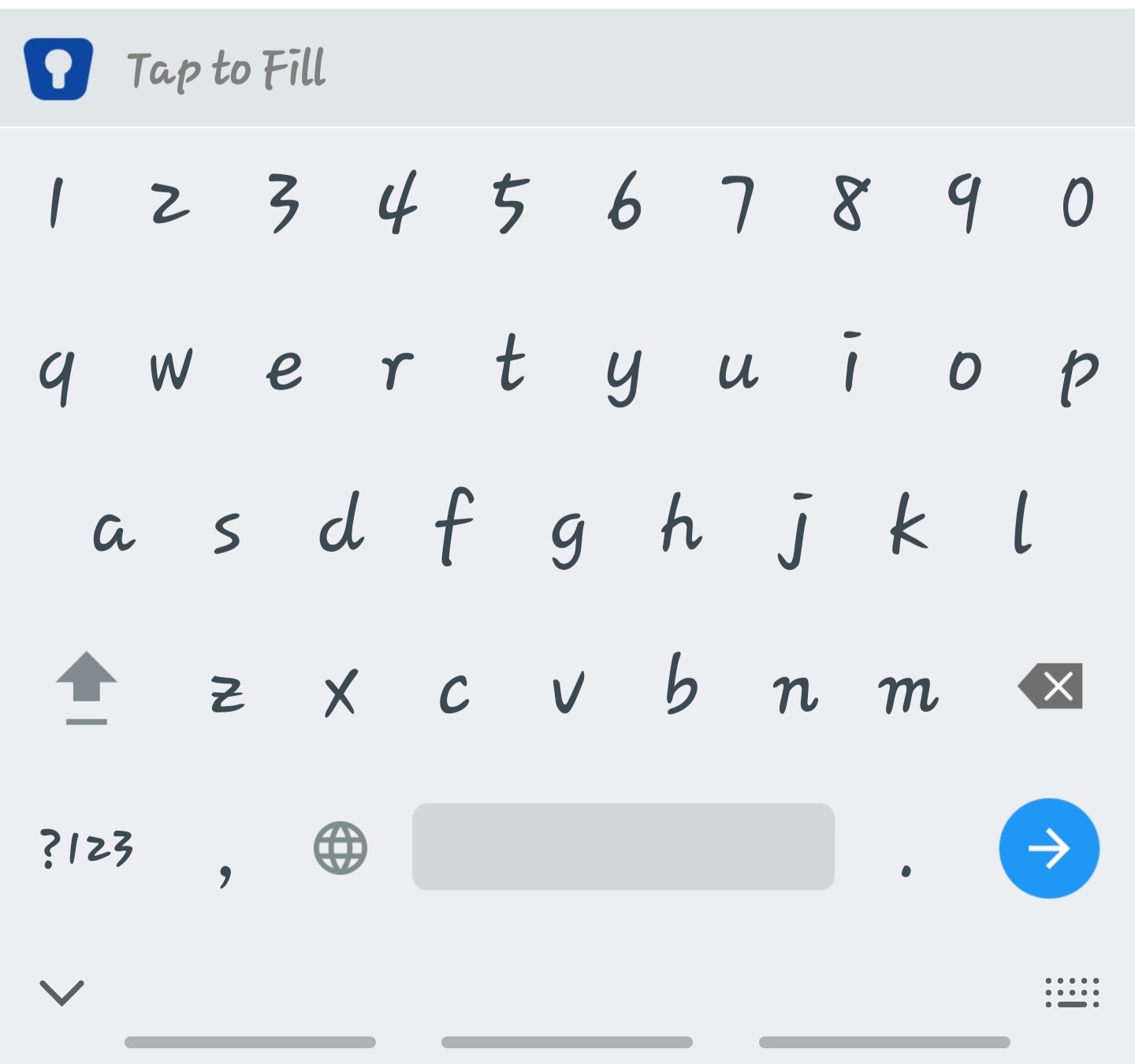
I can confirm the issue on my pixel 7 pro as well. On my s22 ultra (white screenshot) there is an option to tap to fill. This doesn’t exist on the P7P (black screenshot). Settings are the same between both devices.