

Skip to content
View in the app

A better way to browse. Learn more.

Enpass Discussion Forum

A full-screen app on your home screen with push notifications, badges and more.

To install this app on iOS and iPadOS
  1. Tap the Share icon in Safari
  2. Scroll the menu and tap Add to Home Screen.
  3. Tap Add in the top-right corner.
To install this app on Android
  1. Tap the 3-dot menu (⋮) in the top-right corner of the browser.
  2. Tap Add to Home screen or Install app.
  3. Confirm by tapping Install.

cimm

Members
  • Joined

  • Last visited

Everything posted by cimm

  1. Thank you @Vinod Kumar! For future reference I needed to play around with the settings a bit, this is what turned out to work for me: QT_AUTO_SCREEN_SCALE_FACTOR=1 QT_SCREEN_SCALE_FACTORS=0.5 /opt/Enpass/bin/runenpass.sh %U It also does not work when I add it to my .bashrc file, it only works when specifying on the command line as above or adding it directly to the runenpass.sh script.
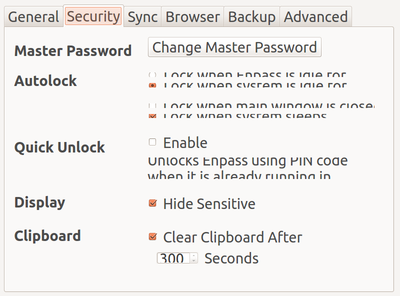
  2. I recently switched from 1Password to Enpass as Enpass supports Linux and I am in the process of switching from macOS to Ubuntu. My new laptop arrived and I am moving over my passwords... turns out Enpass does not (yet) support HDPI and it's pretty unusable without. Are there any plans to support HDPI (Retina, 4K, whatever you want to call it) Linux systems? Thank you.
Account

Navigation

Search

Search

Configure browser push notifications

Chrome (Android)
  1. Tap the lock icon next to the address bar.
  2. Tap Permissions → Notifications.
  3. Adjust your preference.
Chrome (Desktop)
  1. Click the padlock icon in the address bar.
  2. Select Site settings.
  3. Find Notifications and adjust your preference.