

Skip to content
View in the app

A better way to browse. Learn more.

Enpass Discussion Forum

A full-screen app on your home screen with push notifications, badges and more.

To install this app on iOS and iPadOS
  1. Tap the Share icon in Safari
  2. Scroll the menu and tap Add to Home Screen.
  3. Tap Add in the top-right corner.
To install this app on Android
  1. Tap the 3-dot menu (⋮) in the top-right corner of the browser.
  2. Tap Add to Home screen or Install app.
  3. Confirm by tapping Install.

user050126

Members
  • Joined

  • Last visited

Everything posted by user050126

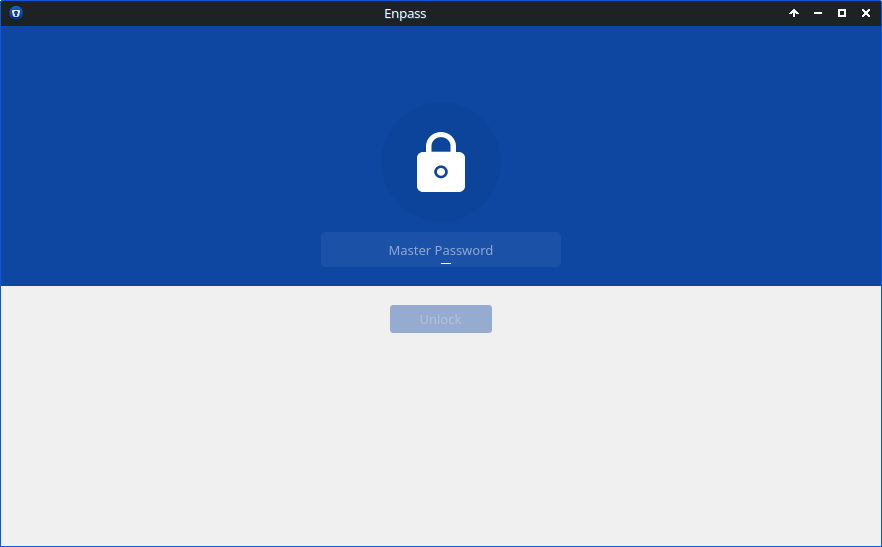
  1. Hi, My OS is MX linux 23 (based on Debian 12.1). I installed Enpass in accordance with the guide at https://www.enpass.io/support/kb/general/how-to-install-enpass-on-linux/ - version 6.9.0.1467. Upon the first run, Enpass asks for a master password, however I did not have a chance to configure anything as no menus/buttons/controls are visible apart from the password field and "Unlock" button. In other words, the only visible screen after starting the application is as follows: OS reboot or application reinstall change nothing. There is no information whatsoever in /var/log/syslog regarding Enpass errors. Any help appreciated. Thanks in advance. Regards, user
Account

Navigation

Search

Search

Configure browser push notifications

Chrome (Android)
  1. Tap the lock icon next to the address bar.
  2. Tap Permissions → Notifications.
  3. Adjust your preference.
Chrome (Desktop)
  1. Click the padlock icon in the address bar.
  2. Select Site settings.
  3. Find Notifications and adjust your preference.