buggystick
Members
-
Joined
-
Last visited
-
I can confirm that setting the option to "Enabled for Google Password Manager and 3rd party passkeys" does indeed work. I previously had it set to only 3rd party... thinking that was what I wanted.
-
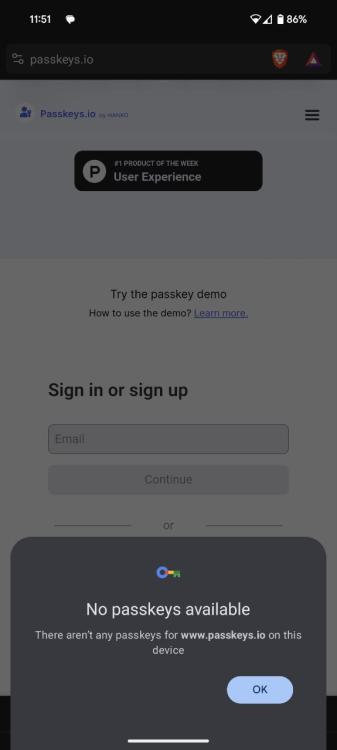
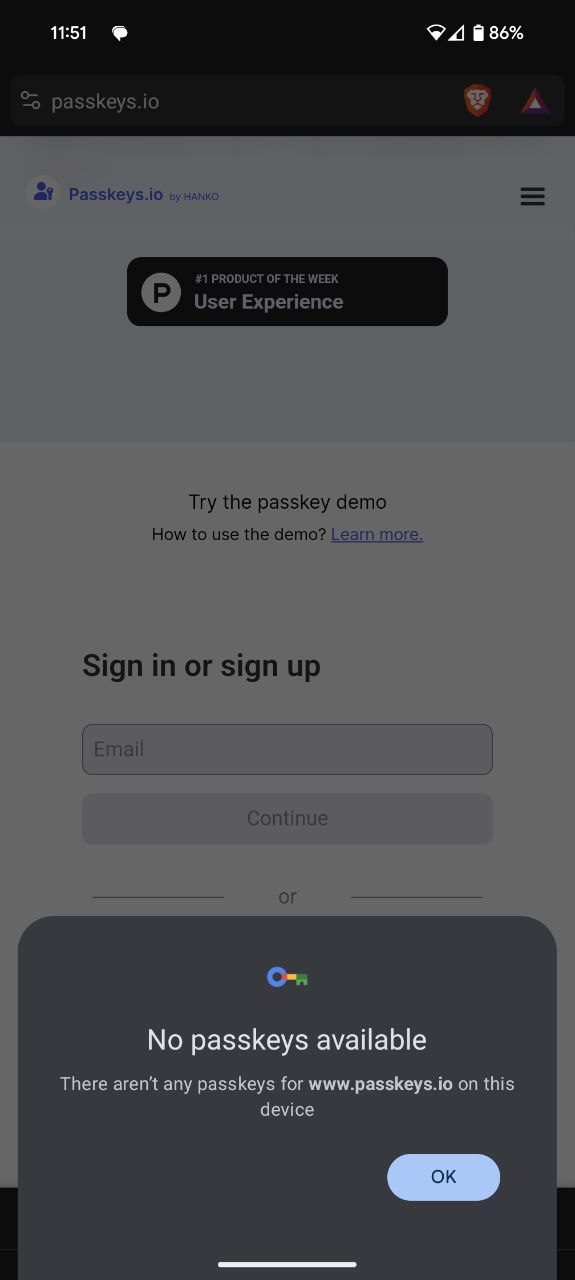
Interesting... I found out if I clicked on the email field on passkeys.io it will pop up with the option to select the enpass passkey. However, if I hit the "Sign in with a passkey" button, it will only try to use the google client as the screenshot in my first post shows. Browser: Brave 1.60.116. Chromium 119.0.6045.134 Enpass: 6.9.3.892 OS: Android 14
-
I recently got a Pixel 8 (Android 14) and wanted to test the new passkey credential storage API with enpass. I had to modify my chrome://flags for my browser (Brave) to enable the API and was able to successfully create a passkey in enpass for the passkeys.io demo site. However when I try to login with that passkey, it doesn't give me the option to use enpass and says that my phone doesn't have a passkey for that site as if it's only trying the default google client. I do have enpass selected as my passkey service in android settings. Interesting enough, I can use the enpass stored passkey on desktop though.