its-nolan
Members
-
Joined
-
Last visited
Everything posted by its-nolan
-
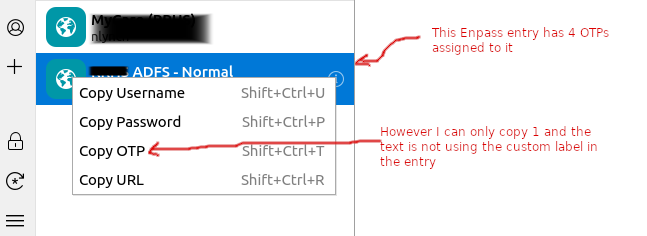
Hi Looking for assistance/guidance on how I should set up my Enpass in a corp. environment. At work we use Active Directory and all of our internal intranet sites authenticate against it. Originally I had an Enpass entry for each site (containing the URL, Username, Password and MFA key). However, Enpass kept flagging the entries as "Identical Passwords". I merged all the entries down into 1 site called "Work ADFS" and that has solved the identical password flag. However, my new issue is that most of our sites also have MFA. I have merged all the MFA keys into the same Enpass/ADFS entry (see below) My new issue is when I am navigating in the browser extension, only 1 MFA entry is available and the extension seems to use a hard coded "Copy OTP" label, so I am not sure what OTP I am copying. Suggestion 1: Allow the browser extension to list multiple "Copy OTP" options 2: Use the label provided in the Enpass Entry so it is clear what I am copying. IE "Copy MoveIT OTP" instead of just "Copy OTP"