Skip to content
View in the app

A better way to browse. Learn more.

Enpass Discussion Forum

A full-screen app on your home screen with push notifications, badges and more.

To install this app on iOS and iPadOS
  1. Tap the Share icon in Safari
  2. Scroll the menu and tap Add to Home Screen.
  3. Tap Add in the top-right corner.
To install this app on Android
  1. Tap the 3-dot menu (⋮) in the top-right corner of the browser.
  2. Tap Add to Home screen or Install app.
  3. Confirm by tapping Install.

JN42

Members
  • Joined

  • Last visited

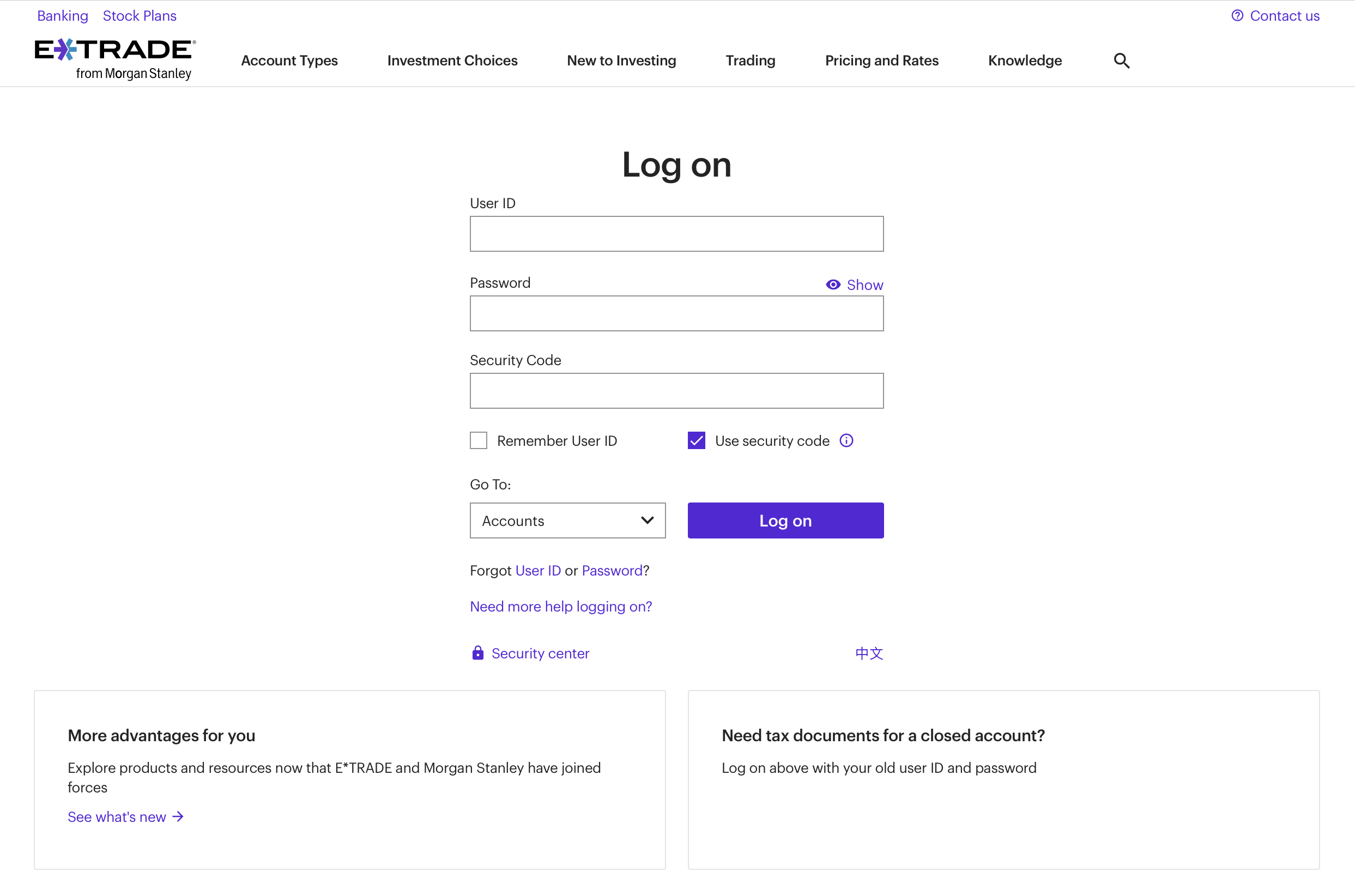
  1. Enpass appends the one time code to the password when autofilling the login page of etrade.com. This may have been a necessity earlier (i.e. absence of a separate field for the one time code on the login page), but it is no longer the case. The etrade.com login page currently has a separate input field for the one time code.
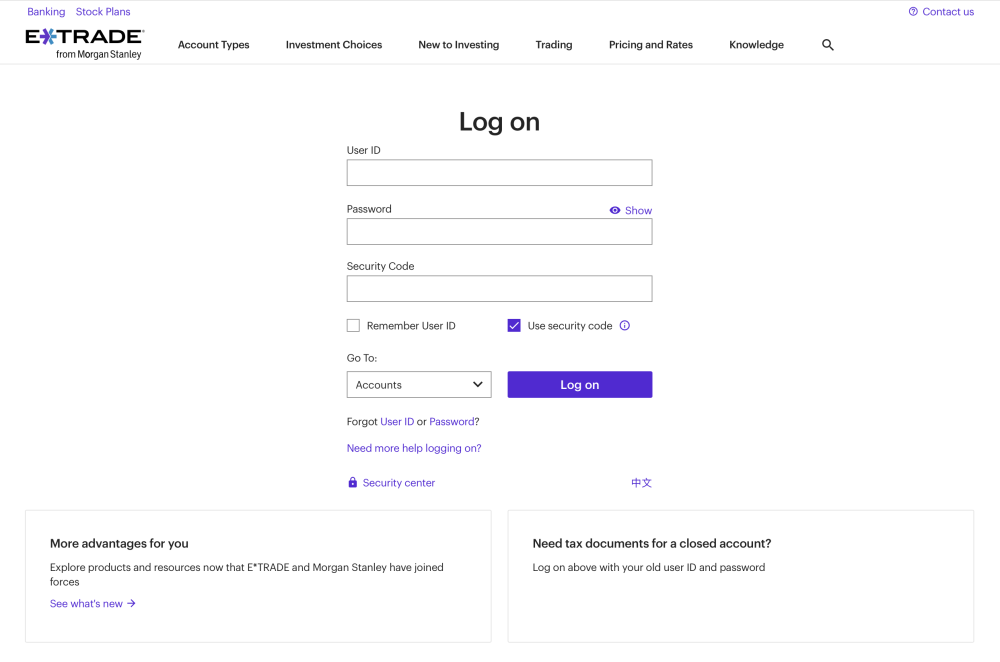
  2. macOS Sequoia + Safari 18 allows installed extensions to be enabled in WebApps created via Safari's Add to Dock feature. This would be quite useful for the Enpass Safari extension. Currently, the Enpass Safari extension doesn't appear in the list of available extensions in a WebApp created via Safari's Add to Dock feature. One extension which does seem to work is called Userscripts - an open-source extension distributed via the Mac App Store. Please see attached screenshot for reference.
Account

Navigation

Search

Search

Configure browser push notifications

Chrome (Android)
  1. Tap the lock icon next to the address bar.
  2. Tap Permissions → Notifications.
  3. Adjust your preference.
Chrome (Desktop)
  1. Click the padlock icon in the address bar.
  2. Select Site settings.
  3. Find Notifications and adjust your preference.