dascaio
Members
-
Joined
-
Last visited
Everything posted by dascaio
-
Good morning, Thanks for the answer My installed version is 5.2.0, language French. I did an other test. I desinstalled Enpass from my computer and I resinstalled again from your site. The problem remains, the parameters options I get are not the same as yours. It's annoying. I intend to claim my money back because I bought the Ios version. BR, Jo
-
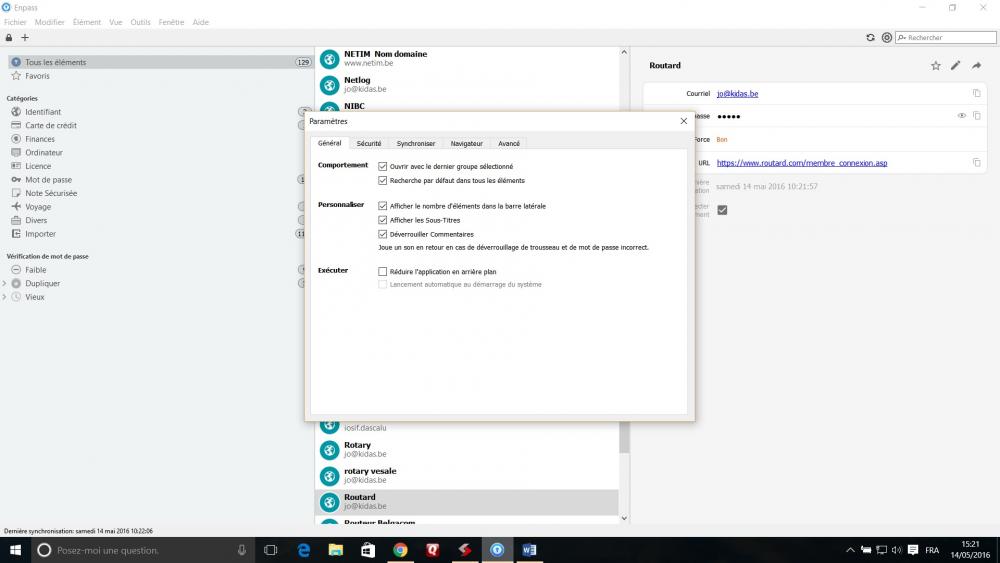
I don' find the option to add an icon in the system tray and the option to autostart is grayed. Pls. see the copy screen in annex.
-
Hello Yogesh, Thanks for the swift answer. The Chrome extension is working when the desktop vesrion is also started. When I stop the desktop version then the Chrome extension gives the error message. I use Enpass extension for Chrome V 5.2.1, Windows 10, Chrome 50.0.2661.94 m, Avast, Windows firewall/ Br, Jo
-
Hello, I'm a new user and the Chrome extention stops working with the following message 'ENPASS Connection Error' and the icon becomes inactive. Any advice, Many thanks Jo