Zigsaz
Members
-
Joined
-
Last visited
-
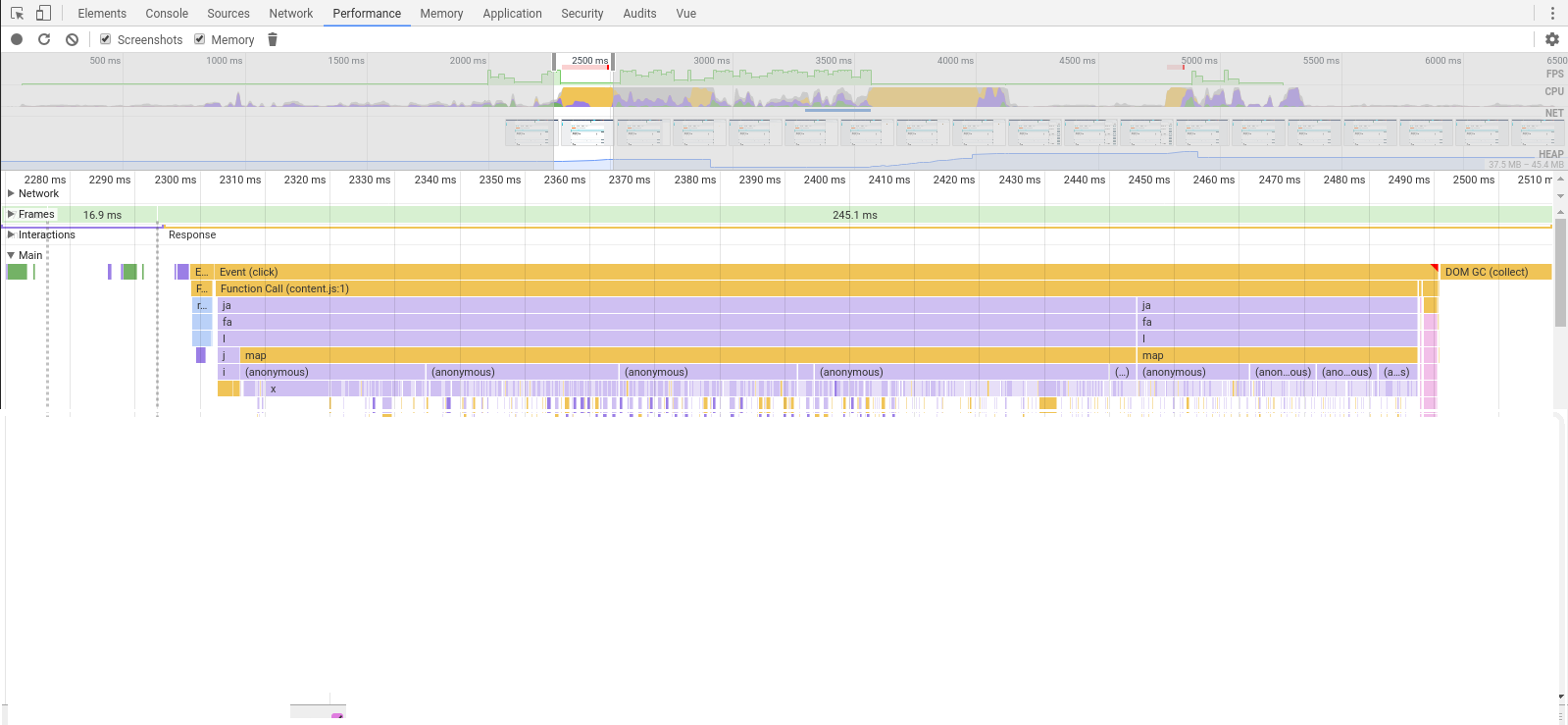
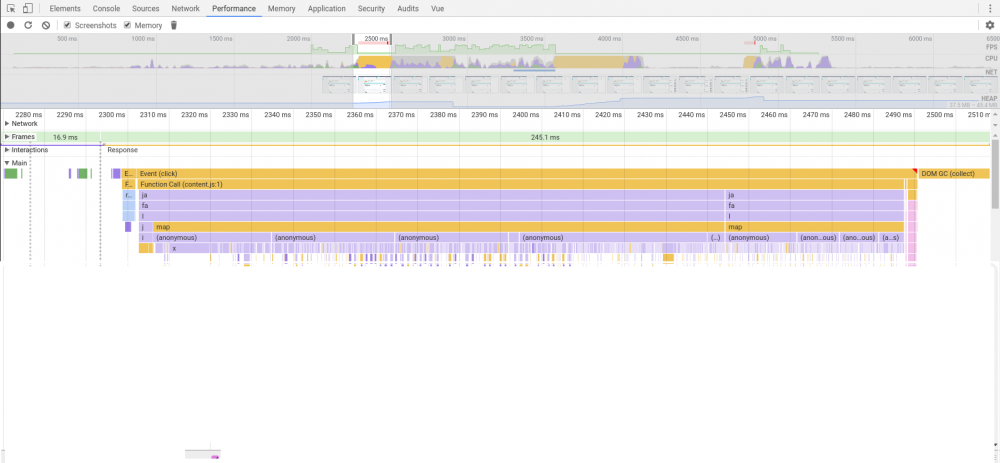
Hi @Akash Vyas, Certainly, I can give as much info as I could dig up. The warnings appear in Chrome's devconsole when you have logging set to include Verbose (previous versions of Chrome had this disabled by default I believe). Here's an example: Obviously 200-300ms is no big deal for average users, but I was looking for reasons why our animations were feeling a bit choppy. And when I looked at a timeline trace of the click I noticed a good chunk of the time was spent in Enpass' content.js. I took a cursory look through content.js, but couldn't make much of it since it had been minified. However I did notice in the DOM that Enpass was attaching data to some 300 elements on the page, so perhaps there might be some way to reduce what elements it considers important? Thanks for looking into it!


-
Chrome Extension Watching Clicks Hello, I've been using Enpass for a few months now and have been very please (bought it almost immediately via the smartphone license). However I have found one annoyance. I do web development full time and noticed that Chrome was constantly warning about click handler's taking some 300+ms. I ended up realizing it was the Enpass extension that was taking up a huge majority of this time (~70ms after disabling the extension). What exactly is Enpass doing with such click events? I assume it's looking for fields to autofill? Is there any way to disable this and not invoke the extension at all until the hotkey is pressed? Thanks