Scirocco3
Members
-
Joined
-
Last visited
Everything posted by Scirocco3
-
i don't know why... but... I've read in an other thread here from linux and chrome that the extension communicate over local host. so I tried to reset my hosts file and stop the firewall. and the next try will work.. but now the strange thing... I undo all the changes and it still works, also after a reboot. I hope this will stay so ..
-
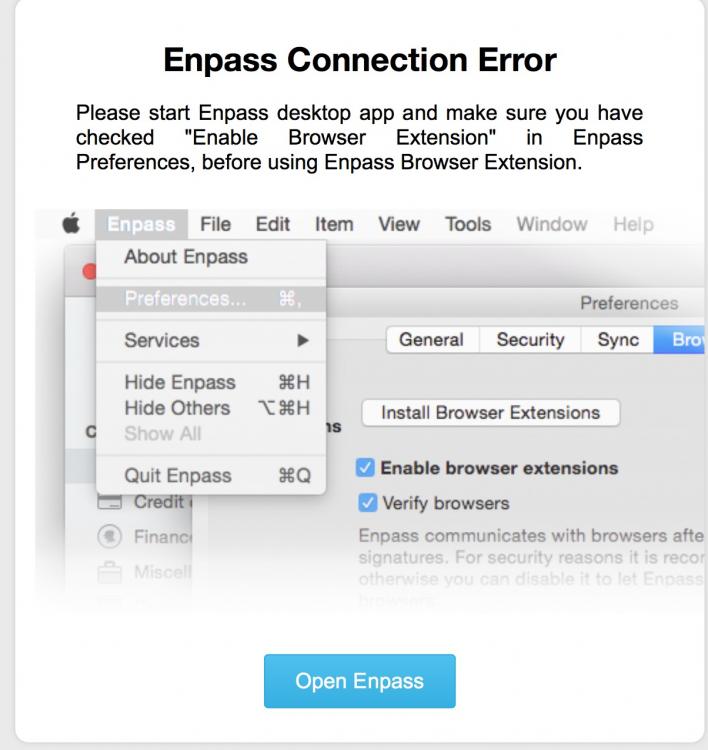
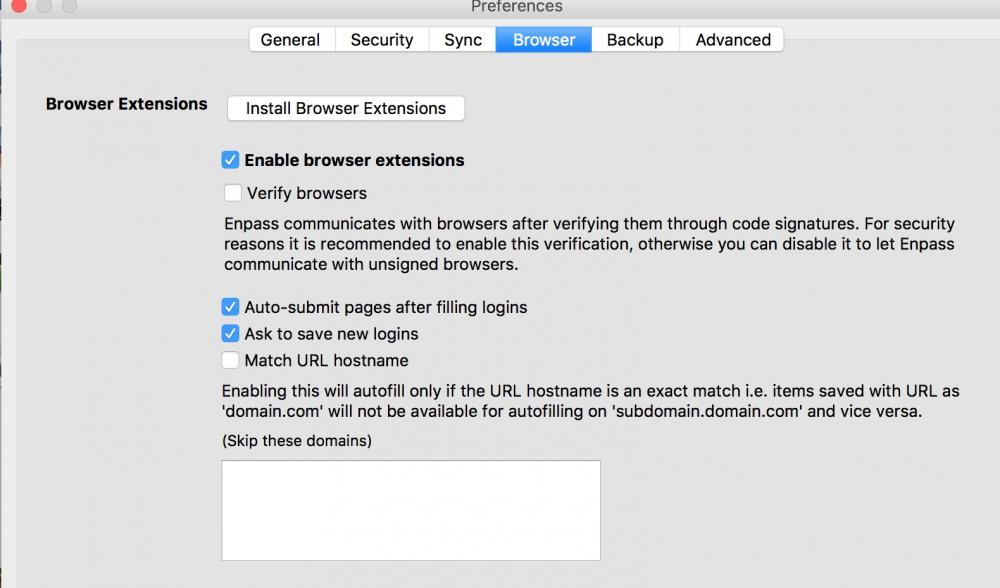
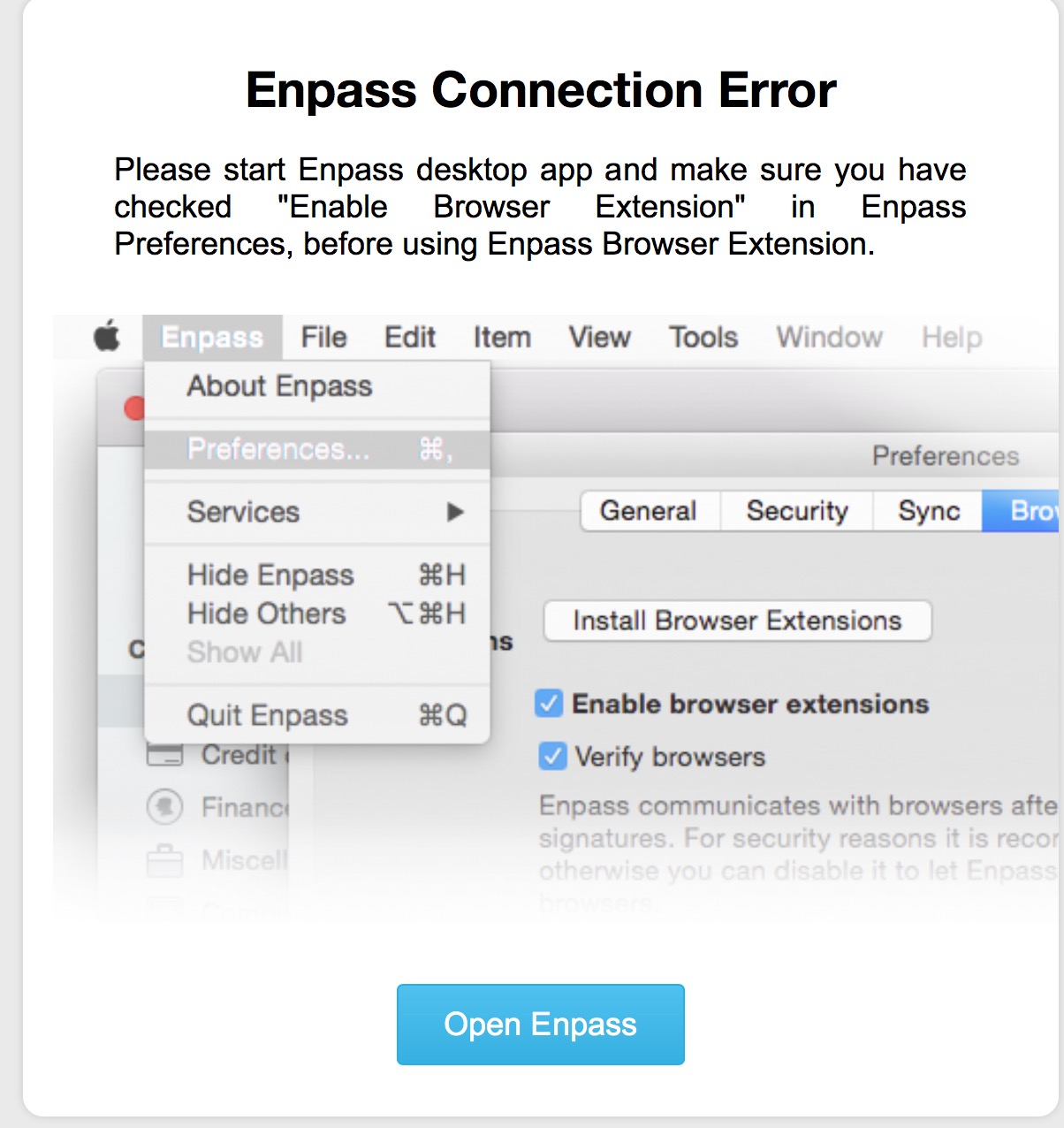
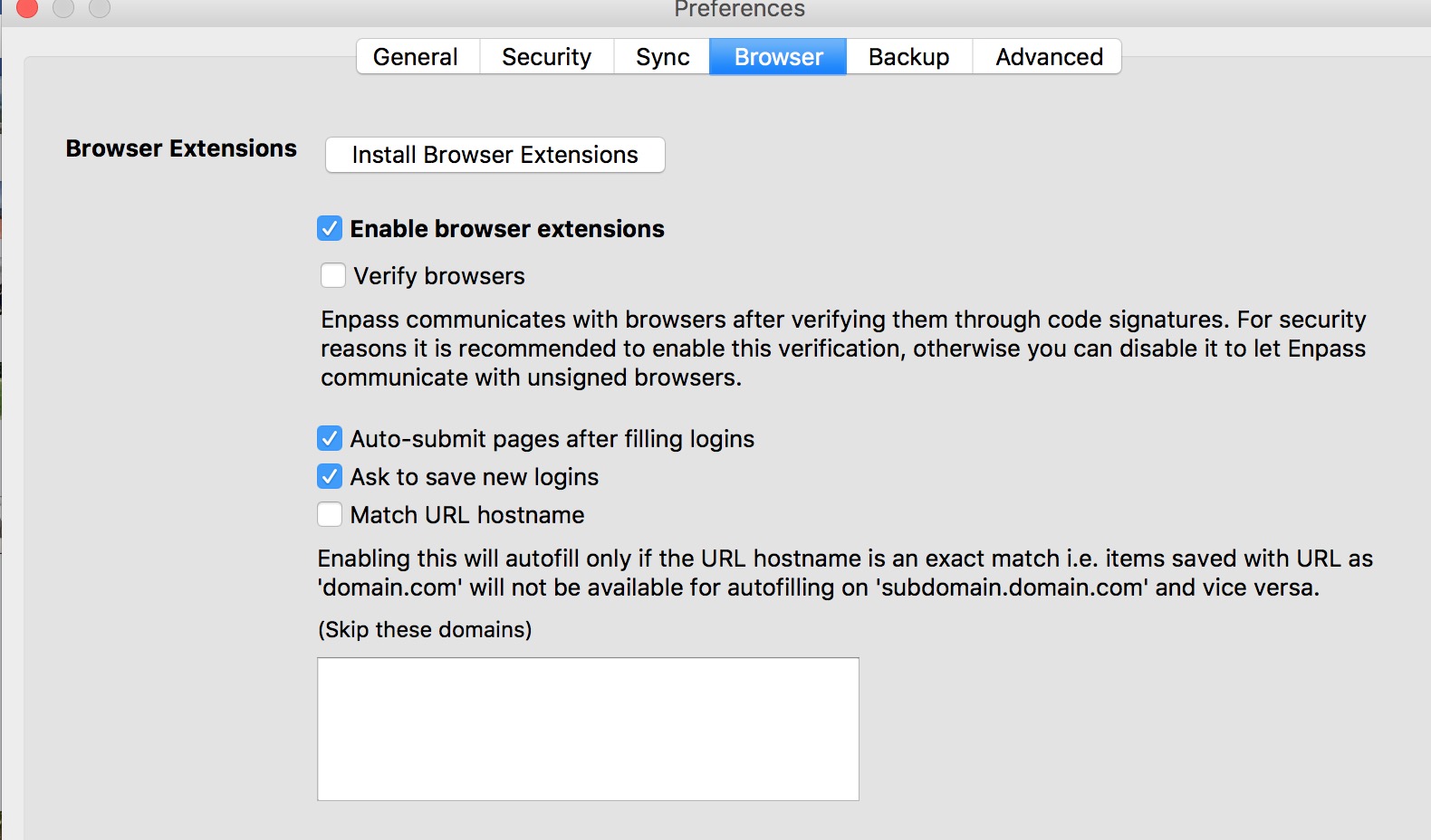
Hello, the latest official Safari Extension (5.5.0) won't work for me under High Sierra. It always say that I must enable the extension in the preferences of the app. But I've enabled it there. I restart the App and switch it off and on again, but it won't help. I also switch the "verify browser' button without any result. But under Chrome it works. So that I think that the App is correct configured, but I can't fill any login/password field in safari :-( pls help. thx