Skip to content
View in the app

A better way to browse. Learn more.

Enpass Discussion Forum

A full-screen app on your home screen with push notifications, badges and more.

To install this app on iOS and iPadOS
  1. Tap the Share icon in Safari
  2. Scroll the menu and tap Add to Home Screen.
  3. Tap Add in the top-right corner.
To install this app on Android
  1. Tap the 3-dot menu (⋮) in the top-right corner of the browser.
  2. Tap Add to Home screen or Install app.
  3. Confirm by tapping Install.

Jochim

Members
  • Joined

  • Last visited

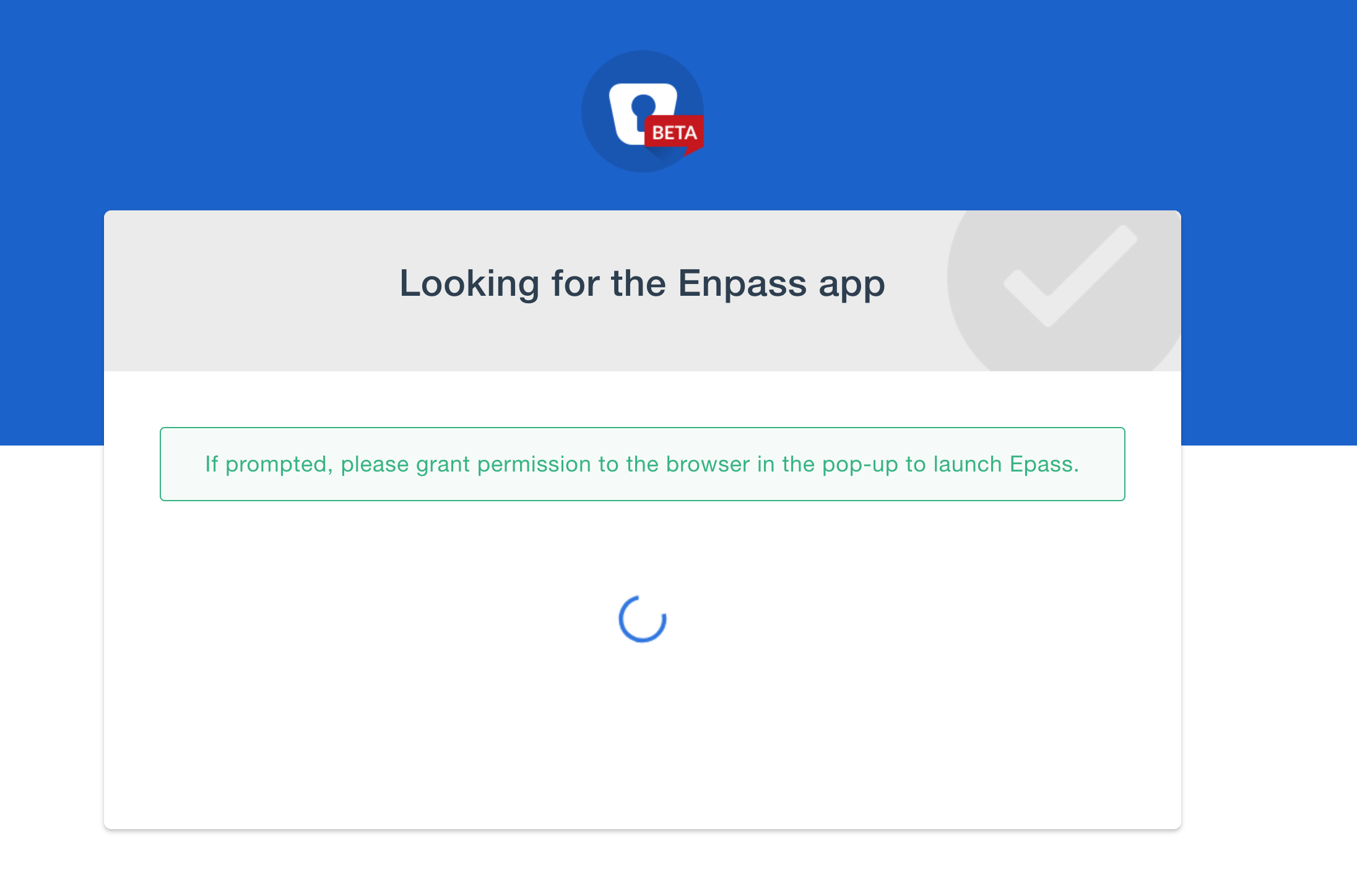
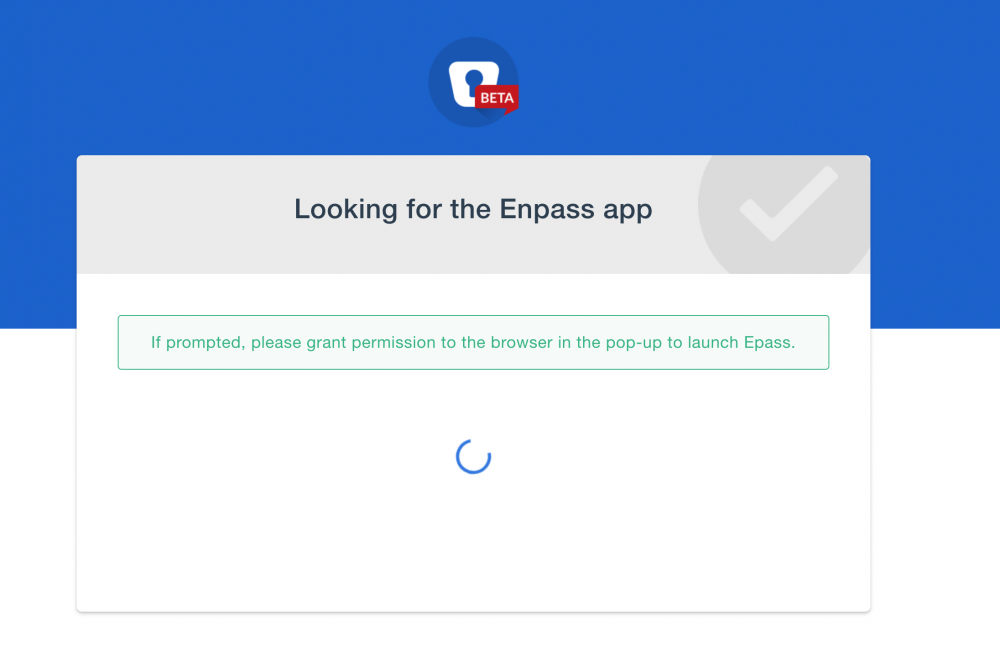
  1. Hi I'm using the Enpass 6.0.0 beta for macOS but there's a rather strange issue that's making it unuseable on my machine. Whenever I try to use the browser extension (tested with Chrome and Firefox, same results) nothing happens for a while and then a new tab opens saying "Looking for the Enpass app" and "If prompted, please grant permission to the browser in the pop-up to launch Epass." If Enpass is already running the tab closes after a while and nothing further happens. However when I quit Enpass and let the extension open it (by clicking the button in the browser) I am able to use it exaclty once from within the browser (the popup opens when I click the extension button a second time) but the popup doesn't know what page I am currently on so it can't provide usefull autofill information. It just opens the same way as if I clicked the taskbar icon. When I try to open the popup again the same tab as before opens and nothing happens afterwards. Do you know what causes this issue/can you repoduce it/are you aware of it?
  2. Hi I've seen a few topics about this already but they are old and closed by now. When are you guys planning to implement the app folder api's of OneDrive, Google Drive, etc.. instead of using the root folder of the respective service to store the data? Thanks, Jochim

Account

Navigation

Search

Search

Configure browser push notifications

Chrome (Android)
  1. Tap the lock icon next to the address bar.
  2. Tap Permissions → Notifications.
  3. Adjust your preference.
Chrome (Desktop)
  1. Click the padlock icon in the address bar.
  2. Select Site settings.
  3. Find Notifications and adjust your preference.