Chundelac
Members
-
Joined
-
Last visited
-
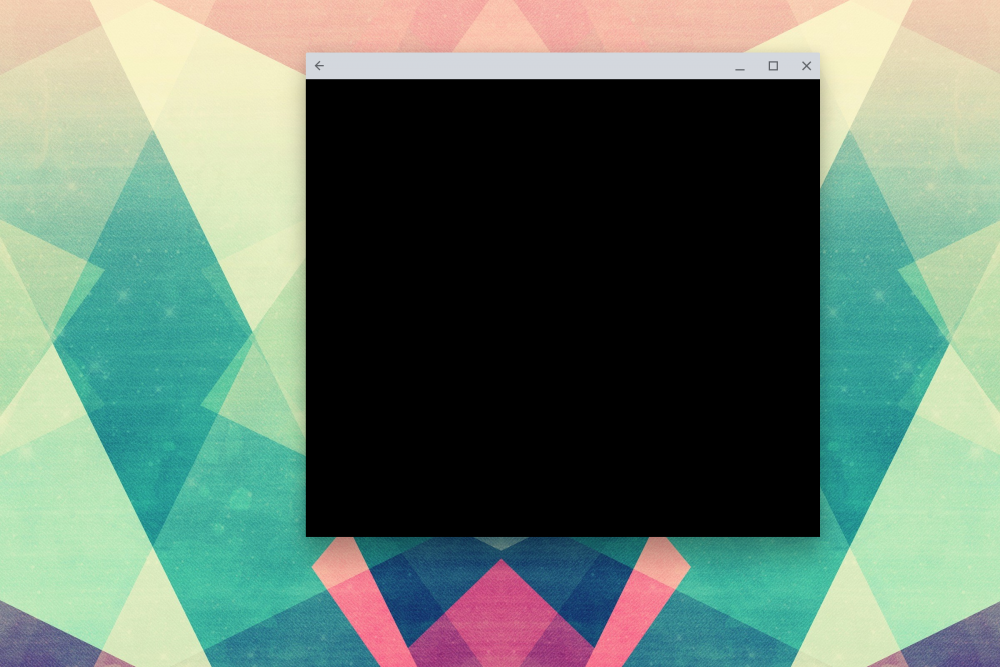
I actually found this is correct behavior for apps that are marked with secure flag. These apps cannot be screenshotted on normal android device and on any unsecured display they show as blacked out. I guess external screens are considered insecure. I found out this when finding out my banking app behaves the same and when I shared my screen on hangouts these apps are also blacked out on the screen share.
-
Hello, I have encountered a very strange bug while using Enpass beta on my Pixelbook. When I move the window to my external monitor connected with HDMI the app window is black and does not respond to any input. Returning the window to the built in display show the content again. I attached screenshots of the app showing black screen but I cant screenshot the app working as on screenshots it shows black screen every time. This didn't happened with any other Android app I have. Regards, Marek