Jac
Members
-
Joined
-
Last visited
-
-
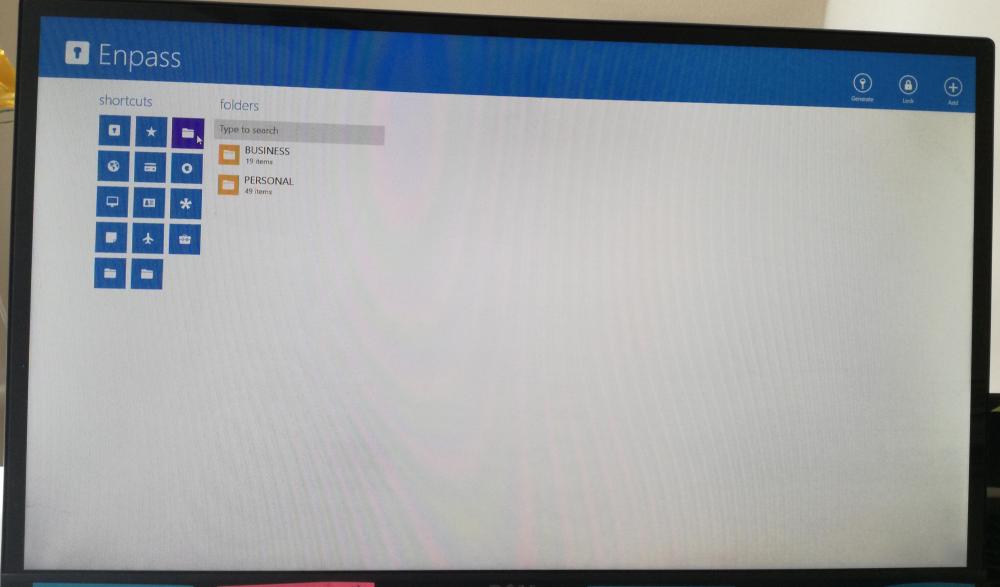
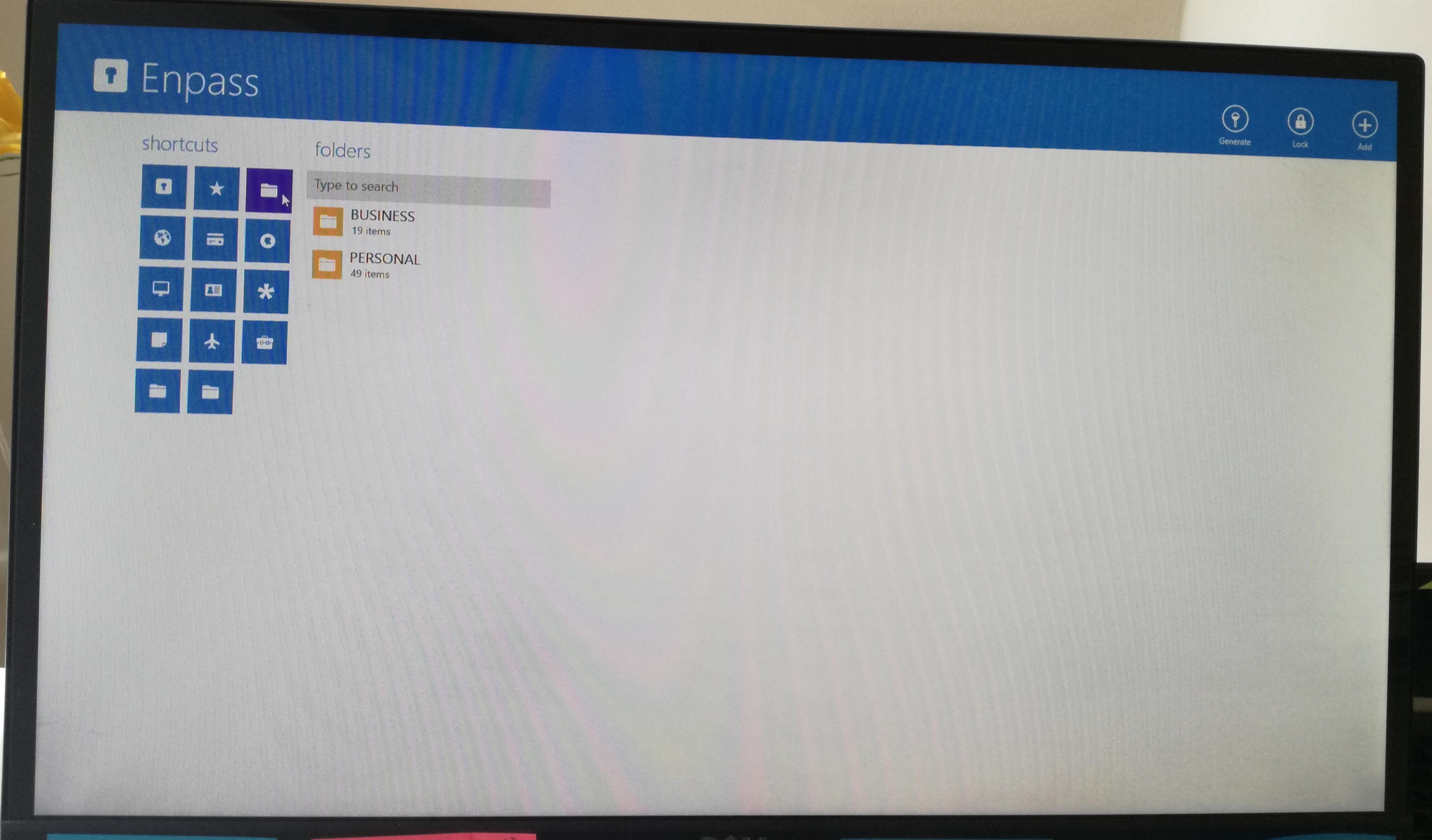
The version of Enpass for Windows 8.1 is useless! This is what my Enpass screen looks like. There are not drop down menus, side bars etc etc. I've had to manually enter all the passwords, it doesn't sync and auto fill when I need to log into sites. I can't back up - no right hand menu remember. The share option through email doesn't work. I can't change the all lower case spelling in places, I can't 'add new' and then choose a folder to file it under - always has to be the other way around. The visual icons are out of date and limited. If I recall when I tried speaking to the help desk I was advised I need to upgrade my computer or Windows version to 10 if a want a better version. Also - Enpass keeps claiming it's free. It's not! It cost £8 for every device you want to download it to. I haven't dared download it onto another device for fear it won't sync and I need to share the information with my assistant. Oh, and the average person is supposed to read through all the manuals to operate the darn system - which is useless for non tech people like myself - especially when the visuals DON'T MATCH WHAT MY VERSION LOOKS LIKE. Should I just delete and switch to Lastpass?