CaptainBDSC
Members
-
Joined
-
Last visited
-
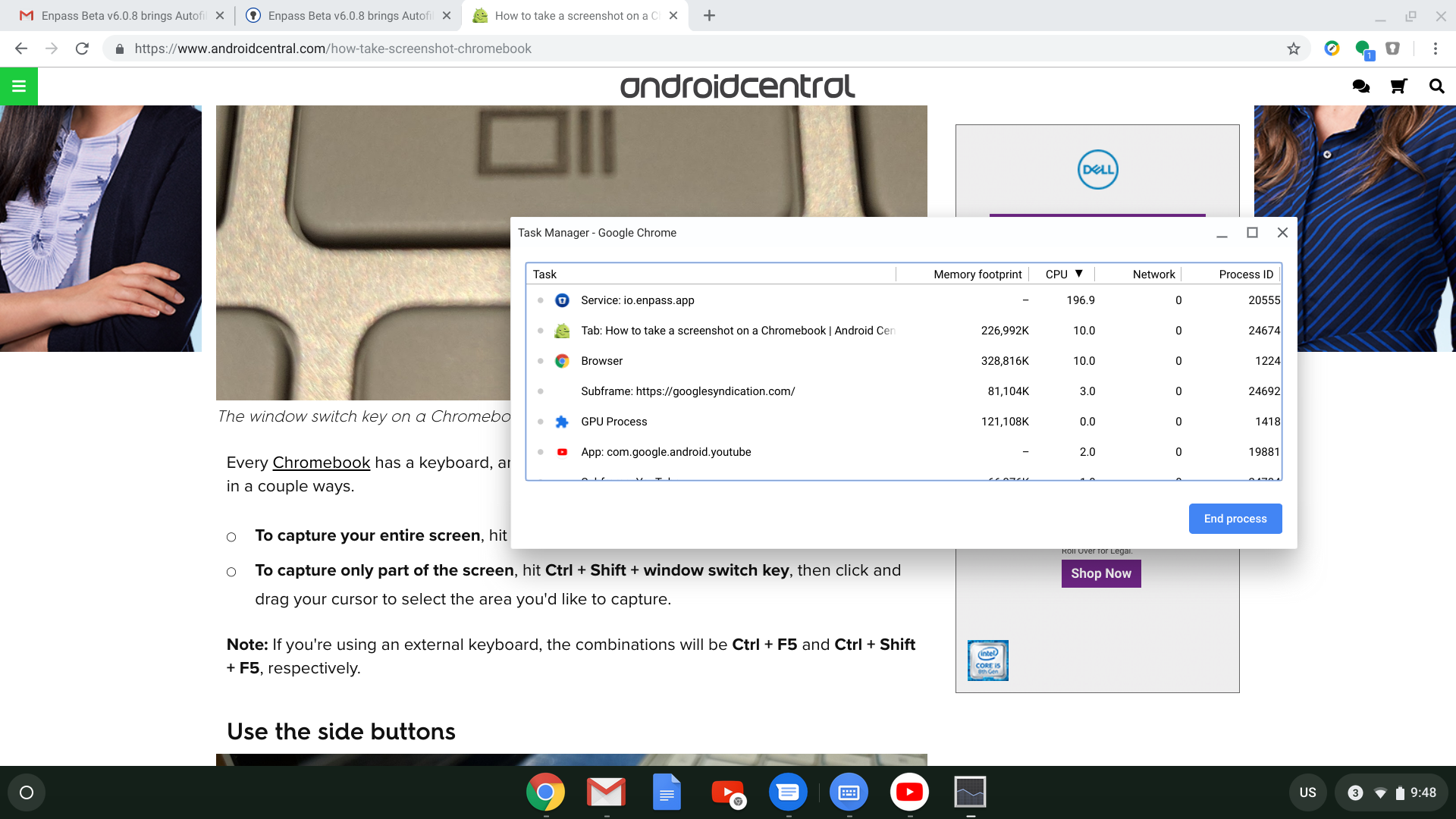
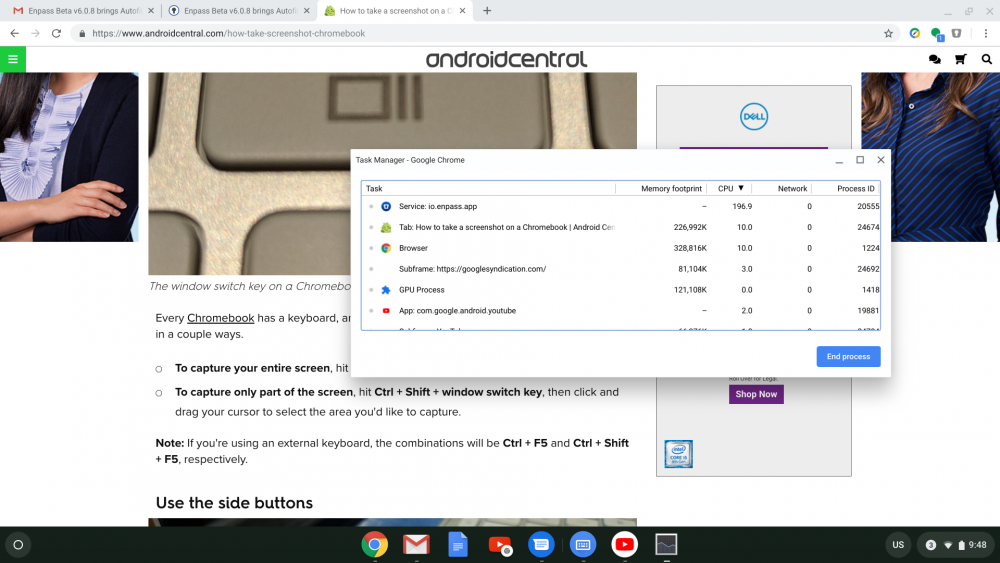
Hi Team, I am seeing Enpass Extension or Service on my Chromebook peg my CPU very hard. I am guessing the task manager shows percentage of CPU load per task. It shows Enpass hitting my CPU between 250-350%? When it is like that my estimated battery life goes down to 2hrs from a full charge, and once I kill the task my battery life goes up to 5-6hrs. I have tried uninstalling and reinstalling, same results, though not right away. Overnight the behavior came back. Screenshot attached -Brent
-
Thank you!
-
Okay, I feel ridiculous asking this. But how do you get Enpass beta for Chrome OS? I am new to Chrome OS...
-
HI, I have been using Enpass for some time now, I have been waiting for that magic moment when the Chrome Extension starts working. Does it work for anyone? I have Windows 10 Home on 1 machine and Window 10 Pro on another. I assume I have the latest Chrome browser installed since I think it auto-updates itself. I use Super Anti-Spyware (free version) and Sophos Home Antivirus. The extension doesn't ever work on either machine. All I ever see is the Connection Error. I have paid for pro version of Enpass for Android and would like some sort of step by step tutorial how to get it working.
-
So if you dont have ESET what then? I am running Windows 10 Pro x64 (Anniversary update) Chrome Version 52.0.2743.116 m (64-bit)