

Skip to content
View in the app

A better way to browse. Learn more.

Enpass Discussion Forum

A full-screen app on your home screen with push notifications, badges and more.

To install this app on iOS and iPadOS
  1. Tap the Share icon in Safari
  2. Scroll the menu and tap Add to Home Screen.
  3. Tap Add in the top-right corner.
To install this app on Android
  1. Tap the 3-dot menu (⋮) in the top-right corner of the browser.
  2. Tap Add to Home screen or Install app.
  3. Confirm by tapping Install.

chiwou

Members
  • Joined

  • Last visited

Everything posted by chiwou

  1. you can't it's a sh**ty move and they're trying to lock you in, a simple CSV export would suffice, but no luck
  2. chiwou replied to RSW's topic in Desktop
    what kind of format are the other ones, the json file isn't json and the txt is impossible to reimport into another app. really nice, it's one way to keep the users locked in
  3. chiwou posted a topic in Desktop
    Hi, my guess you want to promote the new Enpass Icon, but the blue icon really messes up the whole windows 10 look. In my personal opinion, just a white icon would be much better. Bye
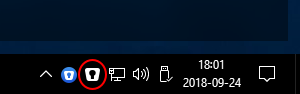
  4. Hi, in the UWP its possible to start the app and just use Windows Hello, would like to see this in the new version of Enpass too. And atm after Enpass locked the current session, you've to manually select Hello to unlock, it's just an extra step, but after a while it gets really annoying :-) thanks
  5. chiwou posted a topic in Feature requests
    Hi, I would like a feature to fill login/passwords in windows/mac apps. just like in KeePass. Thanks

Account

Navigation

Search

Search

Configure browser push notifications

Chrome (Android)
  1. Tap the lock icon next to the address bar.
  2. Tap Permissions → Notifications.
  3. Adjust your preference.
Chrome (Desktop)
  1. Click the padlock icon in the address bar.
  2. Select Site settings.
  3. Find Notifications and adjust your preference.