Frank Denis
Members
-
Joined
-
Last visited
-
Note that this is not a Mojave specific issue. It also happened with macOS 10.13. However, it only happens with Enpass 6.
-
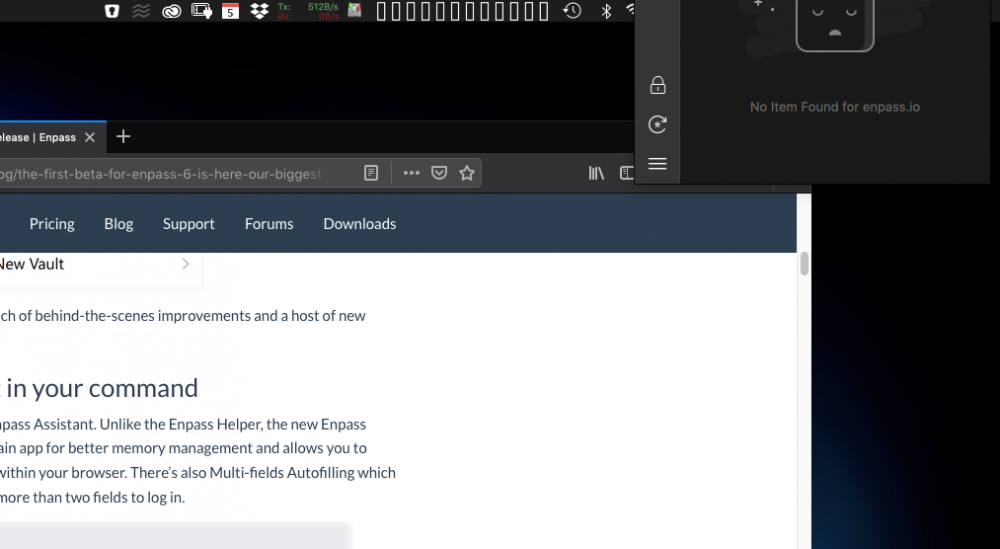
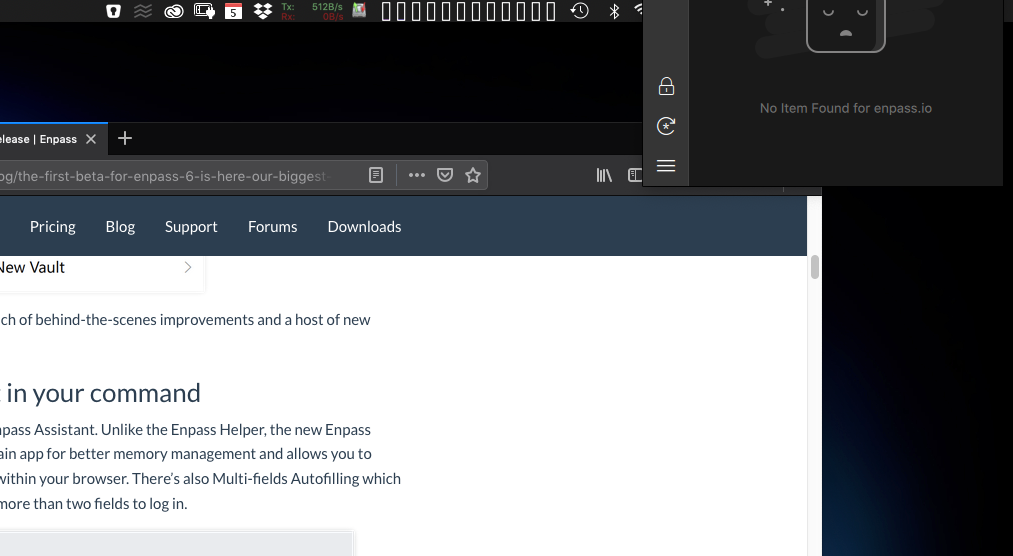
Congrats for the new release! However, on macOS, the assistant still has the same UI issue as the first beta. Namely, it unfolds up, even beyond the limit of the screen, making it difficult to use. A picture is probably better to describe that issue; here is what happens when I click on the Enpass item in the menu bar: This is all I can see. There is nothing below. This happens on my secondary display (whose resolution is 2560 x 1440) but not on my Macbook Pro's display. The very same thing happens when using the Firefox extension: See how it unfolds towards the top of the screen, masking half the Enpass window. If the browser window is at the top, there is pretty much nothing visible from the Enpass window. And with the extension, it also happens on my secondary screen, not on the MBP screen.