Skip to content
View in the app

A better way to browse. Learn more.

Enpass Discussion Forum

A full-screen app on your home screen with push notifications, badges and more.

To install this app on iOS and iPadOS
  1. Tap the Share icon in Safari
  2. Scroll the menu and tap Add to Home Screen.
  3. Tap Add in the top-right corner.
To install this app on Android
  1. Tap the 3-dot menu (⋮) in the top-right corner of the browser.
  2. Tap Add to Home screen or Install app.
  3. Confirm by tapping Install.

Hasso Schwerthelm

Members
  • Joined

  • Last visited

Everything posted by Hasso Schwerthelm

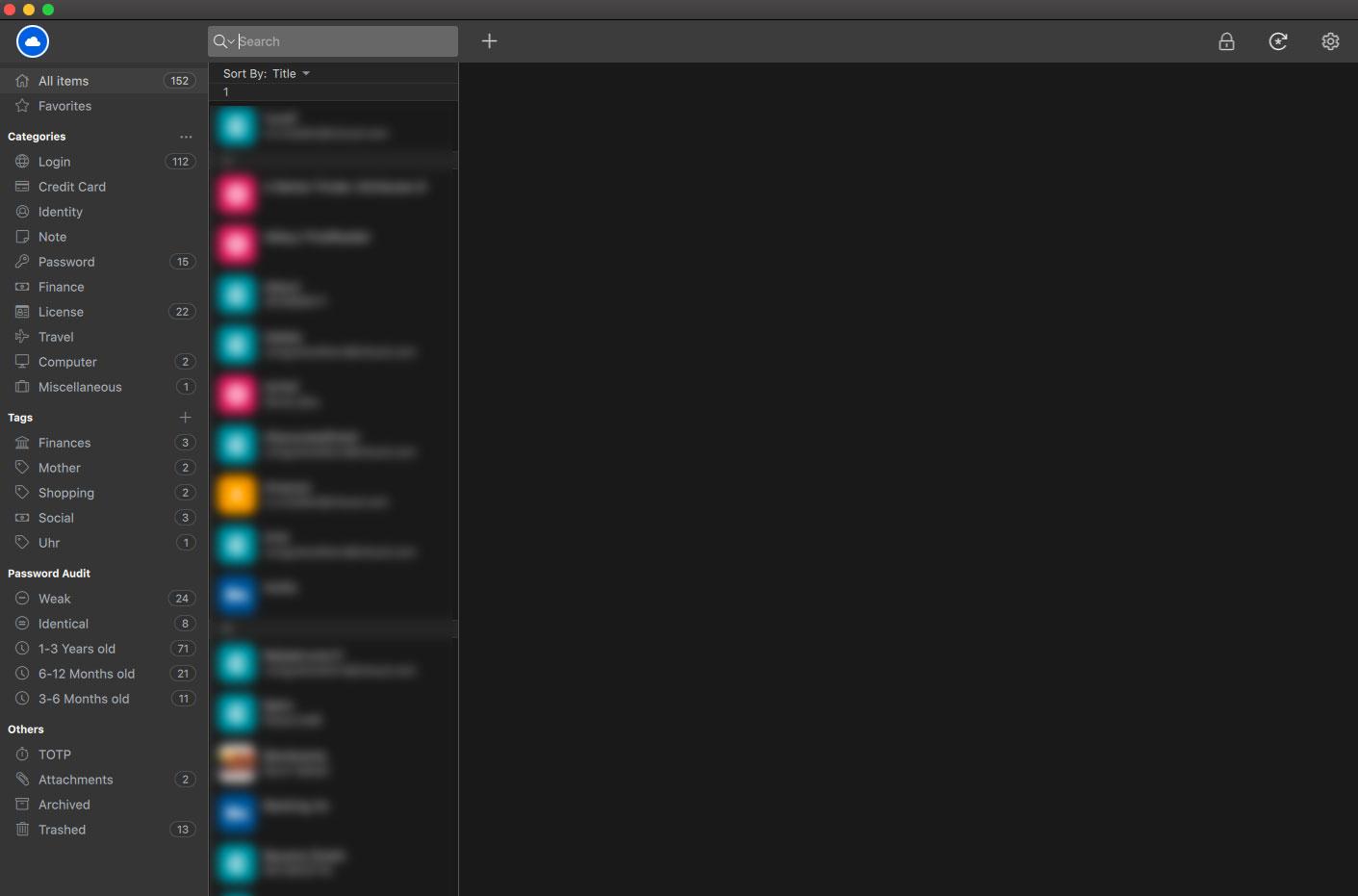
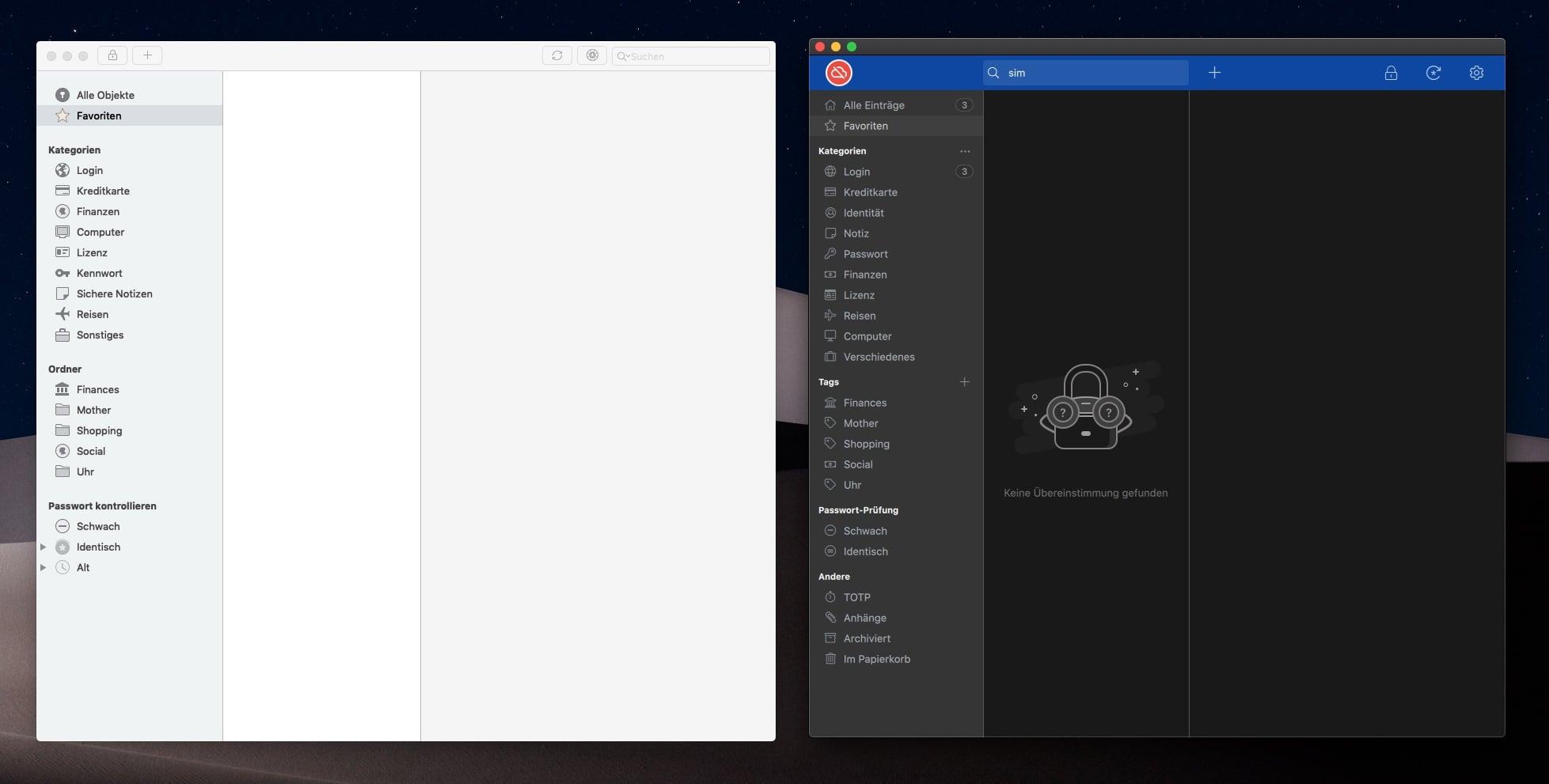
  1. I second this. I unterstand that you may think the blue header does represent the corporate identity but the shade of blue is quite heavy and does not blend well with the dark mode. If you're dying to keep it, make at least a colorless header an option for dark mode. Like this:
  2. I´ve got the same message because i had running v5 and v6 at the same time. After closing v5 it worked for me.
  3. I´ve installed V6 alongside V5, V6 has its own folder and both versions work flawlessly together. Just take the backup file from V5 and use it with V6, it works fine. I haven't tested iCloud sync yet because there is no new beta for iOS available.
  4. Check Safari-Settings-Extensions, the new beta auto installs the needed plugin, it should already be there, there's no need for a manual install of the plugin.

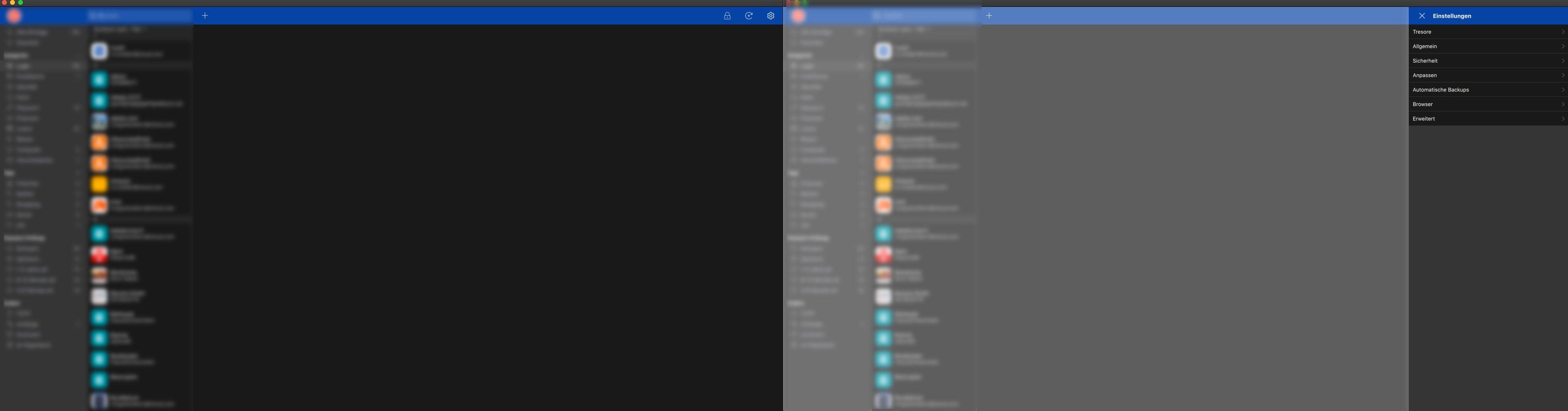
  5. If you open settings most of the screen area in dark mode brigthens up which is distracting and doesn't make sense.
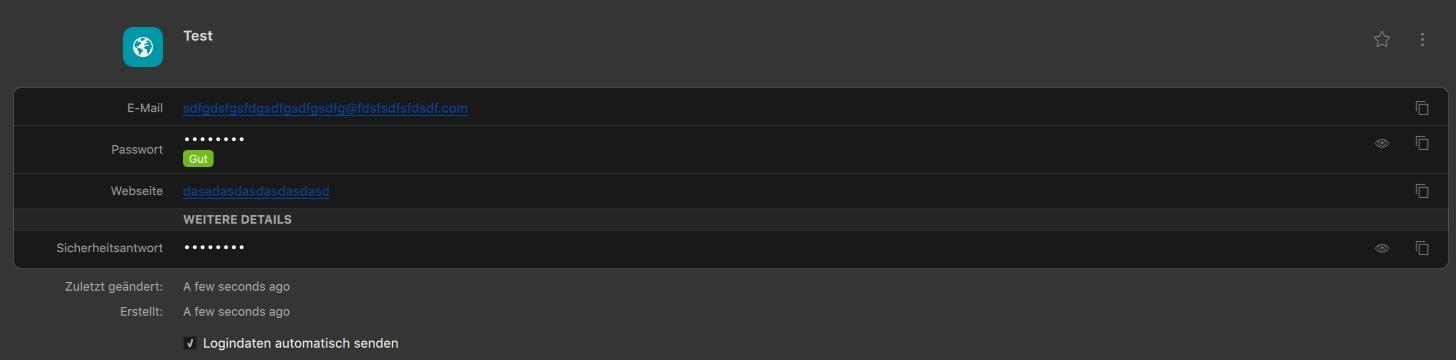
  6. I hope you will change the font color for links before the Final is out.

Account

Navigation

Search

Search

Configure browser push notifications

Chrome (Android)
  1. Tap the lock icon next to the address bar.
  2. Tap Permissions → Notifications.
  3. Adjust your preference.
Chrome (Desktop)
  1. Click the padlock icon in the address bar.
  2. Select Site settings.
  3. Find Notifications and adjust your preference.