Skip to content
View in the app

A better way to browse. Learn more.

Enpass Discussion Forum

A full-screen app on your home screen with push notifications, badges and more.

To install this app on iOS and iPadOS
  1. Tap the Share icon in Safari
  2. Scroll the menu and tap Add to Home Screen.
  3. Tap Add in the top-right corner.
To install this app on Android
  1. Tap the 3-dot menu (⋮) in the top-right corner of the browser.
  2. Tap Add to Home screen or Install app.
  3. Confirm by tapping Install.

carrieven

Members
  • Joined

  • Last visited

Everything posted by carrieven

  1. @Ankur Gupta - Thank you for all your help. I got it working.
  2. The version I'm using is on this screenshot. I do still have the V6 (220) in my app folder - do I need to uninstall it?
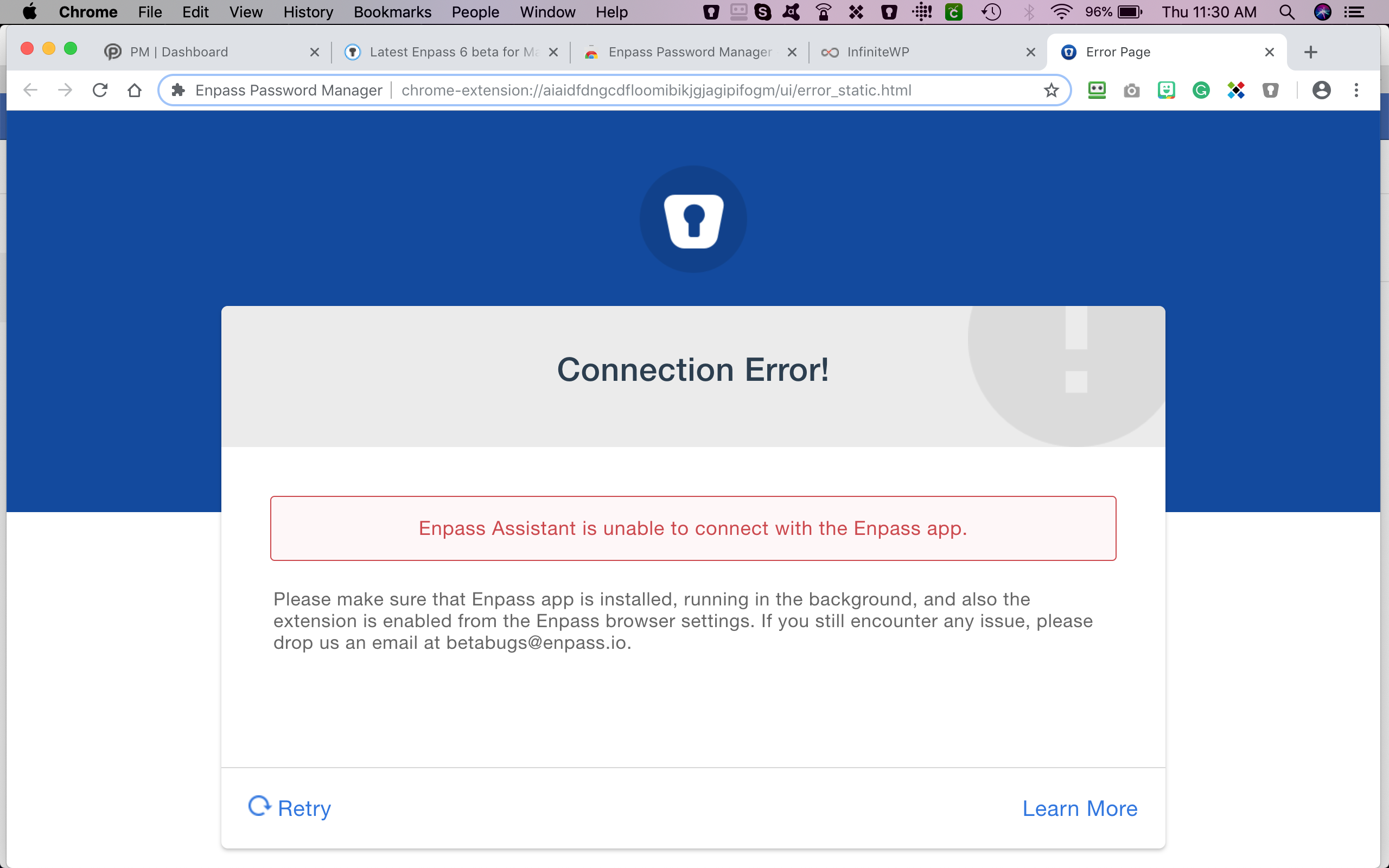
  3. Thank you - when I use that extension - I get this error message - which is the same message I was getting before installing the latest version of the app.
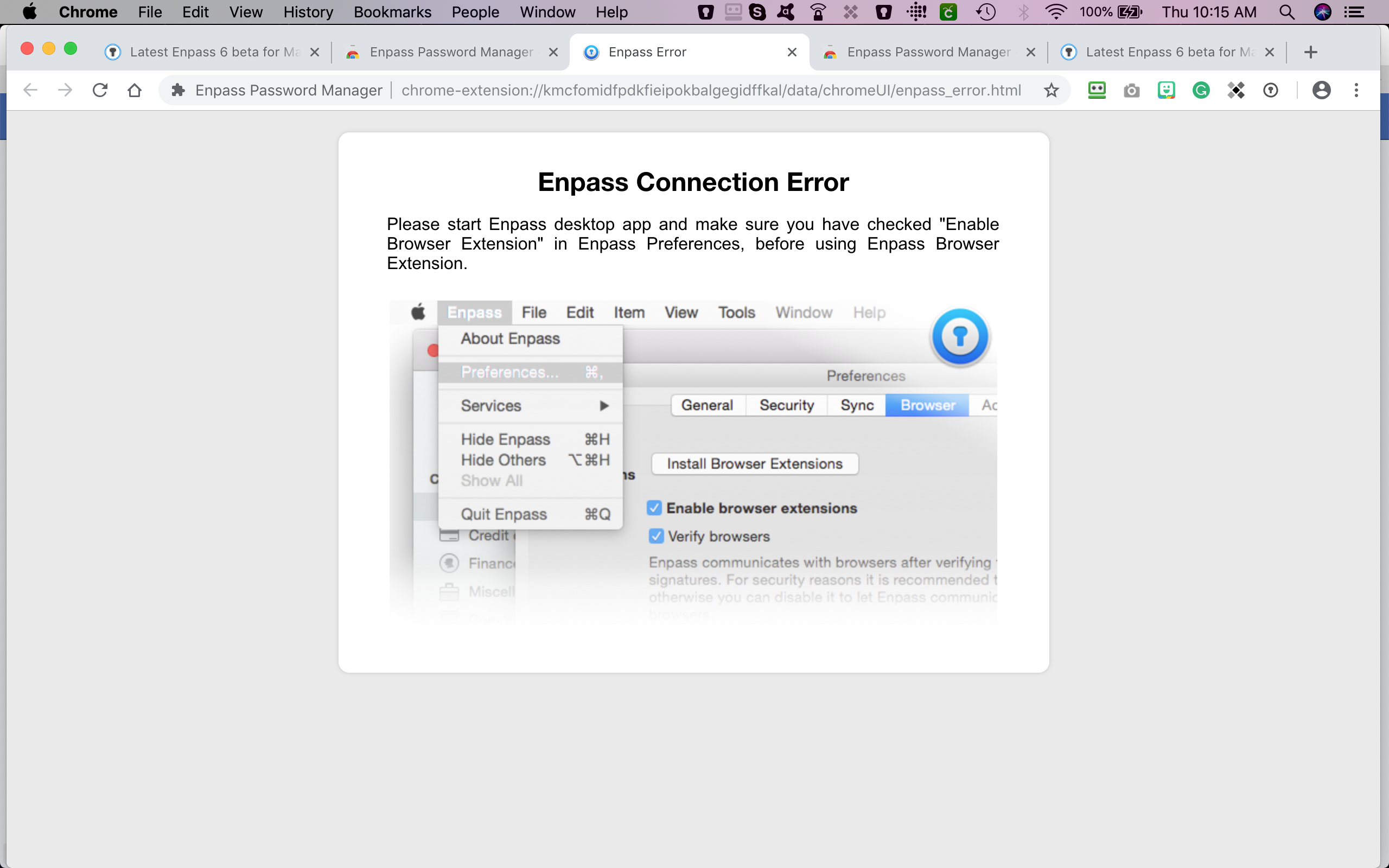
  4. I am having trouble with the new enpass browser extension on Chrome. I have installed it and enabled it but I still get this error. I am using it on a Macbook Pro using Mojava 10.14.1 on the Google Chrome browser. When I go to the 'review browser' options - it shows no browsers in the list of those trying to establish a connection - so its like it isn't recognizing it. Please advise!
Account

Navigation

Search

Search

Configure browser push notifications

Chrome (Android)
  1. Tap the lock icon next to the address bar.
  2. Tap Permissions → Notifications.
  3. Adjust your preference.
Chrome (Desktop)
  1. Click the padlock icon in the address bar.
  2. Select Site settings.
  3. Find Notifications and adjust your preference.