luga
Members
-
Joined
-
Last visited
-
I am using the Android Beta and Autofilling in the App Payback does not work. Enpass fills the Email in both the login name and password field. It is this app: https://play.google.com/store/apps/details?id=de.payback.client.android Enpass Android version 6.0.0.98 And another suggestion: Could you maybe rename the "Move to Trash" option just to "Delete" and make the Trash folder more visible?
-
-
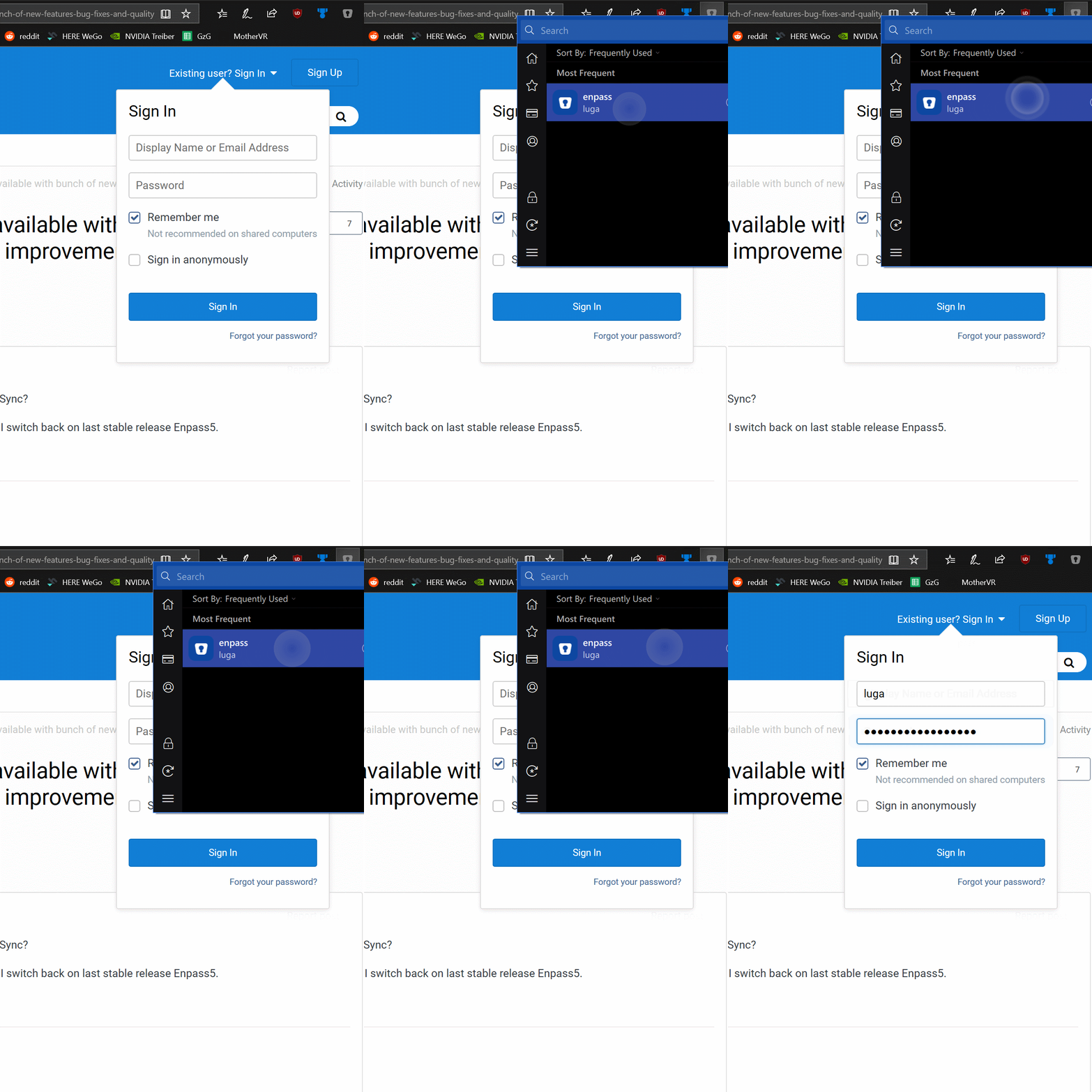
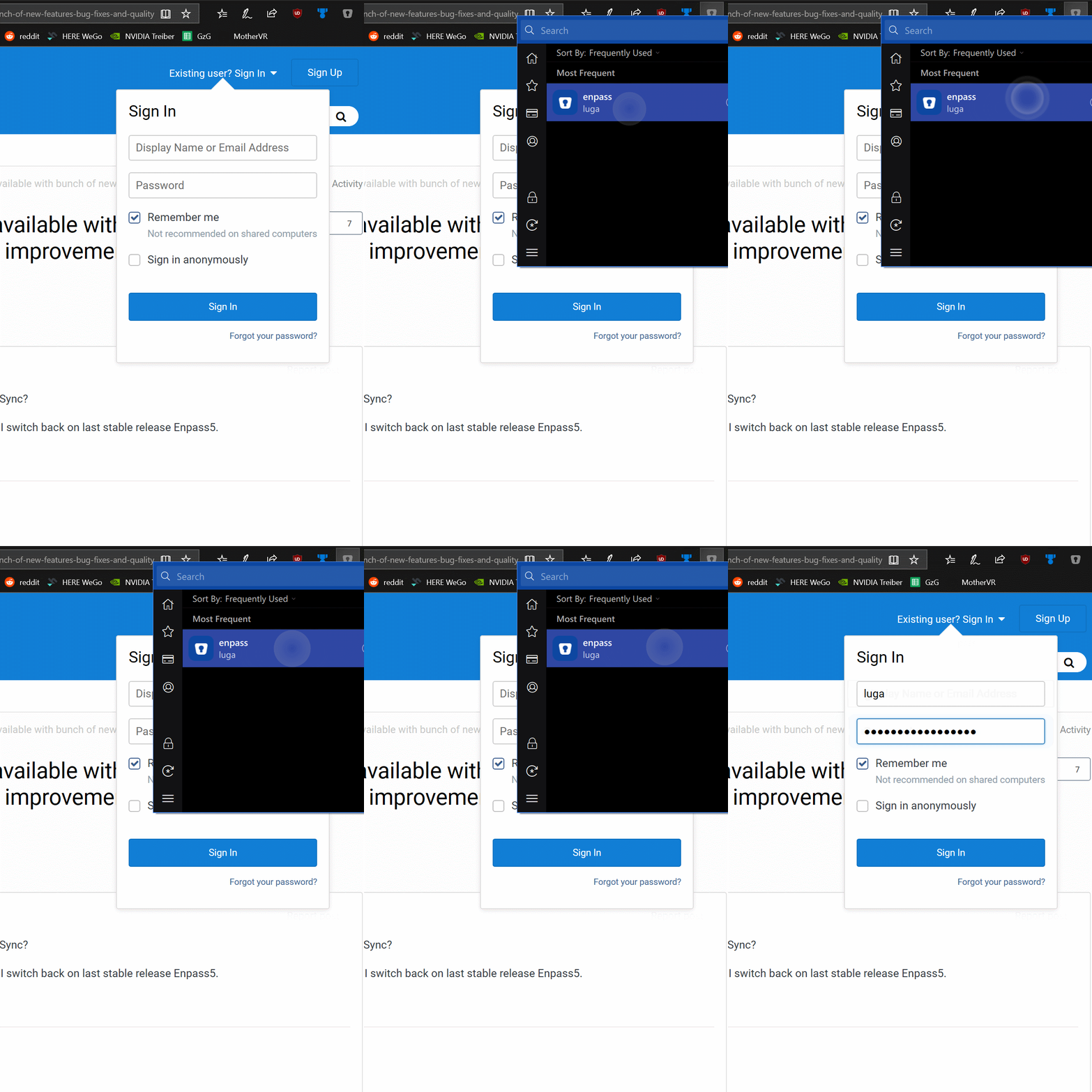
Hello, I have installed the traditional Windows App through the Windows Store and i am using Enpass on my Surface Tablet and on my Windows 10 Desktop PC. The Browser Extension for Edge does not work properly with touch, at least if i double tap on an entry to autofill it into a website. Double Tap with my finger on the entry does nothing. Double clicking with my mouse on the entry works well and autofills the informations. Software Versions: Windows 10 Version 17763.167 x64 Microsoft Edge Version 44.17763.1.0 Enpass (Windows Store) 6.0.197.0 Enpass for Microsoft Edge Extension 6.0.0.0 Here is a Video which describes the Problem: I open the Enpass Extension and first i try to enter the Enpass Entry into the Login field by tapping onto it with my finger several times (see the big visual dots). It does not work. After this i just double click with my mouse on the Entry and it is instantly filled into the fields.