ice-breaker
Members
-
Joined
-
Last visited
-
I managed to update to Version 6 as follows (don't know, if Step 1 and 2 are really helpful): Started up Windows 10 and updated to Version 6 of Enpass Turned on Synchronization with my Google Drive account.This seemed to convert my Data to Version 6 compatible database. Now rebooted to Linux and completely removed Enpass Installed the Enpass Extension in Chromium Browser Re-Installed Enpass Version 6 for Linux Started Enpass as a "New User" Enter Master Password Enabled Sync. Now the credentials for my Google Drive account could be entered, since the browser opened now. Hope this helps. It is important, that the Browser-Extension is compatible with the installed Desktop-Version, otherwise, the Browser is not launched to enter the credentials for the Sync (e.g. Google Drive).
-
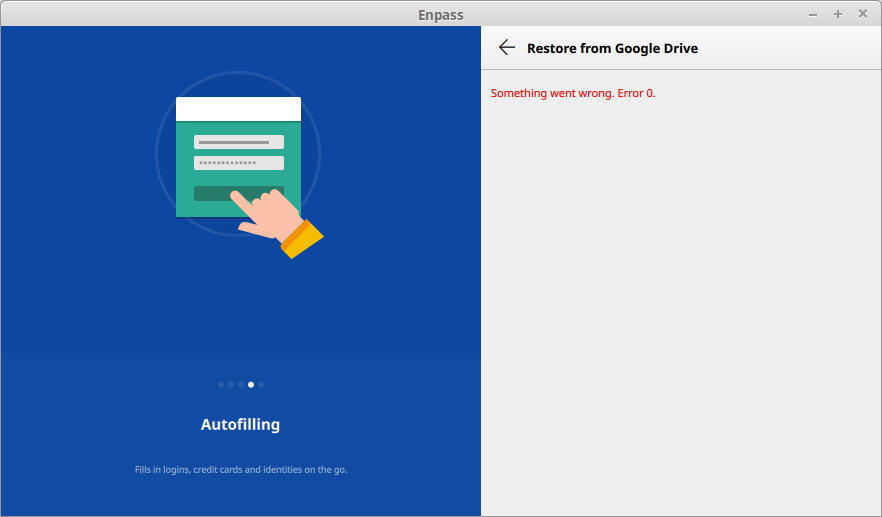
Same problem here. Since update to Enpass 6.0.0.230, nothing goes! When I try to sync to Google Drive, the Login does not appear and next time, The UI shows "Something went wrong. Error 0." PLEASE HELP! The command xdg-open enpassauth://dropbox/ showed the screen above.