Skip to content
View in the app

A better way to browse. Learn more.

Enpass Discussion Forum

A full-screen app on your home screen with push notifications, badges and more.

To install this app on iOS and iPadOS
  1. Tap the Share icon in Safari
  2. Scroll the menu and tap Add to Home Screen.
  3. Tap Add in the top-right corner.
To install this app on Android
  1. Tap the 3-dot menu (⋮) in the top-right corner of the browser.
  2. Tap Add to Home screen or Install app.
  3. Confirm by tapping Install.

koenbro

Members
  • Joined

  • Last visited

  1. Thank you Vinod, it worked. That is helpful, and I confirming, in case someone else had the same problem and comes across this thread.
  2. I just posted about lack of sync from MacOS with Dropbox. In the meantime, I have uninstalled, and gone back to version 5.6. Is it time to abandon Enpass?
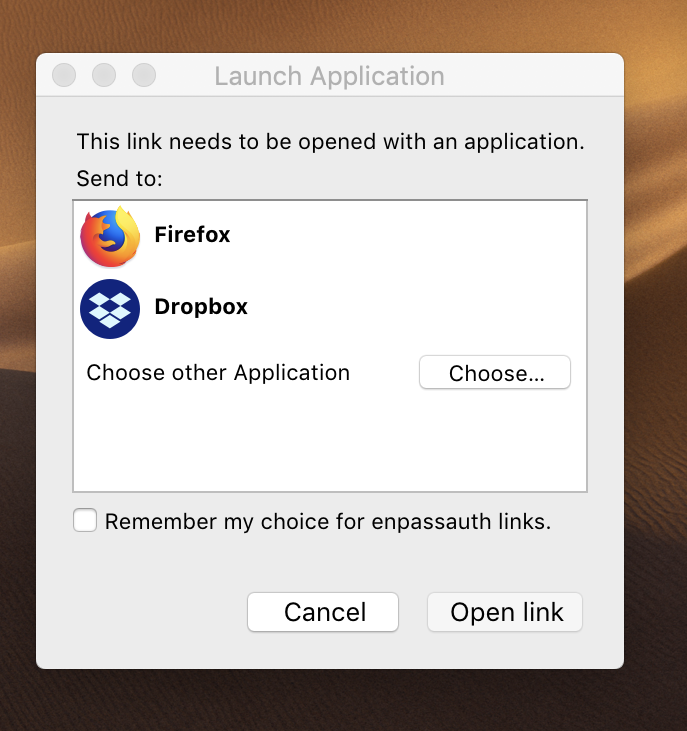
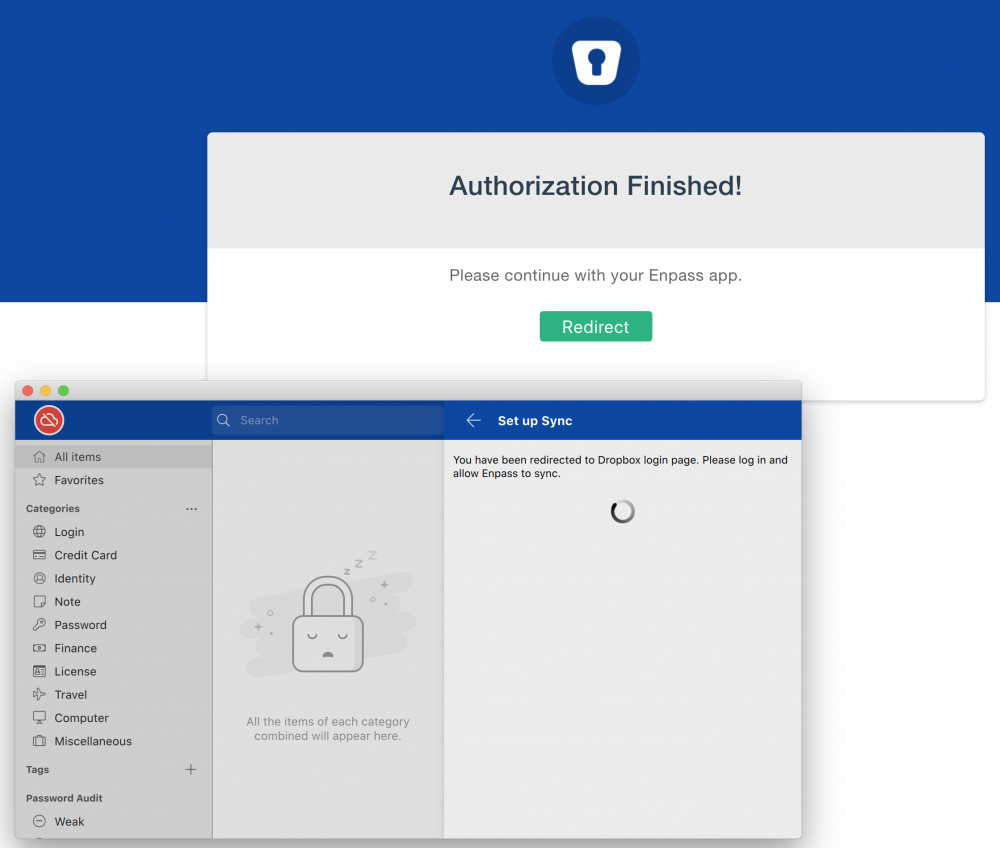
  3. After updating to the new version, Enpass stopped syncing through Dropbox. The iOS version continues to sync, or so it seems but of course now my devices are out of sync from my laptop. Very upset! I uninstalled Dropbox from my Mac, deleted the access in Dropbox, reinstalled Enpass on the Mac, and requested cloud sync access from Dropbox. A request popped up to open a link in the Dropbox desktop app: After saying OK, I get a forever spinning, stuck screen: In the meantime, Dropbox does not have the know about any Enpass access: Please fix ASAP! Is there anything I can do in the meantime?

Account

Navigation

Search

Search

Configure browser push notifications

Chrome (Android)
  1. Tap the lock icon next to the address bar.
  2. Tap Permissions → Notifications.
  3. Adjust your preference.
Chrome (Desktop)
  1. Click the padlock icon in the address bar.
  2. Select Site settings.
  3. Find Notifications and adjust your preference.