


Nirose
Members
-
Joined
-
Last visited
-
It has been my experience that the application tries to search entries too early after each key tap. That seems wasteful as you loop over all the entries multiple times before a word is typed. Can you make it wait a while longer after the typing activity stops? An alternative would be having a setting that initiates a search only after pressing enter key on the keyboard. It would make it much intuitive and the lag can be avoided. Thanks
-
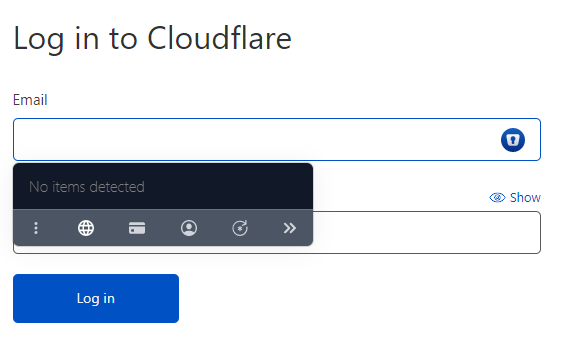
The new autofill box is fast and convenient but there needs to be a way to switch vaults. You can press the ">>" button and go to the older interface and switch vaults but thats more additional effort which could be switched with "CTRL + 1/2" from the keyboard like the older interface had. Also the icons need some labels.
-
Solved in the latest release 6.6.3.467. Thanks
-
Thank you so much for taking a look. Hoping for a fix soon
-
Enpass Autofill hasn't worked since last 2 updates. I was hoping the recent update would fix it but it didn't. The autofill selection window shows up, I can select the items from the list, but nothing happens and it doesn't fill in the credentials. It just stays there doing nothing. It used to work well before these updates Here's a recording of the problem: Screen recording for demonstration Phone: Oneplus 3T OS: Android 9
