giaguaro
Members
-
Joined
-
Last visited
Everything posted by giaguaro
-
Vikram, I examined this issue and discovered it all had to do with incorrect mounting of the second HDD in my laptop. Therefore, Enpass couldn't find the location on this second HDD and kept asking for the data. Solution: Because Linux Mint 19.1('Tessa') runs on my laptop I opened the 'Disks' application and changed the default setting for the second HDD to: 'User Session Defaults' is disabled; 'Mount at Startup' is selected; 'Show in user interface' is deselected; 'Require...to mount' is deselected; Parameters used: nosuid,nodev,nofail,noauto; Filesystem type is set to 'ext4'. Thanks a lot for your help. Gregory
-
Hi Vikram, Thanks for your reply. I have installed the application version v6.0.6 as a fresh app. No update; Indeed I have changed the data location from the default location to another map on the second hard drive in my laptop; The app has full rights. Regards, Gregory
-
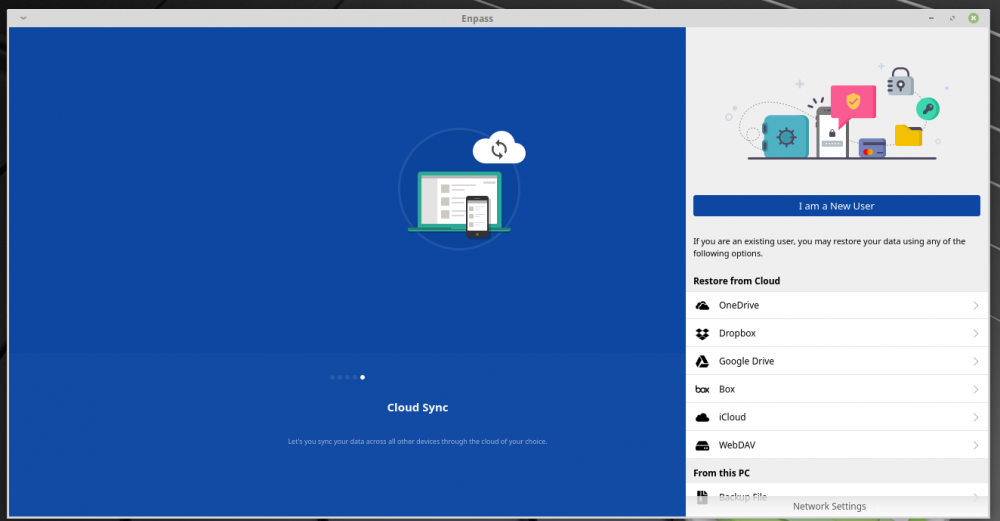
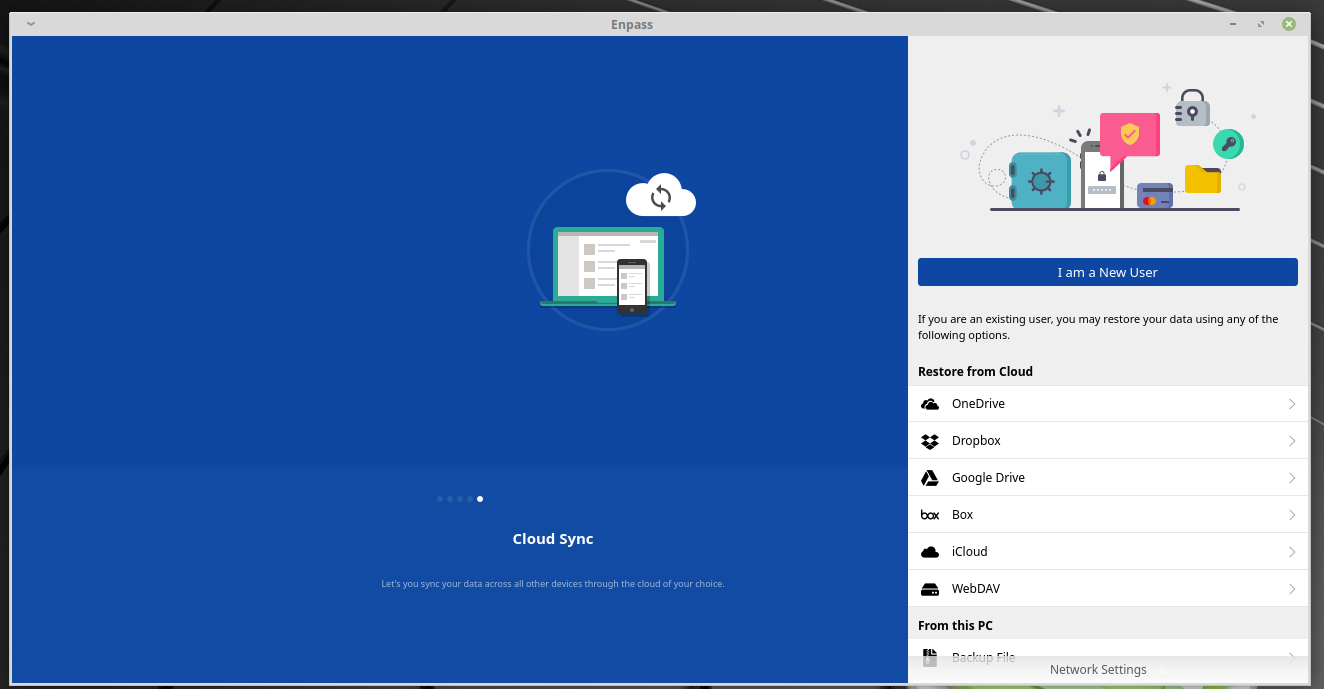
First of all, Enpass is an awesome application, password manager. Some specs: Enpass version: 6.0.6 (323); Linux Distro #1: LinuxMint 19.1 'Tessa' Linux Distro #2: Pop!_OS 19.04 However recently, it shows strange behaviour, on both mentioned distros. When 'killing' the Enpass application through the Task Manager, and restarting the Enpass application there are no probs. But, Enpass keeps asking to select 'I am a new User' or 'Restore from' after a full reboot of my laptop. See the attached image. This is annoying. Anyone knows a solution for this behaviour? Thanks in advance.