
TTowers
Members
-
Joined
-
Last visited
Everything posted by TTowers
-
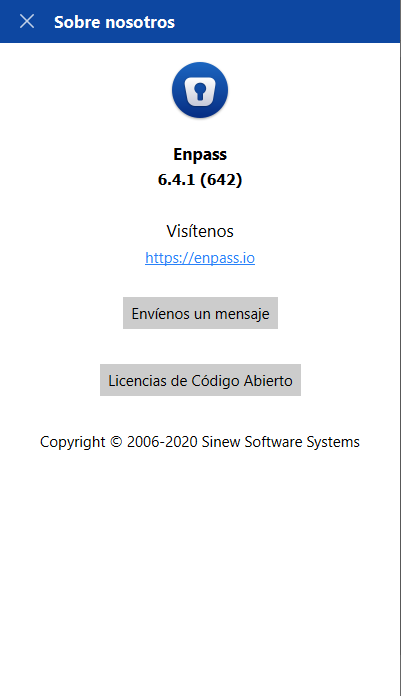
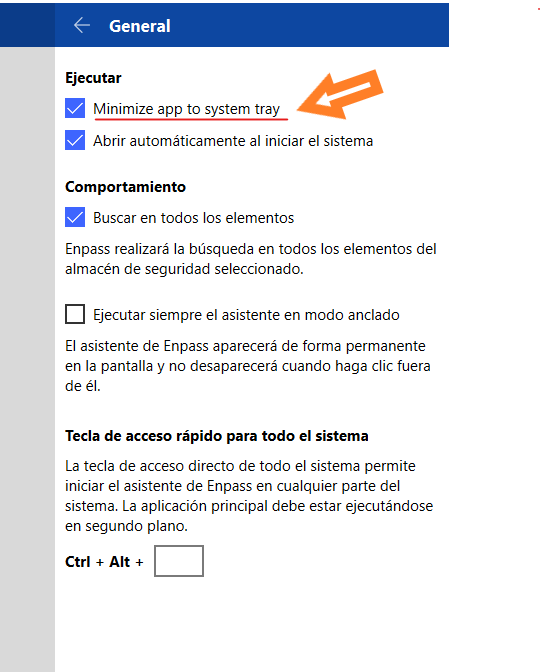
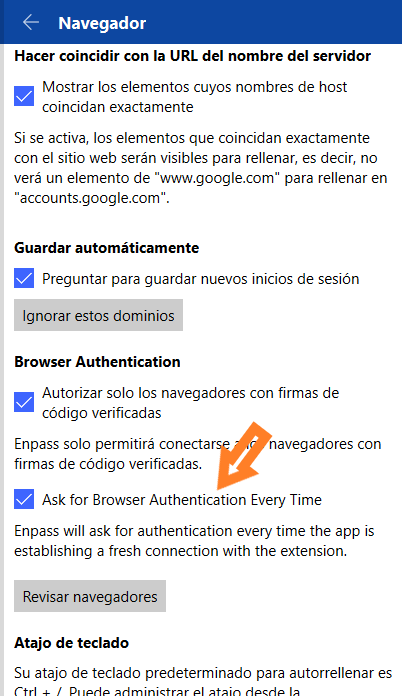
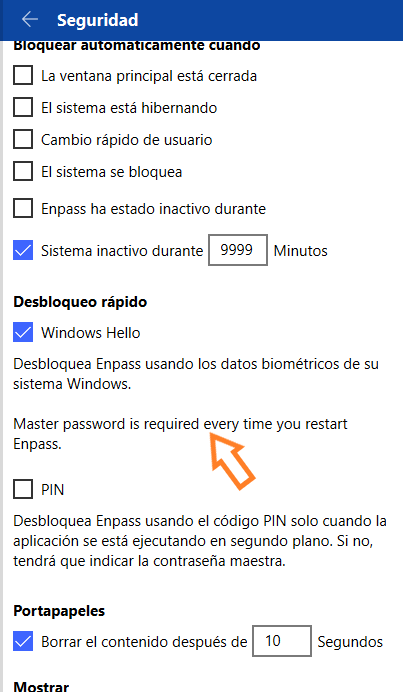
Very good to the Enpass team. Please review certain fields within the sections that I continue to be related to not being fully translated into the Spanish language. - General Section - Security Section - Navigator section - Other Section Waiting for you to consider my suggestion, a greeting. *** SO PC: Windows 10 Home Version: 2004 build version: 19041.508 *** Version Enpass: 6.5.0 (700)
-
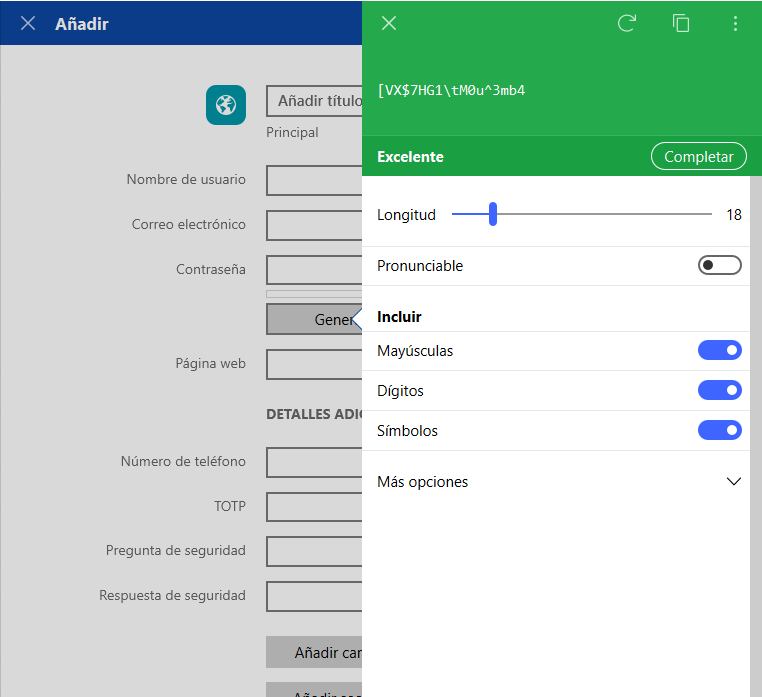
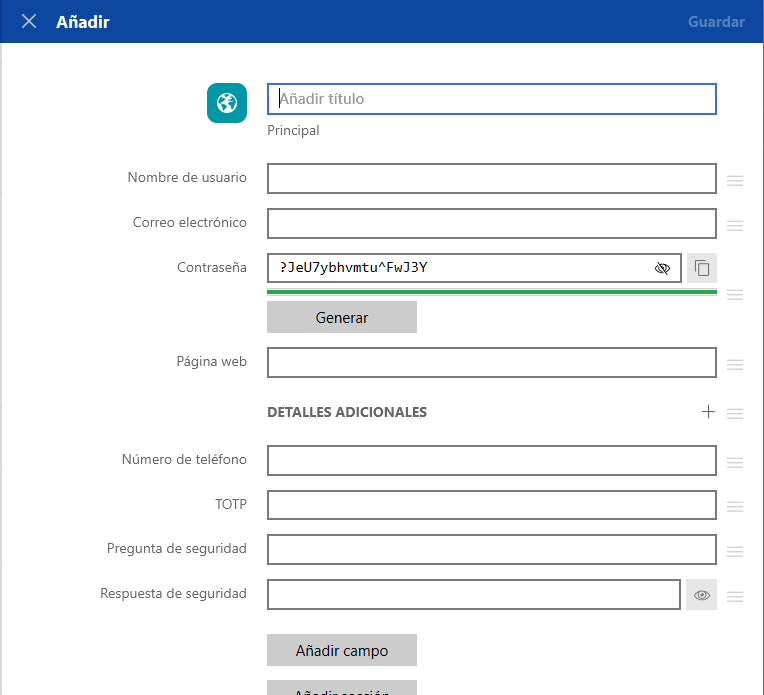
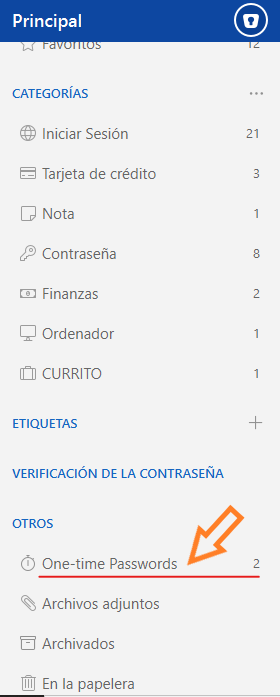
Good afternoon webmaster y Garima The same happens to me, but in this case what I have detected to others, is that when you want to add a new login element and you want to generate a password for that website, by pressing the "password" button, the window that appears you can see a password that has been automatically generated and when you click on the "Complete" button, the field corresponding to "password" of the form for the new login element is filled in, but the password that is filled in the form does not match the one seen or chosen in the corresponding window to generate password. - OS Windows10 home 1909 build18363.752 (Purchased from the Microsoft Store) A greeting.