Deftoned762
Members
-
Joined
-
Last visited
Everything posted by Deftoned762
-
@Kashish - Already tried, see initial post. @Ivarson- FF or Chrome, Yes to the other questions. Enpass have reached out directly to resolve - if resolved successfully I will post an update here.
-
Hi Kashish, No joy, I have removed Enpass with --purge re-followed the setup instructions and still get the same error. I have another Ubuntu build it works fine on? It used to work fine on this build but then suddenly stopped for no apparent reason?!
-
Hi Kashish, No joy, also as per the original post I want to use OneDrive I was testing Google Drive to see if it was an isolated incident - however it appears that all platforms for me are not working. No FW or proxy in place.
-
Hi Pratyush, Thanks for replying. 1. It redirects back to the app 2. Previously it was continuously loading, now after a remove/reinstall I get "Something went wrong. Error 1" 3. I get "Google Drive Error Code 401" when attempting to connect to Google Drive
-
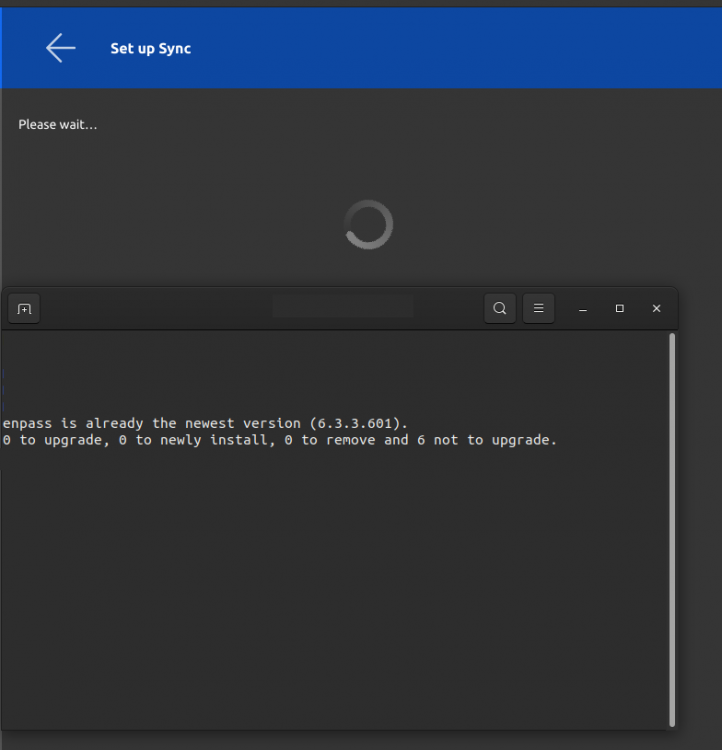
App recently started reporting an error with OneDrive sync, so I disconnect and attempted to setup the sync again. Unfortunately after authenticating on OneDrive the app just freezes on the "Set Up Sync... Please Wait" screen. Ubuntu 19:10 Enpass 6.3.3.601 Have tried; sudo update-desktop-database and sudo update-mime-database /usr/share/mime Still no luck?!