Mouch
Members
-
Joined
-
Last visited
-
Ok that worked although I also had to Reinstall (reset) the App on Windows otherwise the cloud login would never open in the browser Thanks
-
Enpass 6.4.1.329 on Android 10.0.0.196 (Huawei) Enpass 6.4.1 (642) on Windows 10 1909 (18363.720)
-
Mouch joined the community
-
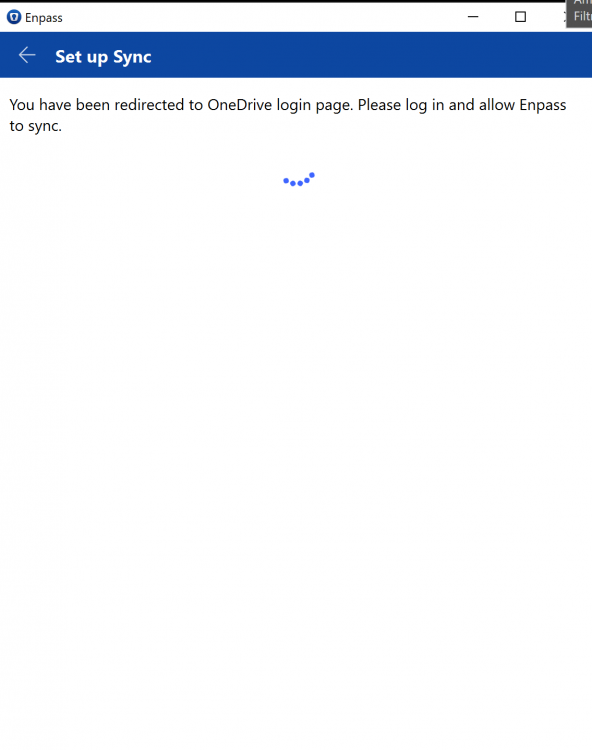
I've update both mu Windows Client and my Android client to the latest version and sync stopped working. So I disconnected both devices and try to configure sync again as suggested in the release notes, without success. So I moved all the Enpass folders (Enpass, Enpass 1) out of my OneDrive and tried again. Android keeps telling me 'Password of data on OneDrive is required, although there is no Enpass DB on OneDrive to login into. When I try my DB password anyway, it tells me the password is wrong although it works absolutely fine locally. On Windows it is even worse I get the 'You have been redirected to OneDrive login page..." screen with a circling loader and than nothing happens. Any idea how to solve this?