trongte
Members
-
Joined
-
Thanks
-
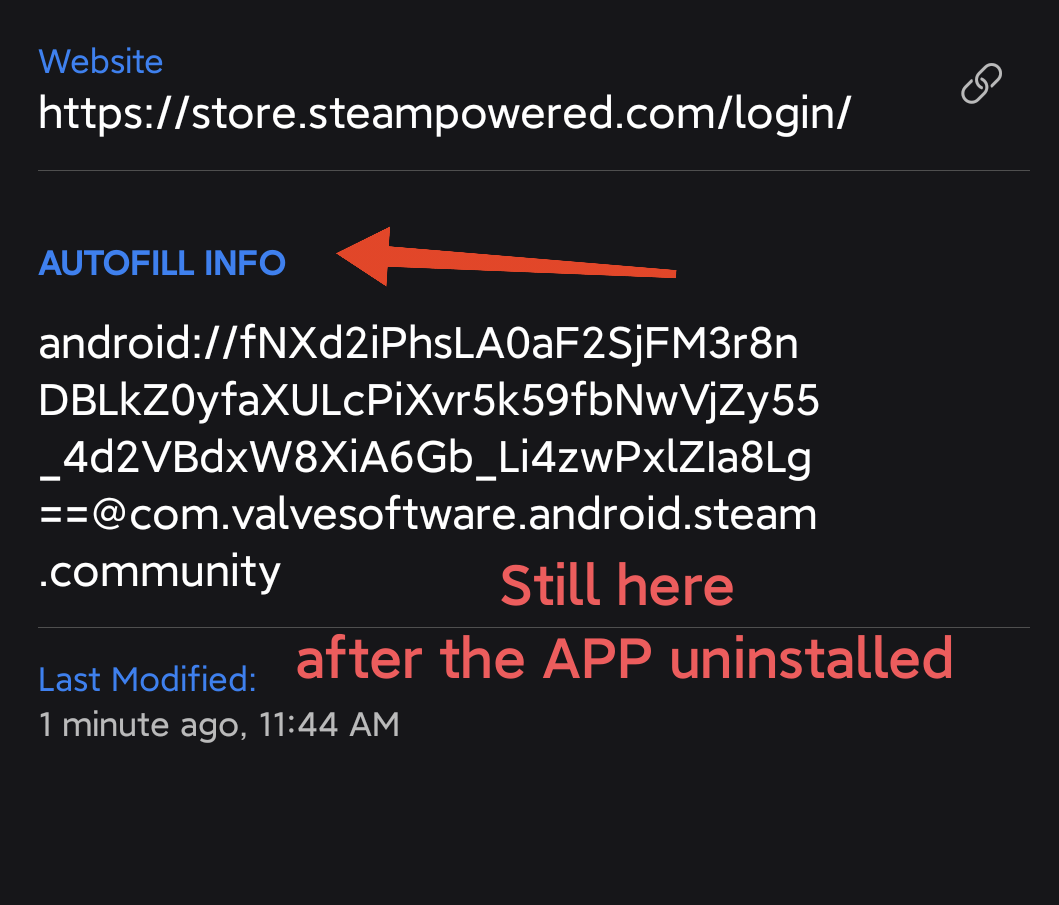
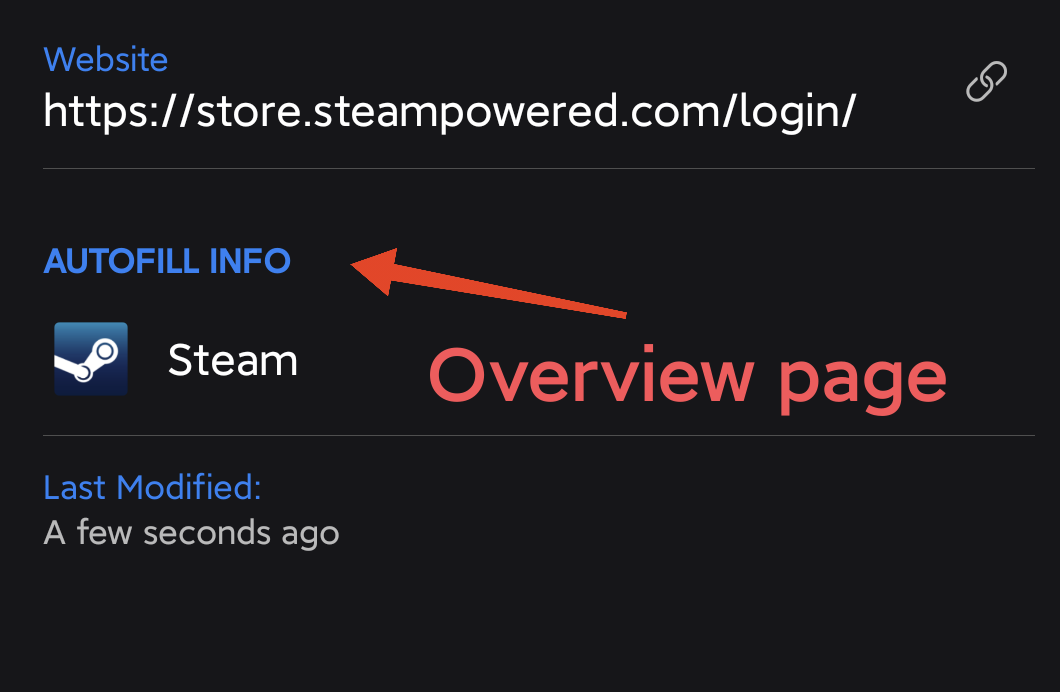
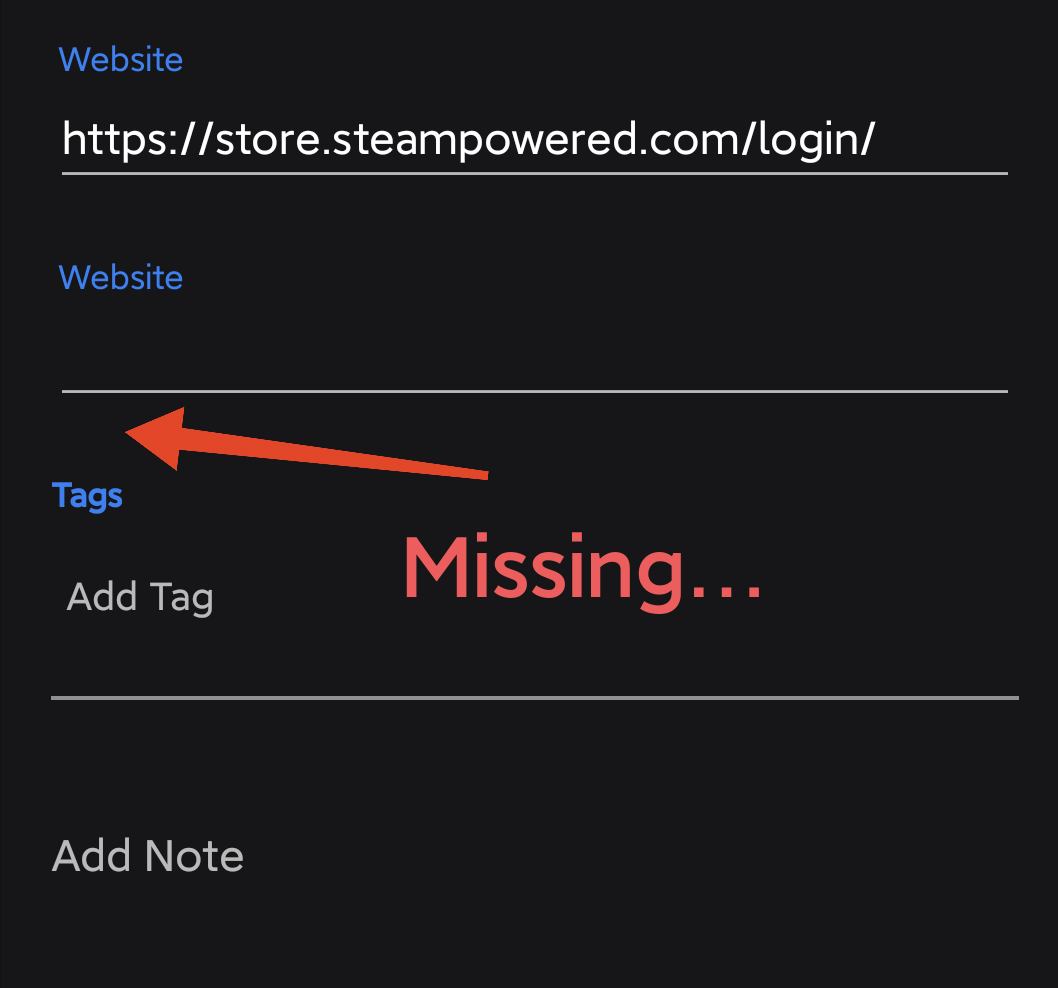
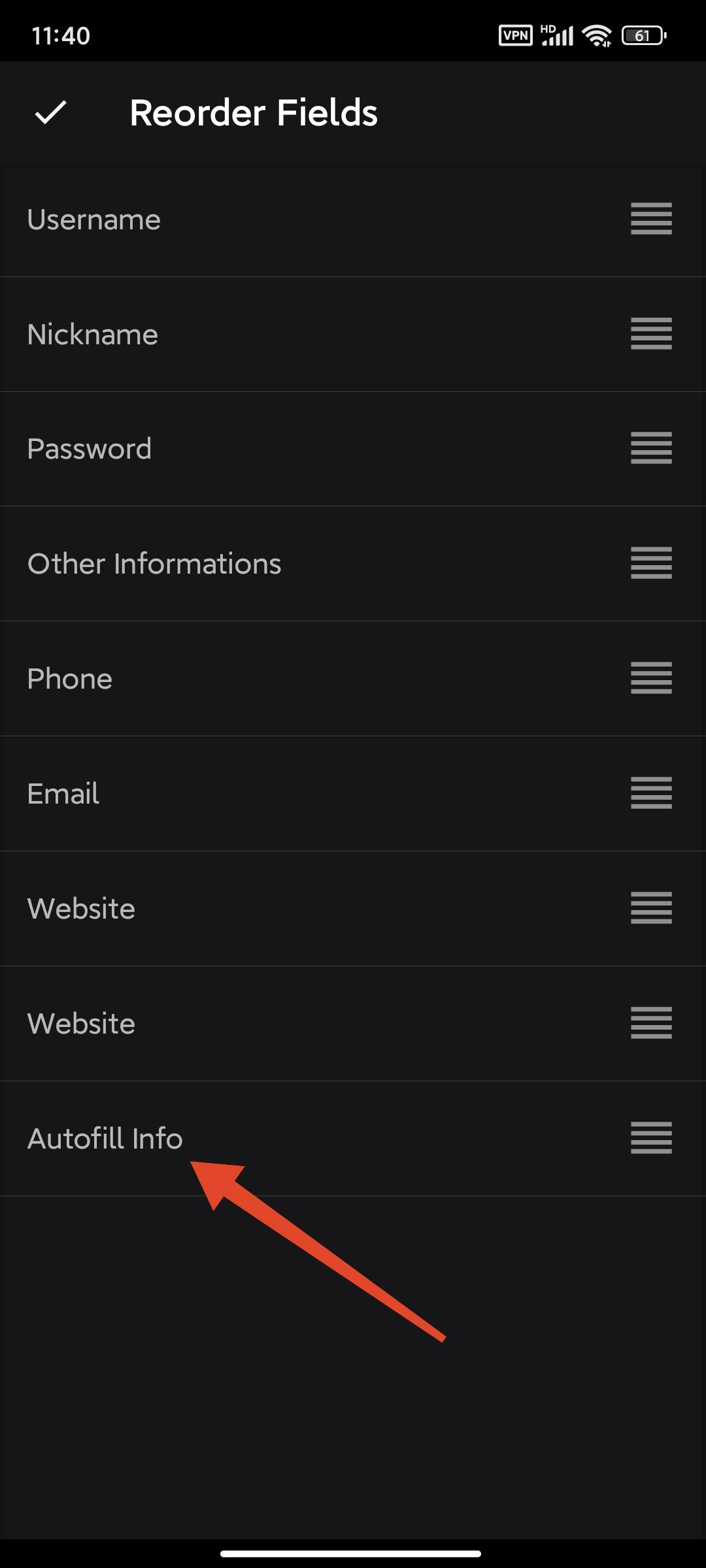
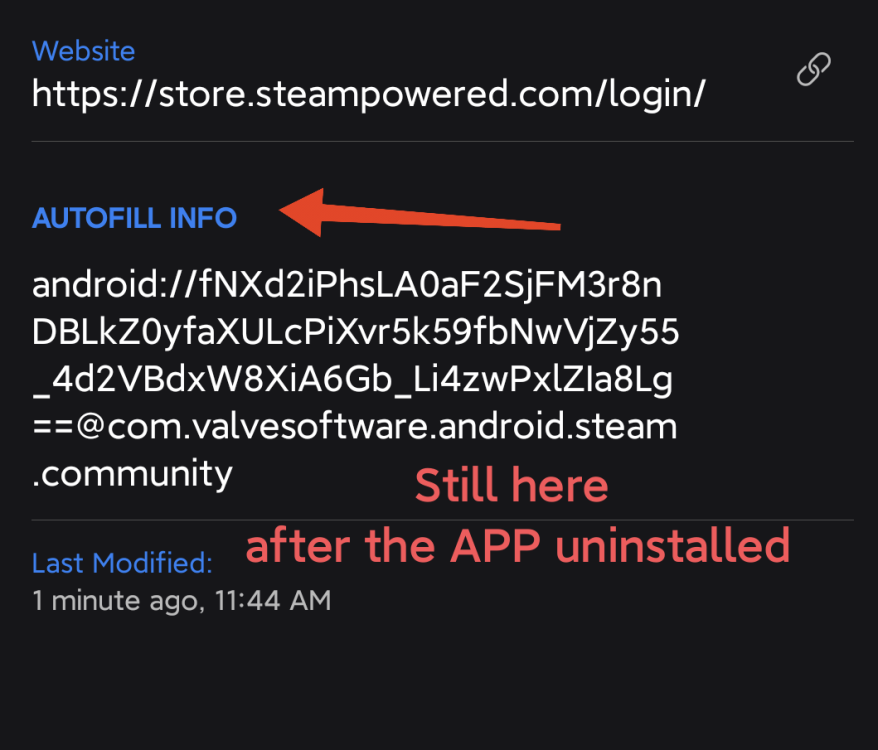
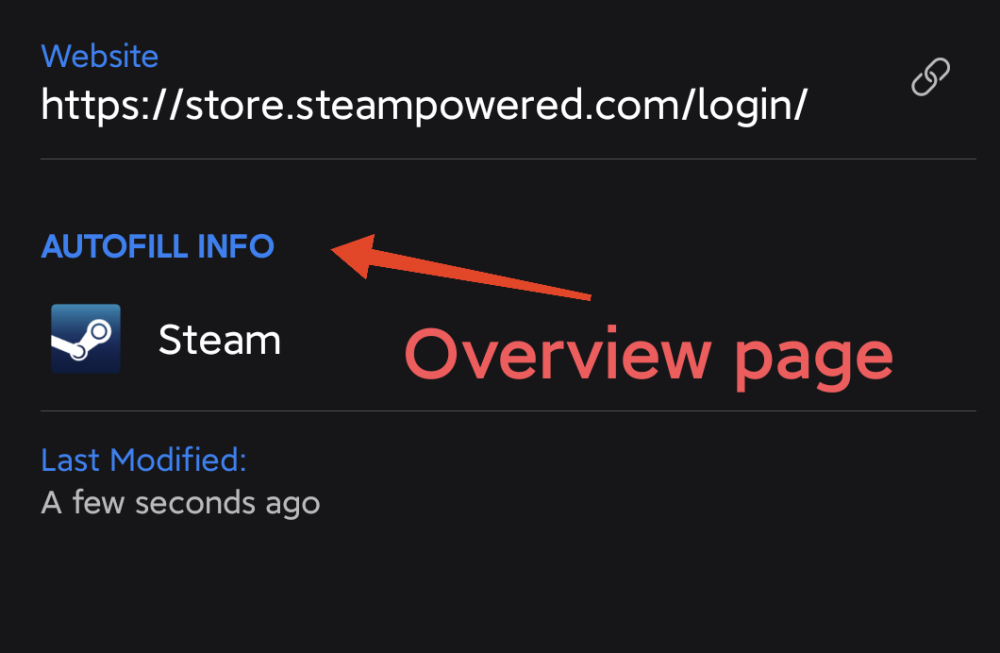
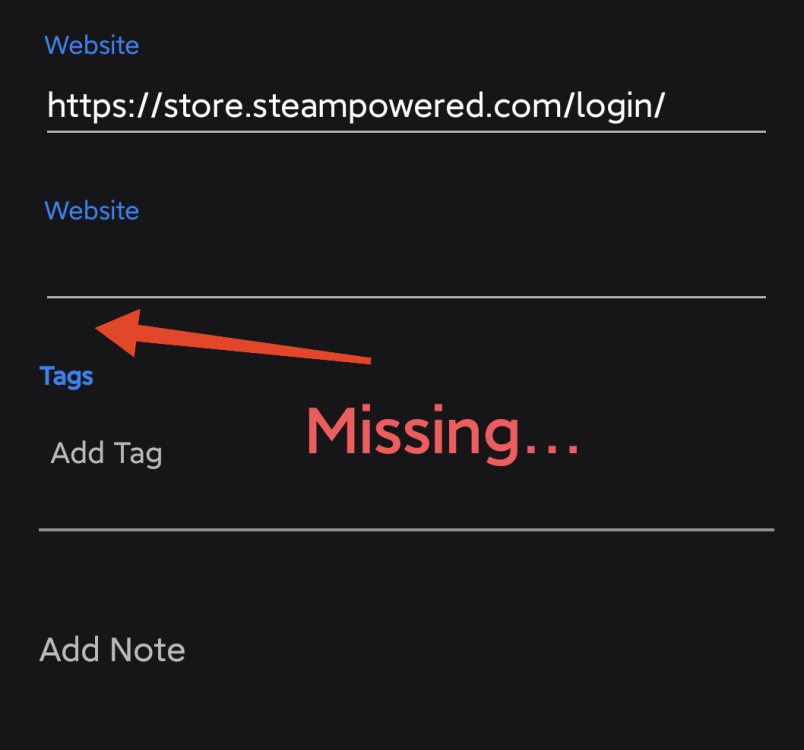
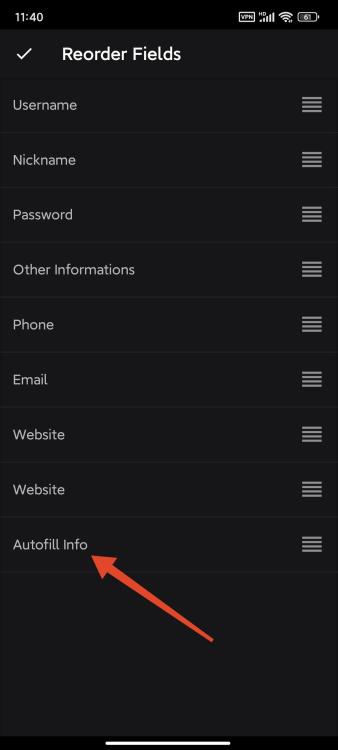
APP Version: io.enpass.app 6.11.0.1000 (1000) OS Version: MIUI V14.0.27.0.TMRCNXM Android13 When a password item linked to an application, there will be an AUTOFILL INFO field with the application icon at the bottom. The field is visible in the overview page and the reorder fields page. Even in the old version of Enpass, it was displayed in the edit page, too. You can easily unlinked it by manually deleting the content in the field. But now the field is hidden from the edit page, unless you create a new item and copy the original information, there is no way to unlink the application info from current item.
-
Anyone help?
-
I accidentally linked a password item to the wrong Android app and now I can't seem to change the association. Is there a way to correct this? I remember in older versions, there was a field called "Autofill info" that could be cleared to remove the association. However, I can't find this field ever more in the latest Android or Windows versions