ExD
-
Posts
4 -
Joined
-
Last visited
ExD's Achievements




-
Hi @Abhishek Dewan Oops, my bad. Thanks
-
Hi Team, Why is password history shown differently in different places? Password Generator history: It's shown in descending order. Field history: it's shown in ascending order. Please resolve this discrepancy. Thanks. cheers ExD
-
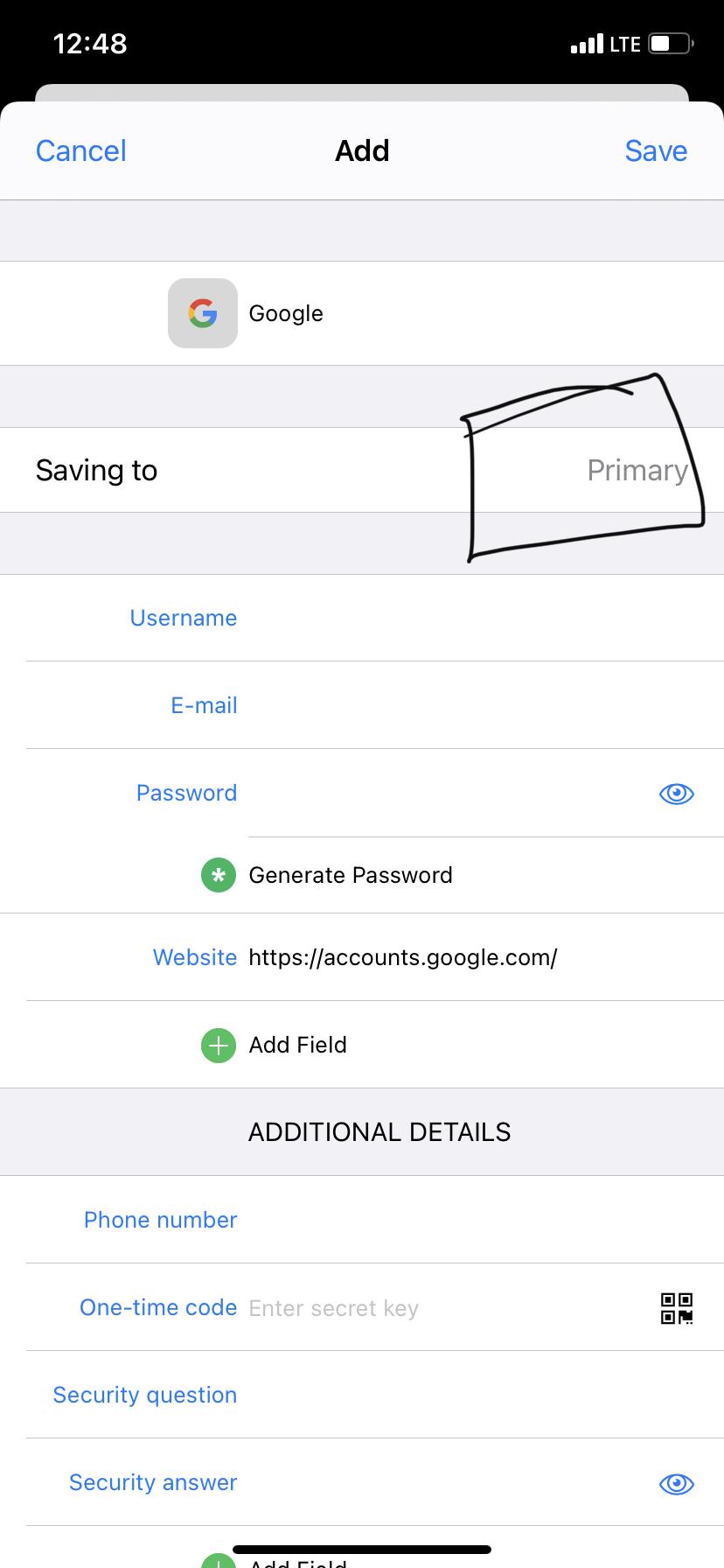
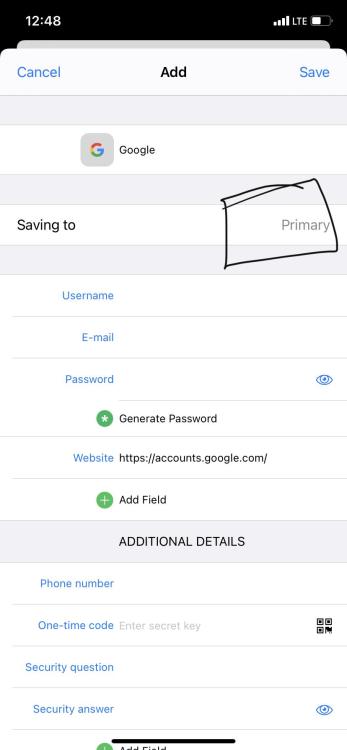
Hi Team, There are multiple vaults in my database. While adding new items, they are always saving to my Primary vault (the vault I selected in Enpass settings). There is no way to change this. It is really annoying.
-
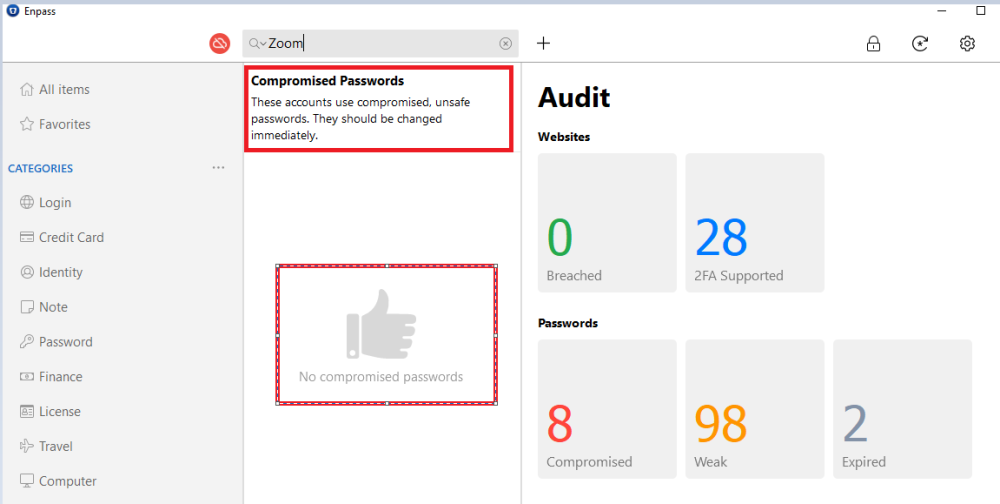
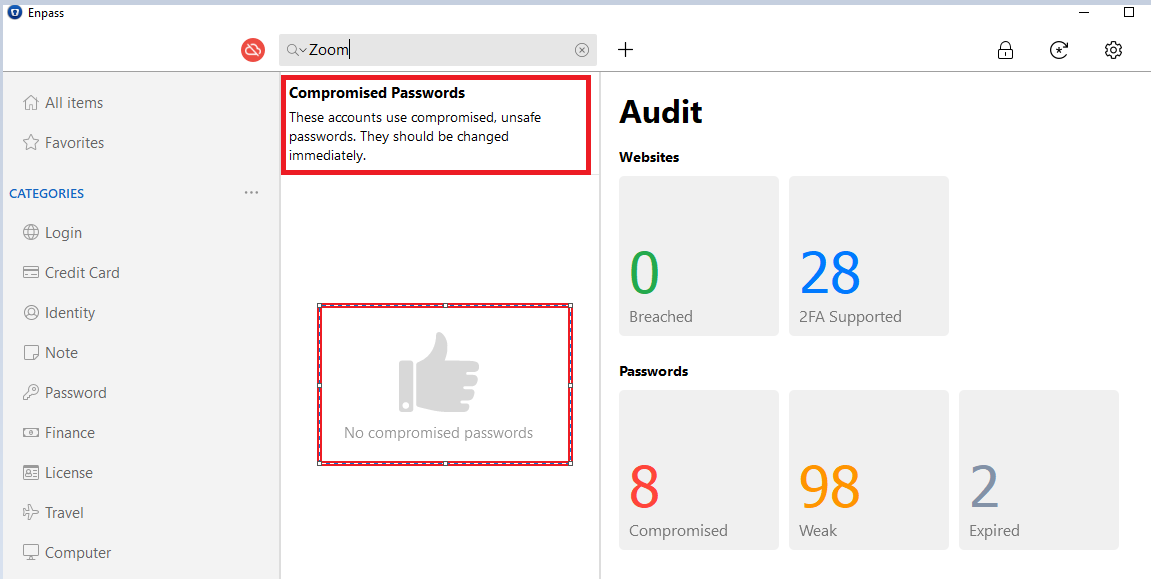
Hi Team, I would like to thank you for the Automatic Check for Compromised Passwords. Adding or updating an item without manually checking saves time and headaches. Kudos to the team - Keep up the great work!!! When searching for an item in the Compromised list, if the item is not found then there is a header message that says 'Compromised Passwords', but a thumbs up below the screen makes no sense. I would appreciate it if you could check and refine the UI/functionality. Cheers! ExD