vlad
-
Posts
1 -
Joined
-
Last visited
vlad's Achievements

Newbie (1/14)
0
Reputation
-
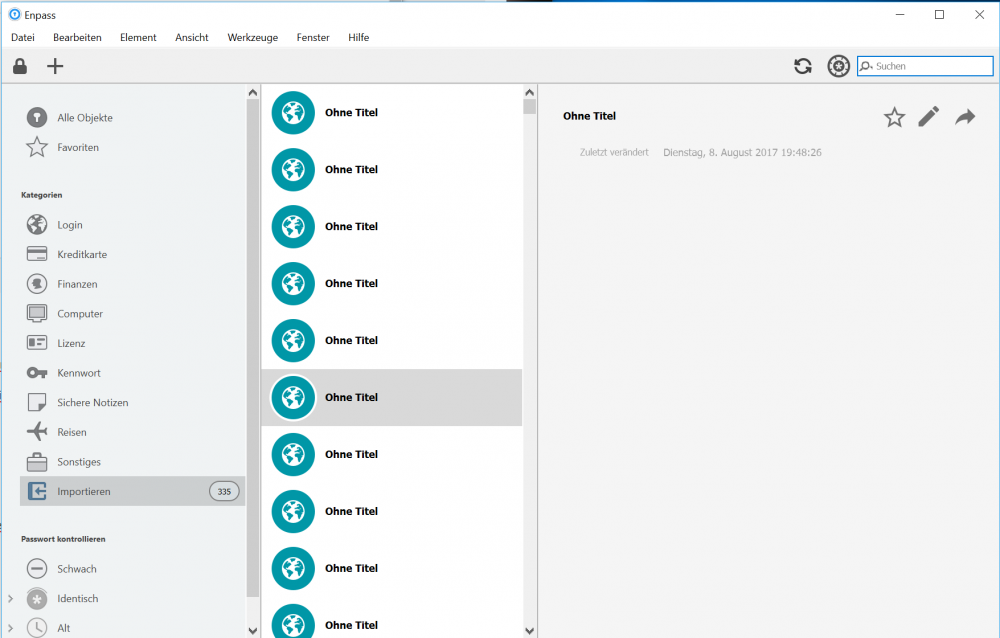
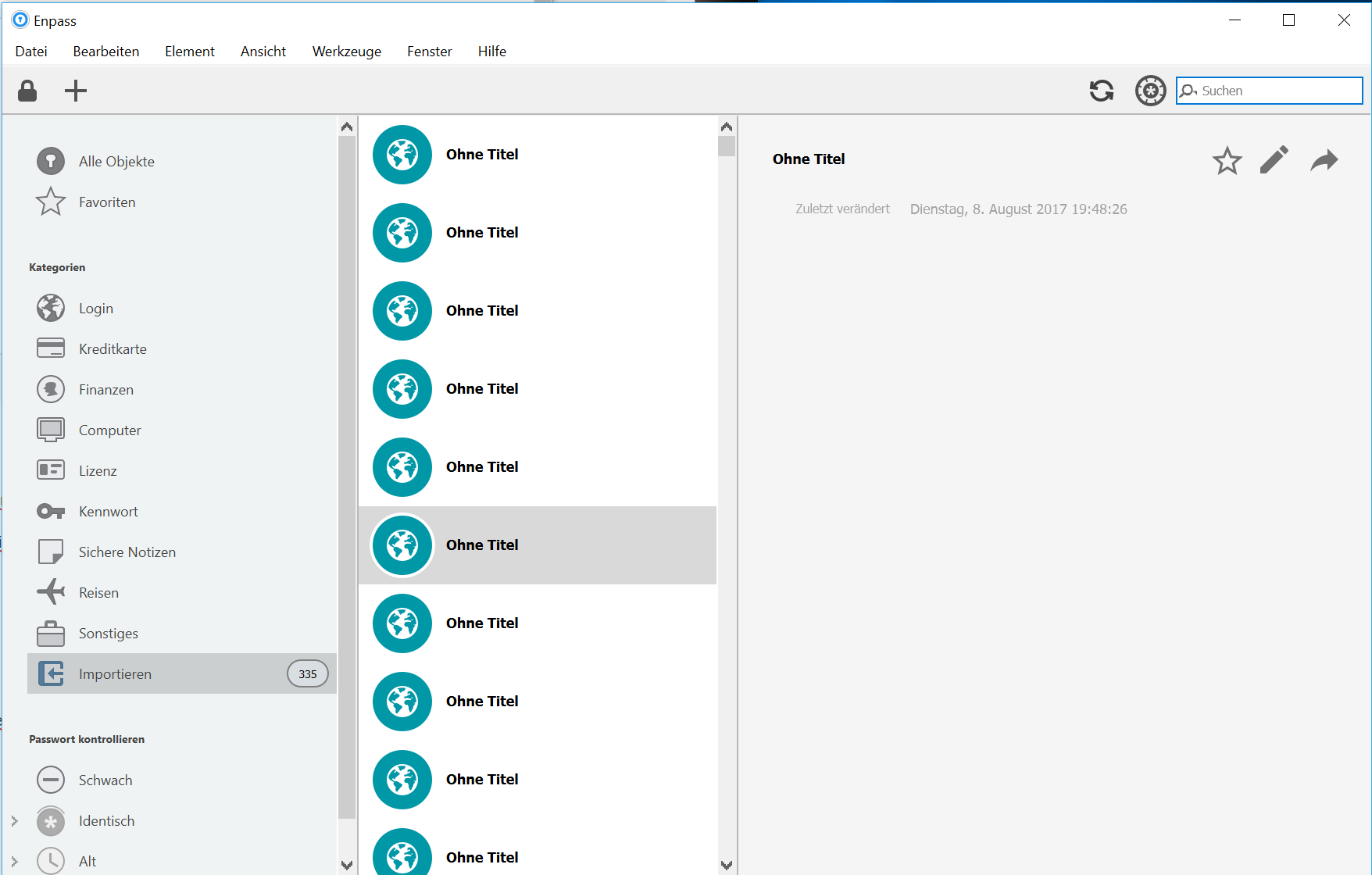
Switching from 1Password to Enpass Hi, currently I am using 1Password. I originally started using 1Password on Mac, but now switched to Windows 10 for a while. The Mac App of 1Password is gorgeous, but the Windows App is terrible. Especially since AgileBites does not develop the v4 app further and put its efforts only to the v6-cloud-only app. That's why I am looking around for other password managers and I would love to try it out. The licencing made this easy, so I installed the Windows application of Enpass. But now I came up with a problem during the import process. I've exported all 1Password items to a 1pif file. I am using the import assistant of Enpass. The first problem is, that 1Password says it has exported 445 items, but Enpass can only import 335. Where are the remaining 110 items? The second problem is, that all imported items are empty. All items have no title and contains nothing. I do have also some attachments stored in 1Password, which are also exported (in a separate folder). Is it possible to automatically import the attachments to Enpass? I've attached a screenshot of Enpass, showing the imported items. Sorry the app is in German - trust me :-) It's saying "No Title". Thanks for your help, vlad Off topic question: I love using Windows Hello (with my Logitech Brio web cam) to unlock my PC. Are there any plans to support Windows Hello (Face recognition) to unlock the Enpass vault?