magicmonty
-
Posts
6 -
Joined
-
Last visited
Everything posted by magicmonty
-
Sync with WebDAV (NextCloud) fails with error code 908503
magicmonty replied to magicmonty's topic in Android
On my side all is working perfectly since the last some betas. -
@Vikram Dabas Thanks for the fast answer. This time it worked for me.
-
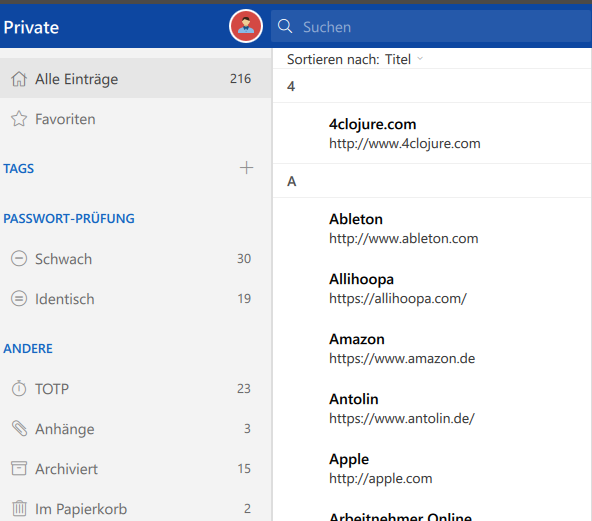
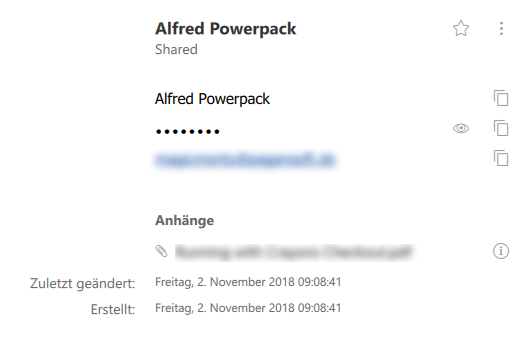
After restoring from a Backup: There are no categories at all No entry has an Icon anymore, FavIcon doesn't work In most entries the Field names are missing
-
Can it be, that this is not a setup but only an EXE file? Am I supposed to replace the exe within my old Beta-Install?
-
Sync with WebDAV (NextCloud) fails with error code 908503
magicmonty replied to magicmonty's topic in Android
Android Device: Motorola Z Play Android Version: 8.0.0 with Security Patch from June 2018, Kernel 3.18.71 Enpass Version: 6.0.0.58 -
Hi, I'm currently testing the Enpass 6 beta out on Linux and Android. Linux works fine so far but Syncing via WebDAV on Android fails with the error message "Something went wrong while syncing via WebDAV. Error code: 908503". I tried a lot of things but nothing worked: Creating a fresh vault and syncing it to a new folder It creates the correct folder structure on the cloud but no "vault.enpassdbsync" Creating a fresh vault and syncing it to an existing vault Restore works but subsequent syncs fail here Cleaning all data on device and reinstalling Same error Detaching from sync and reattaching Reattaching works but then the same error comes on sync I use NextCloud for WebDav with "https://<url hidden intentionally>/remote.php/webdav/" as URL and neither checking "Bypass SSL certification" or not checking it makes a difference. Hope this helps