makzono
-
Posts
4 -
Joined
-
Last visited
makzono's Achievements

Newbie (1/14)
1
Reputation
-
Title Bar blocks content & blurry font [Enpass 6.0 - Win 10]
makzono replied to makzono's topic in Windows PC
Hi @Vinod Kumar, just updated the drivers and everything is working fine now. Thanks for your help! -
Title Bar blocks content & blurry font [Enpass 6.0 - Win 10]
makzono replied to makzono's topic in Windows PC
Hi @Vinod Kumar, just tested it with different values but it has no effect at all. -
Title Bar blocks content & blurry font [Enpass 6.0 - Win 10]
makzono replied to makzono's topic in Windows PC
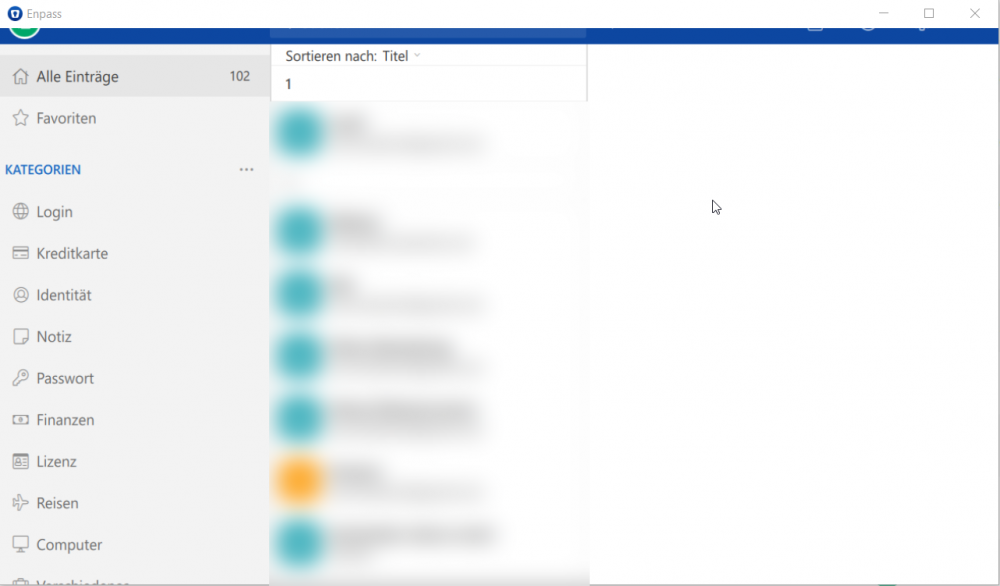
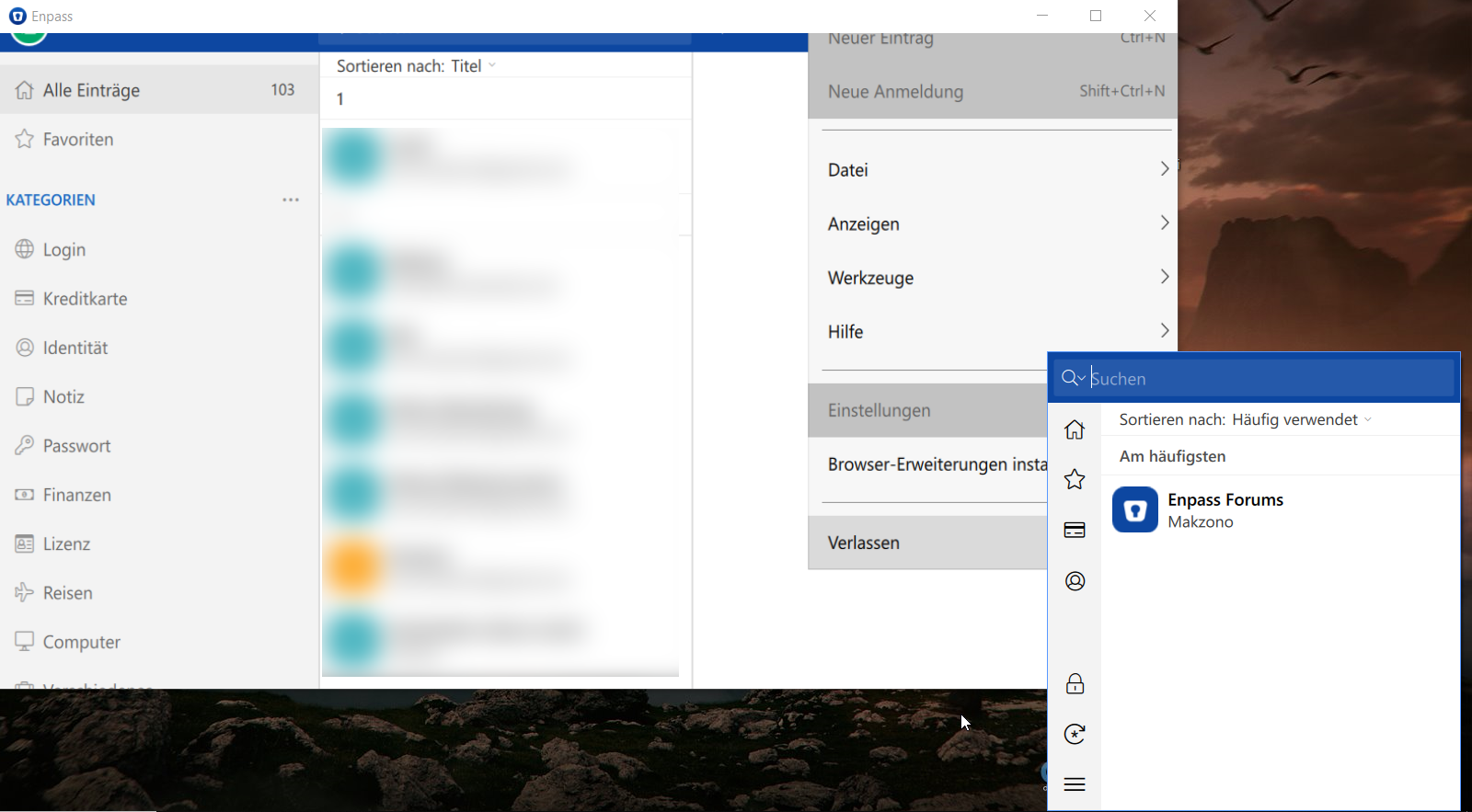
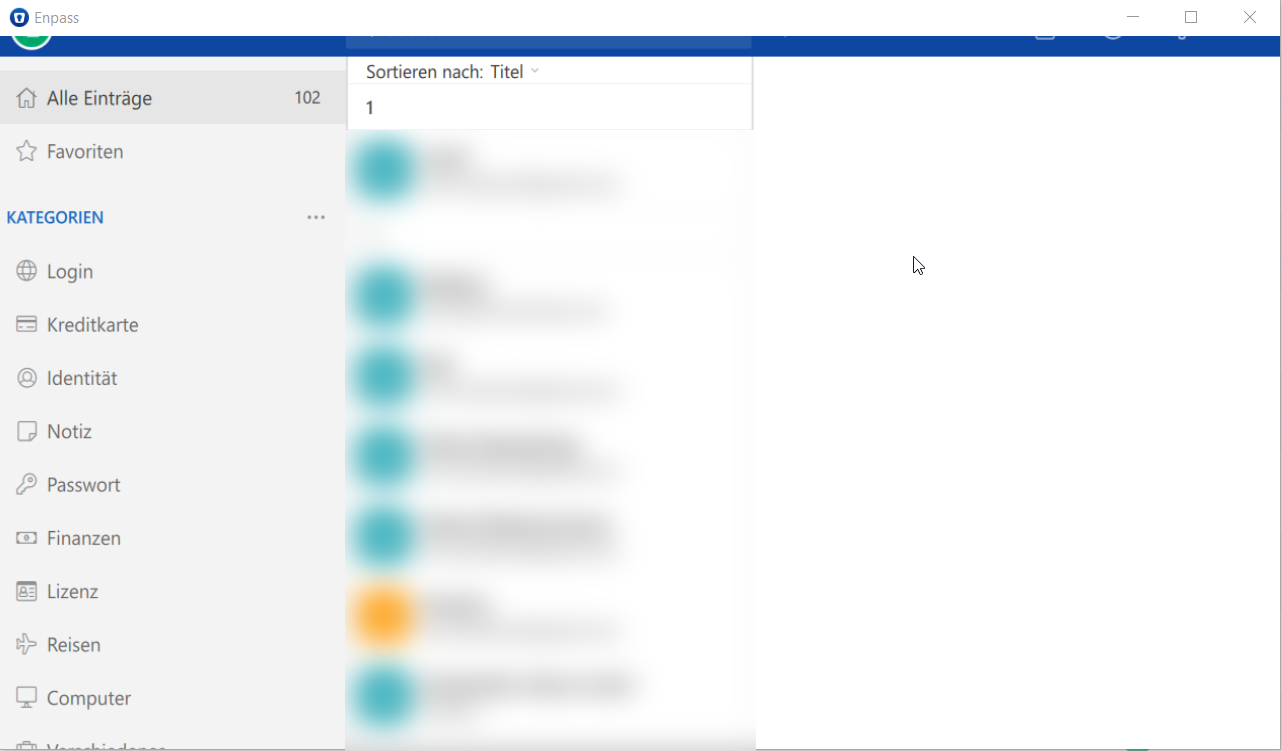
Hey @Sunil Kumar Thanks for the tip, but unfortunately the problem still persists. It fixed the small window that opens when you right click the system tray icon. But the main window still is blurry and also the title bar is still covering the top of the program. I tried changing the variable as you suggested aswell but it had no impact on either of the windows.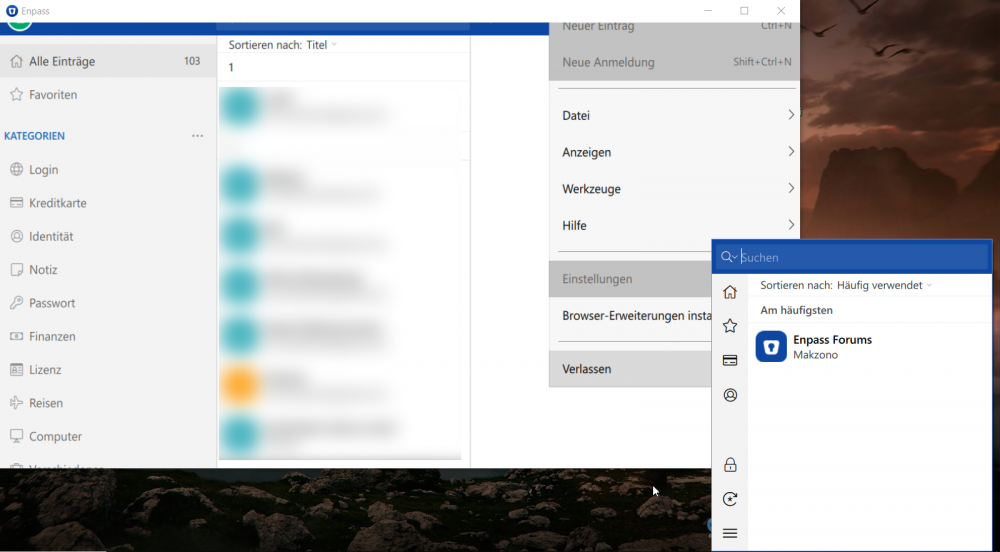
-
Hey there, i have just updated enpass to version 6.0 and now the title bar of the programm blocks the content of enpass (see attached picture). So its almost impossible to use the search or any other feature that's in the top bar. Also the font is now a little bit blurry (scaling issue?) and i have to click a bit below a button to actually click it. Anyone else got that problem or knows a workaround? My device is a HP spectre x360 (2016 model) with a 13" 1920x1080 Display. Greetings Luca