Jump to content
View in the app

A better way to browse. Learn more.

Enpass Discussion Forum

A full-screen app on your home screen with push notifications, badges and more.

To install this app on iOS and iPadOS
  1. Tap the Share icon in Safari
  2. Scroll the menu and tap Add to Home Screen.
  3. Tap Add in the top-right corner.
To install this app on Android
  1. Tap the 3-dot menu (⋮) in the top-right corner of the browser.
  2. Tap Add to Home screen or Install app.
  3. Confirm by tapping Install.
  • Search By Tags

    Search will match any tag entered
  • Search By Author

Content Type

Forums

  • General discussion
    • Hot topics
    • Enpass Support & Troubleshooting
    • Registration and Purchases
    • Autofilling and Desktop Browser Extensions
    • Data Security
    • Announcements
  • Help us improve Enpass
    • Feature requests
    • Enpass Beta
    • Localization
  • General discussion

Find results in

Find results that contain...

Date Created

  • Start

    End

Last Updated

  • Start

    End


Filter by number of...

  • Minimum number of replies

  • Minimum number of views

Found 2 results

  1. Hello, I added a longer note (instructions how to register an applications) to a password entry. After syncing my vault with Android I am only able to see a part of the note in Android. There are also no scroll bars that allow me to scroll down the note. Best regards OLLI
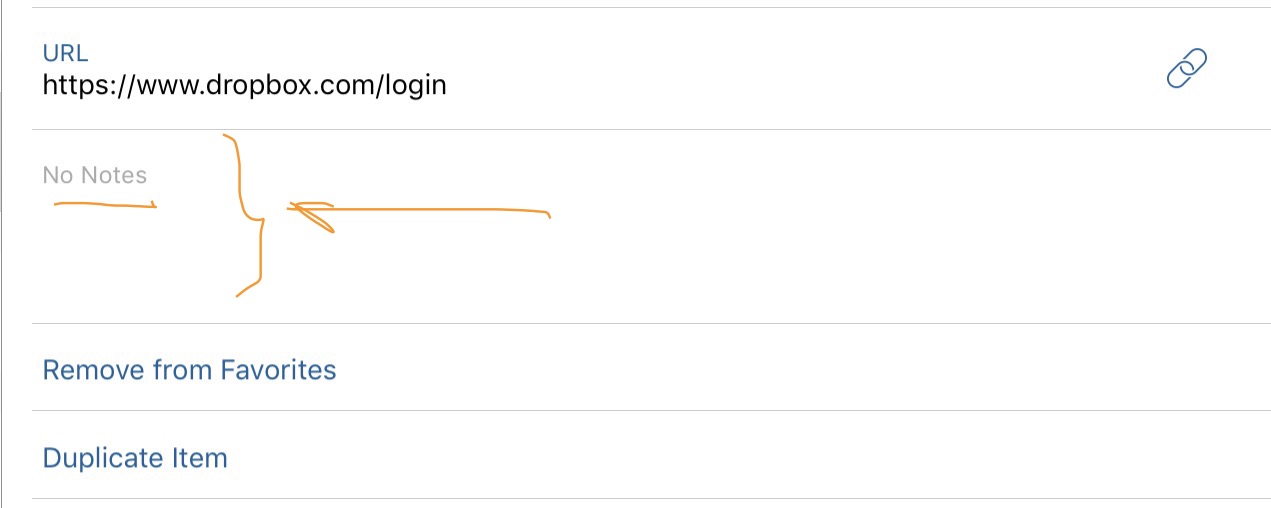
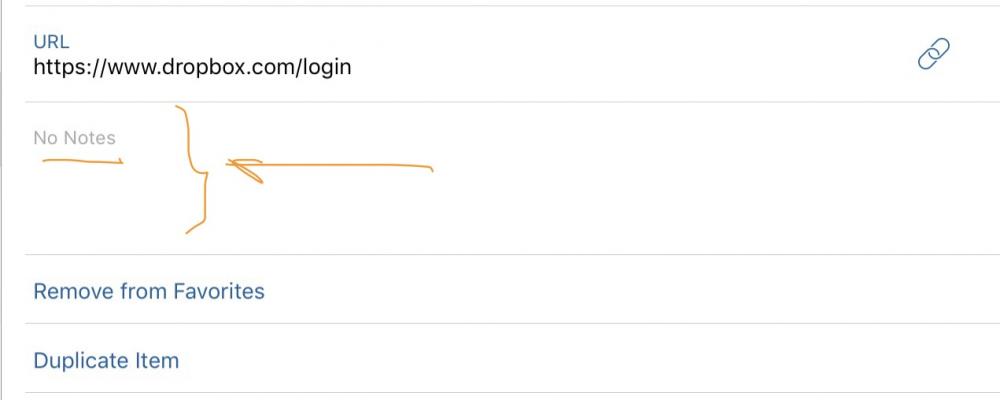
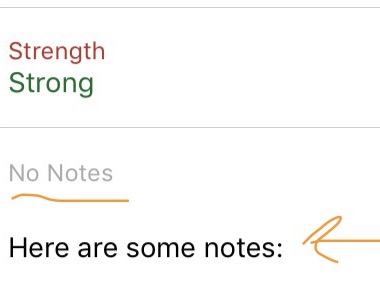
  2. Hello On each and every detailed display of contents (the right side panel), there is a 'No notes' field, which takes up a lot of space. Most passwords do not require notes, so that entire field is just adding more clutter and takin more space. It could just be hidden / not displayed att all, unless there is a note and then then note would be displayed. Cleaner UI. Thanks After a few more tests, I realized that the title 'No notes' is always present, even when there are notes, this would need to be addressed:
Configure browser push notifications

Chrome (Android)
  1. Tap the lock icon next to the address bar.
  2. Tap Permissions → Notifications.
  3. Adjust your preference.
Chrome (Desktop)
  1. Click the padlock icon in the address bar.
  2. Select Site settings.
  3. Find Notifications and adjust your preference.