Skip to content
View in the app

A better way to browse. Learn more.

Enpass Discussion Forum

A full-screen app on your home screen with push notifications, badges and more.

To install this app on iOS and iPadOS
  1. Tap the Share icon in Safari
  2. Scroll the menu and tap Add to Home Screen.
  3. Tap Add in the top-right corner.
To install this app on Android
  1. Tap the 3-dot menu (⋮) in the top-right corner of the browser.
  2. Tap Add to Home screen or Install app.
  3. Confirm by tapping Install.
  • Search By Tags

    Search will match any tag entered
  • Search By Author

Content Type

Forums

  • General discussion
    • Hot topics
    • Enpass Support & Troubleshooting
    • Registration and Purchases
    • Autofilling and Desktop Browser Extensions
    • Data Security
    • Announcements
  • Help us improve Enpass
    • Feature requests
    • Enpass Beta
    • Localization
  • General discussion

Find results in

Find results that contain...

Date Created

  • Start

    End

Last Updated

  • Start

    End


Filter by number of...

  • Minimum number of replies

  • Minimum number of views

Found 1 result

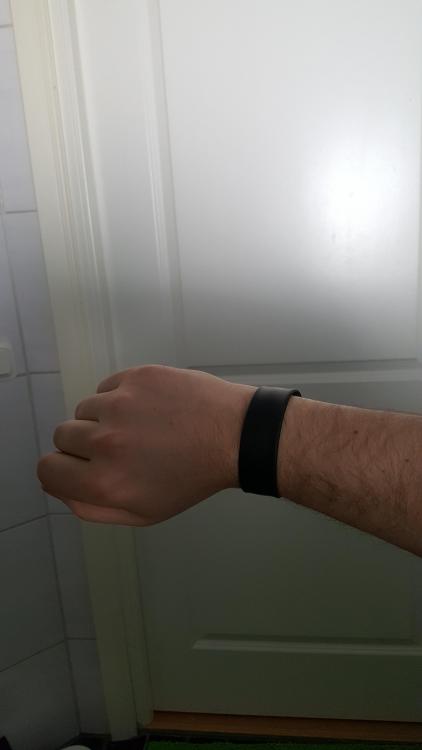
  1. Just wanted to get a hint on how everybody else is using Enpass and at the same time show my setup. I use an USB-wristband for portability. I've got one layer of bitlocker using aes128 autounlock with tpm) and within that the walletx with its own aes256. Instead of the Enpass Portable I've got Enpass desktop installed on my three PCs pointing to an USB drive. That way I split up meta settings for Enpass in the registry and vault on a removable drive. Also when frequently synchronizing, the performance is better when executables that aren't secret reside on a local drive. I use cloud sync, so local backup isn't necessary. I only mount the USB stick and vault when required, and never run Enpass in the background. Critical secrets like Google or Microsoft are not stored in the vault, only their TOTP.
Account

Navigation

Search

Search

Configure browser push notifications

Chrome (Android)
  1. Tap the lock icon next to the address bar.
  2. Tap Permissions → Notifications.
  3. Adjust your preference.
Chrome (Desktop)
  1. Click the padlock icon in the address bar.
  2. Select Site settings.
  3. Find Notifications and adjust your preference.