Skip to content
View in the app

A better way to browse. Learn more.

Enpass Discussion Forum

A full-screen app on your home screen with push notifications, badges and more.

To install this app on iOS and iPadOS
  1. Tap the Share icon in Safari
  2. Scroll the menu and tap Add to Home Screen.
  3. Tap Add in the top-right corner.
To install this app on Android
  1. Tap the 3-dot menu (⋮) in the top-right corner of the browser.
  2. Tap Add to Home screen or Install app.
  3. Confirm by tapping Install.
  • Search By Tags

    Search will match any tag entered
  • Search By Author

Content Type

Forums

  • General discussion
    • Hot topics
    • Enpass Support & Troubleshooting
    • Registration and Purchases
    • Autofilling and Desktop Browser Extensions
    • Data Security
    • Announcements
  • Help us improve Enpass
    • Feature requests
    • Enpass Beta
    • Localization
  • General discussion

Find results in

Find results that contain...

Date Created

  • Start

    End

Last Updated

  • Start

    End


Filter by number of...

  • Minimum number of replies

  • Minimum number of views

Found 1 result

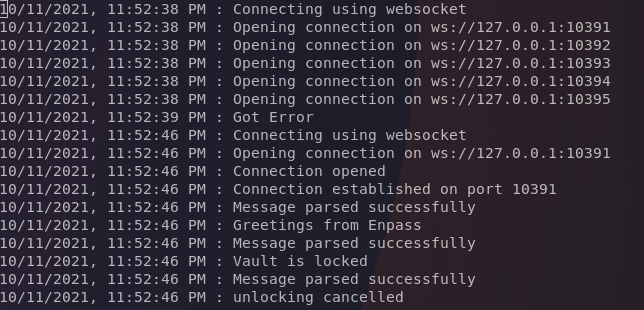
  1. I'm on enpass 6.7.2, and when I kill all enpass processes and then launch it by clicking the enpass icon on a site, it takes 8 seconds to find and launch the app completely ? I'm on a relatively new endeavour os install using i3 on xorg. I've been having this issue for quite some time, on windows it takes far less time. I have an intel 10th gen i7 and 16gb of ram, both were well under 10% when trying this. disk is an ssd at 24% capacity. When launching enpass myself and then clicking the extension it's around 300ms + the time it takes me to type 'enpass' launch the app I'd love to see this improved to under 3s These are my browser extension logs (see attach) I think it might be trying too quickly and gets stuck ?
Account

Navigation

Search

Search

Configure browser push notifications

Chrome (Android)
  1. Tap the lock icon next to the address bar.
  2. Tap Permissions → Notifications.
  3. Adjust your preference.
Chrome (Desktop)
  1. Click the padlock icon in the address bar.
  2. Select Site settings.
  3. Find Notifications and adjust your preference.