

Skip to content
View in the app

A better way to browse. Learn more.

Enpass Discussion Forum

A full-screen app on your home screen with push notifications, badges and more.

To install this app on iOS and iPadOS
  1. Tap the Share icon in Safari
  2. Scroll the menu and tap Add to Home Screen.
  3. Tap Add in the top-right corner.
To install this app on Android
  1. Tap the 3-dot menu (⋮) in the top-right corner of the browser.
  2. Tap Add to Home screen or Install app.
  3. Confirm by tapping Install.

Leaderboard

Popular Content

Showing content with the highest reputation on 05/18/23 in all areas

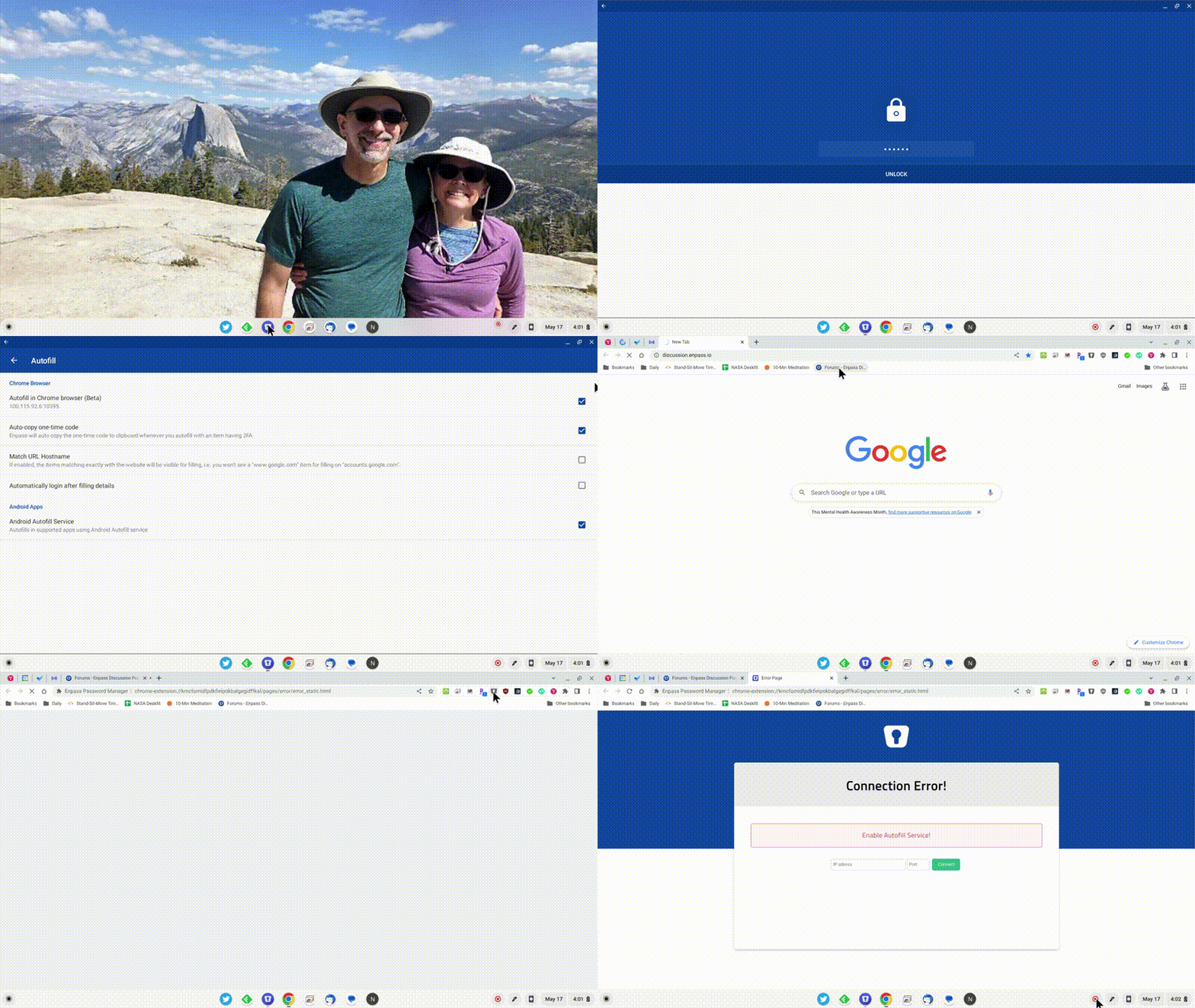
  1. Hi Abhishek, I will do better than telling you what happens, I will show you as well. Attached is a screen capture showing: A freshly booted chromebook I click on Enpass to start the application & enter my password I show you the settings > autofill configuration to verify that autofill is enabled I start Chrome I go to discussion.enpass.io I click the "Existing user? Sign in" link The "Sign In" dialog appears I click the Enpass icon A new tab in Chrome opens saying that Enpass is "Looking for Enpass App..." Which then changes to the "Connection Error!" message
  2. Okay, just sorted it. Thanks for your help

Account

Navigation

Search

Search

Configure browser push notifications

Chrome (Android)
  1. Tap the lock icon next to the address bar.
  2. Tap Permissions → Notifications.
  3. Adjust your preference.
Chrome (Desktop)
  1. Click the padlock icon in the address bar.
  2. Select Site settings.
  3. Find Notifications and adjust your preference.